

Getting Started with eLearn
Accessing Your Learning Content
Find the courses, assessments, learning paths, and libraries assigned to you from My Dashboard and the LEARN section of the sidebar.
Your district decides which content you can open. Everything assigned to you is reachable from two places: the tabs on My Dashboard, and the links under LEARN in the sidebar. This article shows where each kind of content lives. For what happens after you open a course, see Taking Courses.
From My Dashboard
Section titled “From My Dashboard”Open My Dashboard from the sidebar. When eLearn is on, the dashboard shows one tab per kind of content you have, with a count on each tab. Click a tab to jump to its section.
| Tab | What it holds | Clicking a card |
|---|---|---|
| Required Content | Required content that is still open to you (the tab appears once an observer has required a course for you from an observation) | Opens the course in the player, or opens the library or learning path |
| Continue Content | Courses and assessments you started and have not finished | Opens the player where you left off |
| Content Libraries | Libraries your district licenses for you | Opens the library page |
| Learning Paths | Learning paths assigned to you | Opens the learning path page |
| Individual Content | Every course and assessment assigned to you, in name order | Opens the course in the player |
Cards on Continue Content and Individual Content show a progress ring over the thumbnail and a “started … ago” note once you have begun. Library and learning path cards show how many items the package contains.
From the LEARN section of the sidebar
Section titled “From the LEARN section of the sidebar”The links under LEARN open full-page lists:
- Content Libraries lists your libraries as cards. Click one to see its contents.
- Courses, Assessments, or other content type names your publisher uses each open a page named for that content type, with its list under a heading such as Explore Courses.
- Learning Paths lists your learning paths as cards.
- Videos lists standalone videos under Continue Videos and Explore Videos.
- Resources lists standalone PDF documents.
A link appears only when you have content of that kind.
Finding content on a list page
Section titled “Finding content on a list page”The content type pages, library pages, and learning path pages share one layout: filters on the left, content on the right.
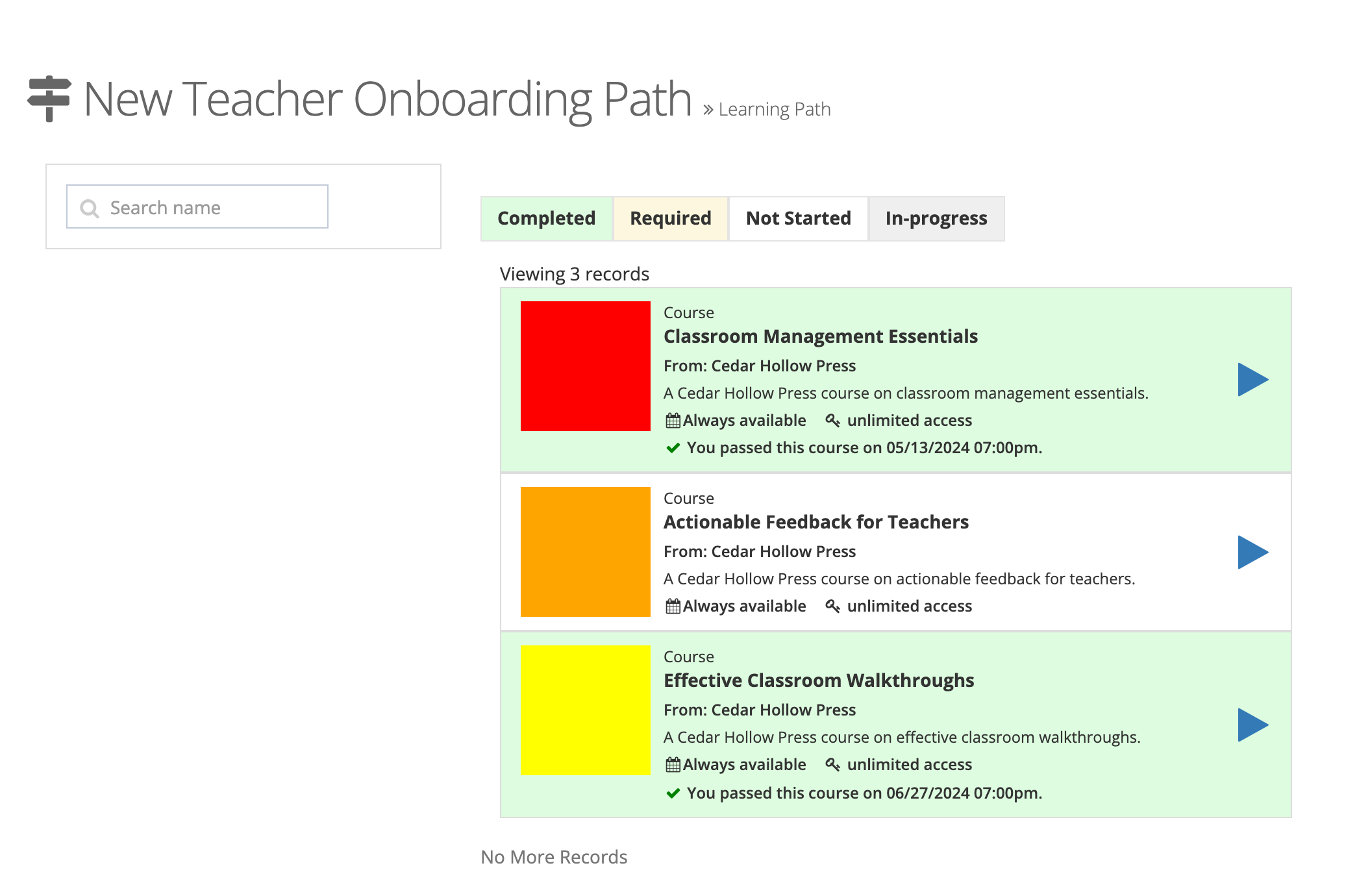
- Type in Search name to match a content name or item number.
- Check a box under Topics (and, on library and learning path pages, Skills or Subjects) to narrow the list. These headings appear only when the content carries those categories.
- Click a status button to show only content in that state: Completed, Required, Not Started, or In-progress. On an Assessments page, Passed and Failed replace Completed.
- Click the play button on a card to open it.
The line above the list (for example “Viewing 3 records”) shows how many items match.
A card with a ban icon and This content is currently not available has no active chapters yet, so there is nothing to open.
Required content
Section titled “Required content”When your district requires a course, its card has a yellow background and a red asterisk with Required, followed by “by” and the due date when your district set one. When an observer requires a course for you from an observation (with Require Course), it also appears on the Required Content tab of My Dashboard. The yellow background and the Required note stay until you complete the course.
Related articles
Section titled “Related articles”- Finding and Accessing Your Courses: what each line on a course card means
- Tracking Your Learning Progress
- Taking Assessments