

Courses
Course Completion and Certificates
What happens when you finish a course, how to open the certificate it issues, and where the completion is recorded.
Finishing a course gives you two records a district can rely on for professional development requirements: a transcript entry and, when the course awards one, a certificate. This article covers both. For how eLearn decides a course is complete, see Tracking Your Learning Progress.
The end of the course
Section titled “The end of the course”When you click Next on the last section, the player shows the end of the course:
- When you complete a course successfully and it is not proctored, a short course feedback survey appears in the main area.
- Otherwise, the player shows End of Course.
Click Close to leave the player. The course card turns green and reads “You passed this course on …” or “You completed this course on …”, and the course leaves your Continue Content tab.
If the course includes exams and your score is below the passing score, the course is recorded as failed and its card turns red. For retakes, see Taking Assessments.
Opening your certificate
Section titled “Opening your certificate”When a course awards a certificate, a Certificate button appears at the bottom of the player once you complete the course. It is there each time you reopen the course.
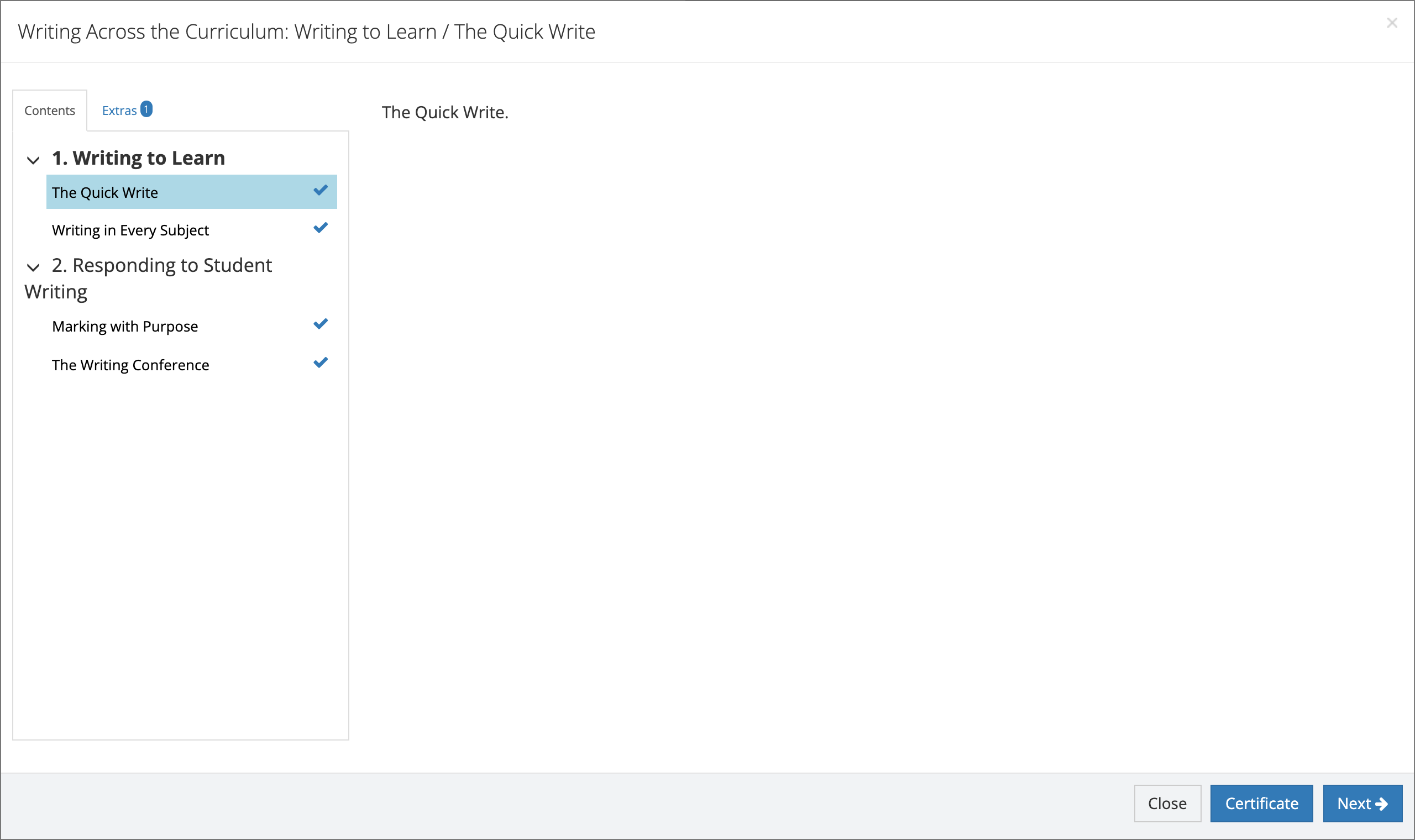
- Open the completed course from the Courses page.
- Click Certificate.
- If more than one certificate applies (for example, one for the course and one for the learning path it completes), click the one you want under Choose a Certificate.
- If the certificate needs details only you can supply, fill in Input Certificate Attributes and click Submit. eLearn uses those details only to build the certificate and does not keep them.
- The certificate opens as a PDF in the player. Click Resume Course to return to the course.
To save or print a certificate, see Downloading Certificates.
What a certificate shows depends on the template the publisher designed. See Where certificates come from.
When there is no Certificate button
Section titled “When there is no Certificate button”- The course does not award a certificate.
- You did not pass the course.
- The course is part of a learning path that issues one certificate for the whole path instead of one per course. Complete the path to get that certificate.
Your transcript entry
Section titled “Your transcript entry”A successful completion adds a card to My Transcripts with the course name, completion date, credits, and score. Click View on the card to open the same certificate later, without reopening the course. Some courses, and courses inside some learning paths, are set up not to create their own transcript entry.
Reviewing a completed course
Section titled “Reviewing a completed course”You can reopen a completed course at any time to review it. It opens at the first section, and every section you completed is a link in the Contents list. Reviewing a course does not add a second entry to My Transcripts.