

eLearn Administration
Managing Staff Transcripts
Find, correct, delete, import, and export the transcript records for staff across your district.
A transcript is the record that a staff member finished a piece of professional learning: the content name, completion date, score, and credits or hours. Teachers use these records when they renew a license or show they met a district PD requirement, so the district office needs one place to find a record, fix a wrong date or score, and bring in records from before eLearn or from outside training. That place is All Transcripts.
Role requirement: system_administrator. Organization administrators cannot open this page.
eLearn creates a transcript when someone completes content. Administrators can add records by hand (Recording PD Hours for Outside Training) or by import (below). All of them appear here.
Find a transcript
Section titled “Find a transcript”Open the gear icon, then System Administration > GENERAL > Transcripts > All Transcripts. The page is titled Transcripts (“view and manage transcripts”).
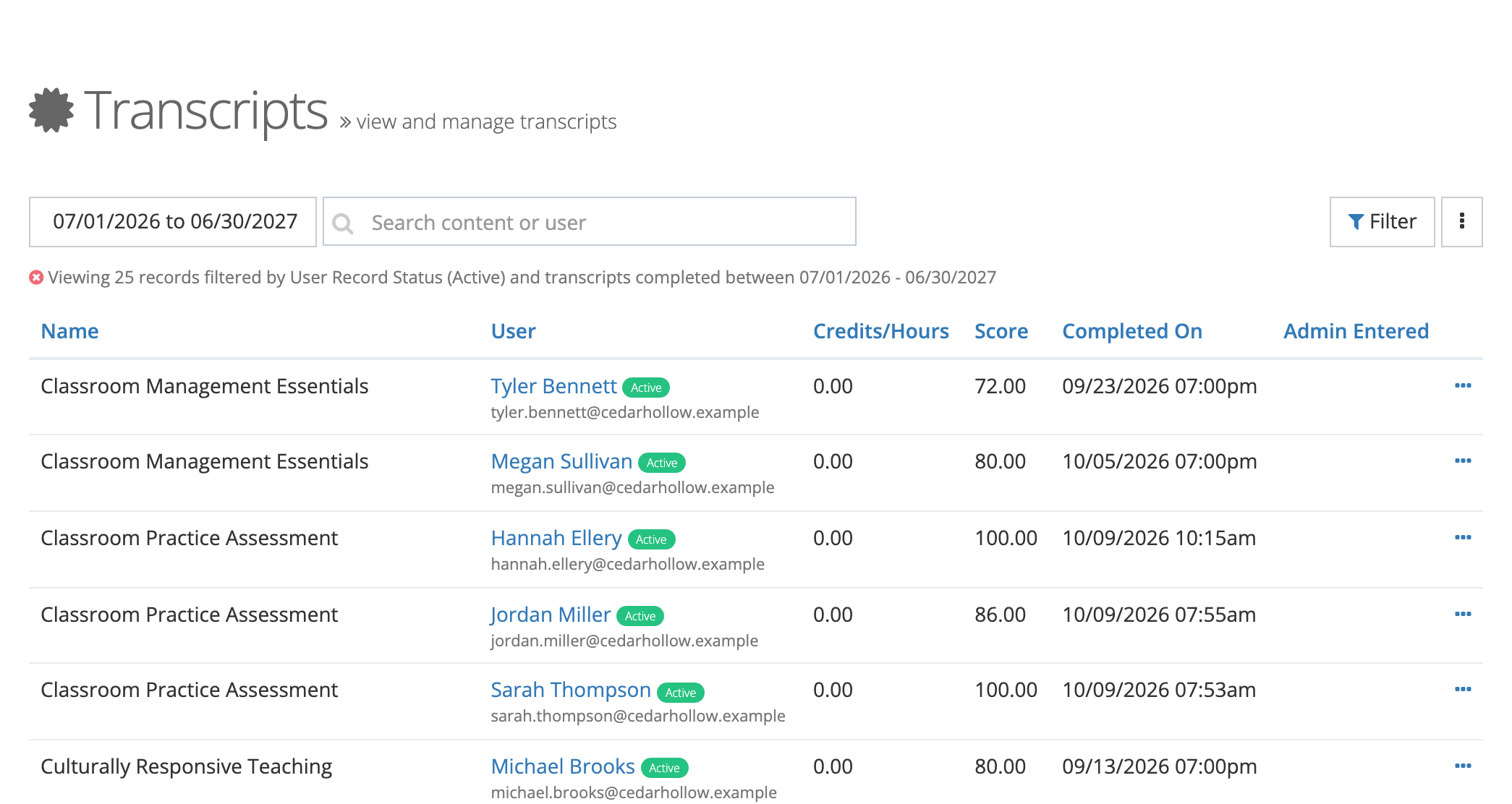
The table shows Name (the content), User (name, record status, and email), Credits/Hours, Score, Completed On, and Admin Entered (Yes for records an administrator entered or imported). Select a column heading to sort. Sorting by Name also uses the eLearn content name, so entered and imported records sort together at one end of the list rather than by their own names.
Narrow the list three ways:
- Date range button: filters by completion date. It starts on the current school year. Choose Last 30 Days, Last 90 Days, This Month, This Quarter, Last Year, This Year, or All Time, or type a Start Date and End Date and select Apply.
- Search content or user: matches the name of the eLearn content a record came from, or the person’s first or last name. Records an administrator entered or imported are not linked to eLearn content, so searching for their name finds nothing, even though the Name column shows one. To find them, search for the person, set Admin Entered to Yes in Filter, or narrow the date range.
- Filter: opens Filter Transcripts with Content, Users, User Record Status, Organizations, and Admin Entered. Select Filter to apply.
The line under the search box lists the filters in effect. User Record Status starts on Active, so records for archived staff are hidden until you add that status. Select the red x at the start of that line to clear the filters.
The more-actions menu
Section titled “The more-actions menu”The three-dot button beside Filter opens the page’s other actions.
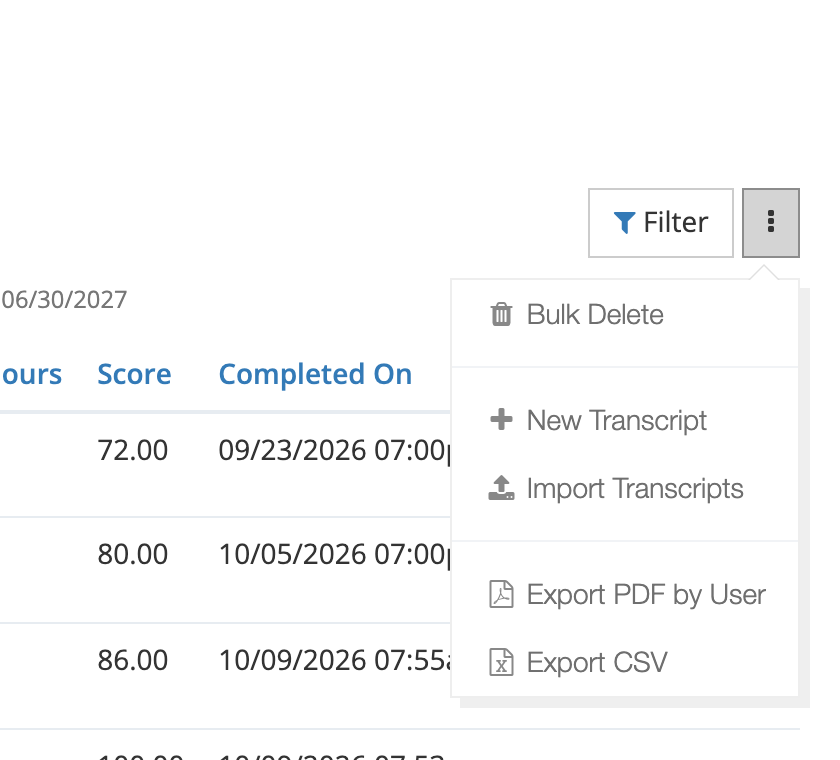
| Action | What it does |
|---|---|
| Bulk Delete | Deletes every transcript in the current filtered list (see below). |
| New Transcript | Opens the form for a hand-entered record. See Recording PD Hours for Outside Training. |
| Import Transcripts | Adds records from a CSV or XLSX file (see below). |
| Export PDF by User | Builds a PDF of the filtered transcripts with one page per person and a total-credits row. Use it when a teacher needs a record of their hours for a recertification application. |
| Export CSV | Exports the filtered transcripts as a spreadsheet. |
The exports respect your date range, search, and filters, and a progress window shows while the file is built.
Correct a transcript
Section titled “Correct a transcript”- Find the record, then select the … menu at the end of its row.
- Select Edit Transcript.
- Change what is wrong, then select Save.
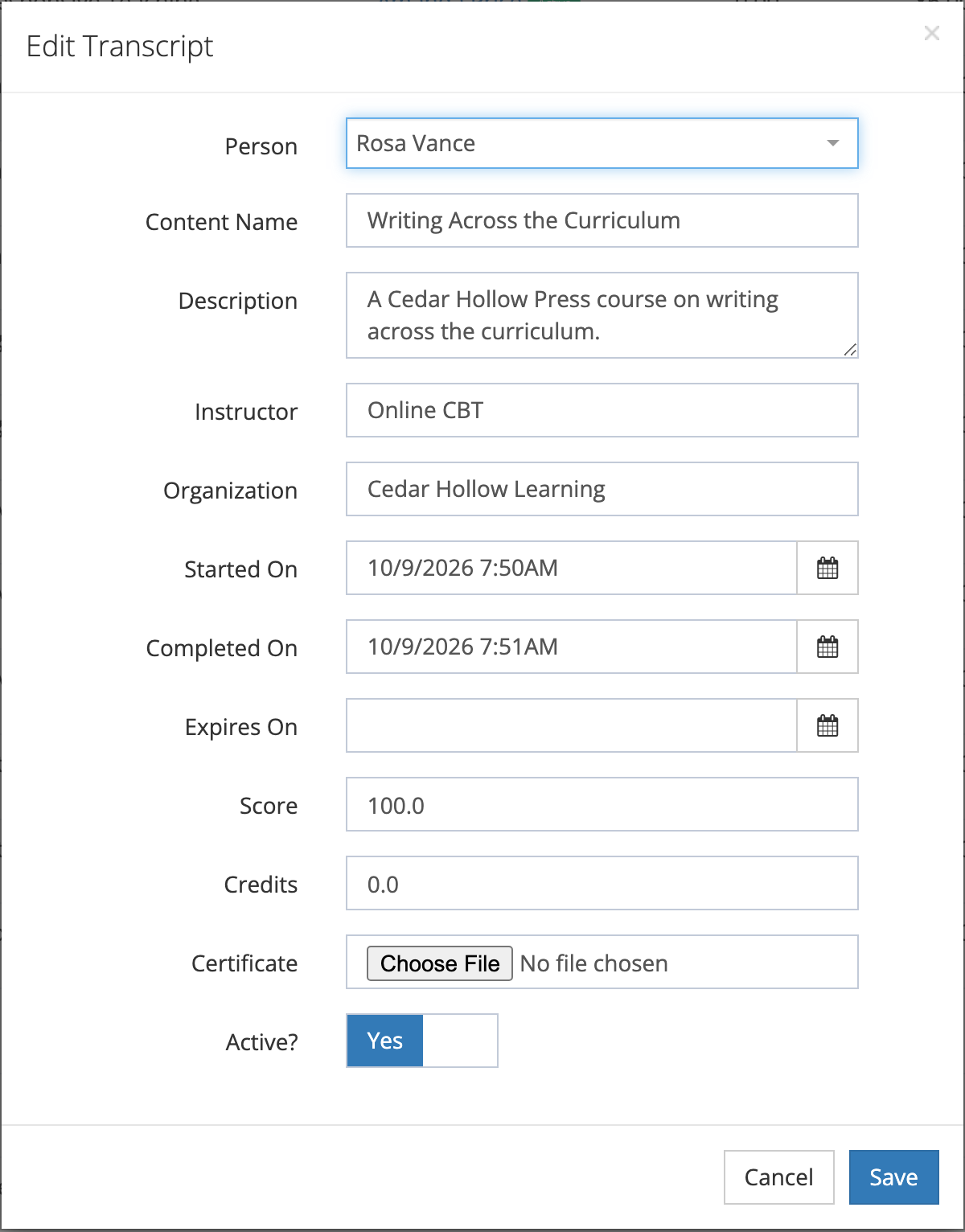
| Field | Notes |
|---|---|
| Person | The staff member the record belongs to. Choosing someone else moves the record to that person. |
| Content Name, Description | The title and description shown on the transcript. |
| Instructor, Organization | Who led the training and the organization that provided it. |
| Started On, Completed On, Expires On | Dates and times, in your district’s time zone. Completed On is the date the date range filter uses. |
| Score | The final score. |
| Credits | The credits or hours, shown in the Credits/Hours column. |
| Certificate | Upload a certificate file to attach to the record. |
| Active? | Whether the record is active. |
The … menu appears only for staff whose user record is active. To change a record for someone who has left the district, restore their user record first.
Delete transcripts
Section titled “Delete transcripts”- One record: … > Delete Transcript, then Yes, Delete Transcript.
- Many records: filter the list down to only the records you want gone, then choose Bulk Delete from the more-actions menu. The window warns that it deletes all transcripts currently filtered in the list and states how many. Select Delete Transcripts to confirm. Deletion runs in the background and may need a page refresh to show.
Check the record count before you confirm. A bulk delete removes every record that matches, including ones off the screen.
Bulk Delete ignores the search box and the user status filter. The count in the window reflects your search, but the deletion does not, so it can remove more records than the count shows. Narrow the list with the date range and the other Filter Transcripts options, clear the search box and the user status filter, and check the count again before you confirm.
Import transcripts from a file
Section titled “Import transcripts from a file”Use an import to bring in records from a previous system, a summer institute, or a university partner, so each teacher’s PD history is in one place.
- From the more-actions menu, choose Import Transcripts.
- Under File Import, use the File Selector to choose a CSV or XLSX file.
- Select Start Import. A progress window reports each row as it is processed.
The File Sample table shows the headers the import expects (“Headers must match for import”):
| Header | What to put in it |
|---|---|
| The staff member’s email. “Email used to uniquely identify a User.” | |
| Name | Title of the transcript. |
| Description | Description of the transcript. |
| Observable User Name | Shown in the sample, but the import does not save this column. Add an instructor afterward with Edit Transcript. |
| Organization Name | The organization that provided the training. |
| Started On, Completed On, Expires On | A date (mm/dd/yyyy, dd/mm/yyyy, mm-dd-yyyy, dd-mm-yyyy, or yyyy-mm-dd) or a time stamp (yyyy-mm-dd hh:mm:ss). |
| Active | true or false. |
| Score | A whole number. |
| Credits | A whole number. |
Because both month-first and day-first dates are accepted, yyyy-mm-dd is the safest format: 03/04/2026 cannot be misread.
Rules the window states:
- A column with a misspelled header is not imported.
- If any row has an error, none of the transcripts save.
- If an email does not match a user, the import stops and no transcripts from the file are imported. The notice shows the email that was not found. Correct it to the exact email shown in Manage Users, then import the corrected file. Do not re-import the same file.