

Getting Started with eLearn
Tracking Your Learning Progress
Read the status on your content cards, see how eLearn decides a course or learning path is complete, and find your records in My Transcripts and My Certifications.
eLearn records your progress as you work and shows it in three places: the content cards, the course player, and your transcripts. This article explains what each one tells you. Staff with the reporter role track progress for a school or the district in the eLearn reports instead (see eLearn Reports Overview).
Status on content cards
Section titled “Status on content cards”On the content type, library, and learning path pages (for example Courses), each card’s background and its last line show where you stand.
| Background | Last line on the card | Meaning |
|---|---|---|
| Green | ”You passed this course on …” or “You completed this course on …” | You finished it |
| Red | ”You failed this assessment on …” (or “course”) | You finished it below the passing score |
| Yellow | A red asterisk and Required | Your district requires it and you have not finished it |
| White | ”You started this course on …” (once you begin) | Not started, or in progress |
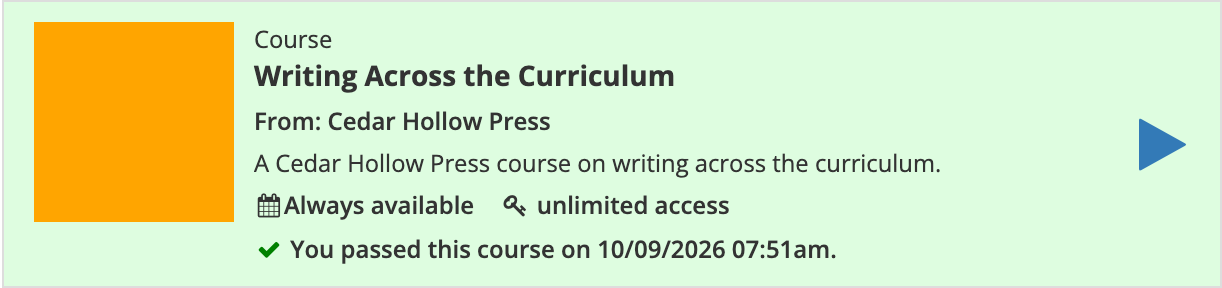
On My Dashboard, the Continue Content and Individual Content cards show your progress differently: a progress ring around the play icon on the thumbnail, and a note such as “started 3 days ago”.
How completion works
Section titled “How completion works”A course is built from chapters, and each chapter from sections.
- A section is complete when you move past it with Next. A required video section is complete when the video plays to the end.
- A chapter’s progress is the share of its sections you have completed.
- A course is complete when every chapter is complete and you have finished every required exam in it.
If the course has required exams, your score is the average of those exams, and you pass when it meets the passing score. A course with no required exam is complete as soon as every chapter is complete.
Inside the course player, in a sequential course, a check mark next to a section in the Contents list shows it is complete. See Taking Courses.
Learning paths
Section titled “Learning paths”A learning path is complete when you have successfully completed every course in it that counts toward completion. The publisher marks which courses count, so a path may include optional courses.
When the path is set up to create a transcript, completing it adds a transcript entry for the path:
- Completion date: the latest completion date among the path’s courses
- Credits: the total credits from the courses you completed successfully
- Score: the average score of the path’s scored courses
My Transcripts
Section titled “My Transcripts”Each course, assessment, or learning path you complete successfully adds a card to My Transcripts (under REVIEW in the sidebar), with the completion date, credits, and score. Click View on a card to open its certificate.
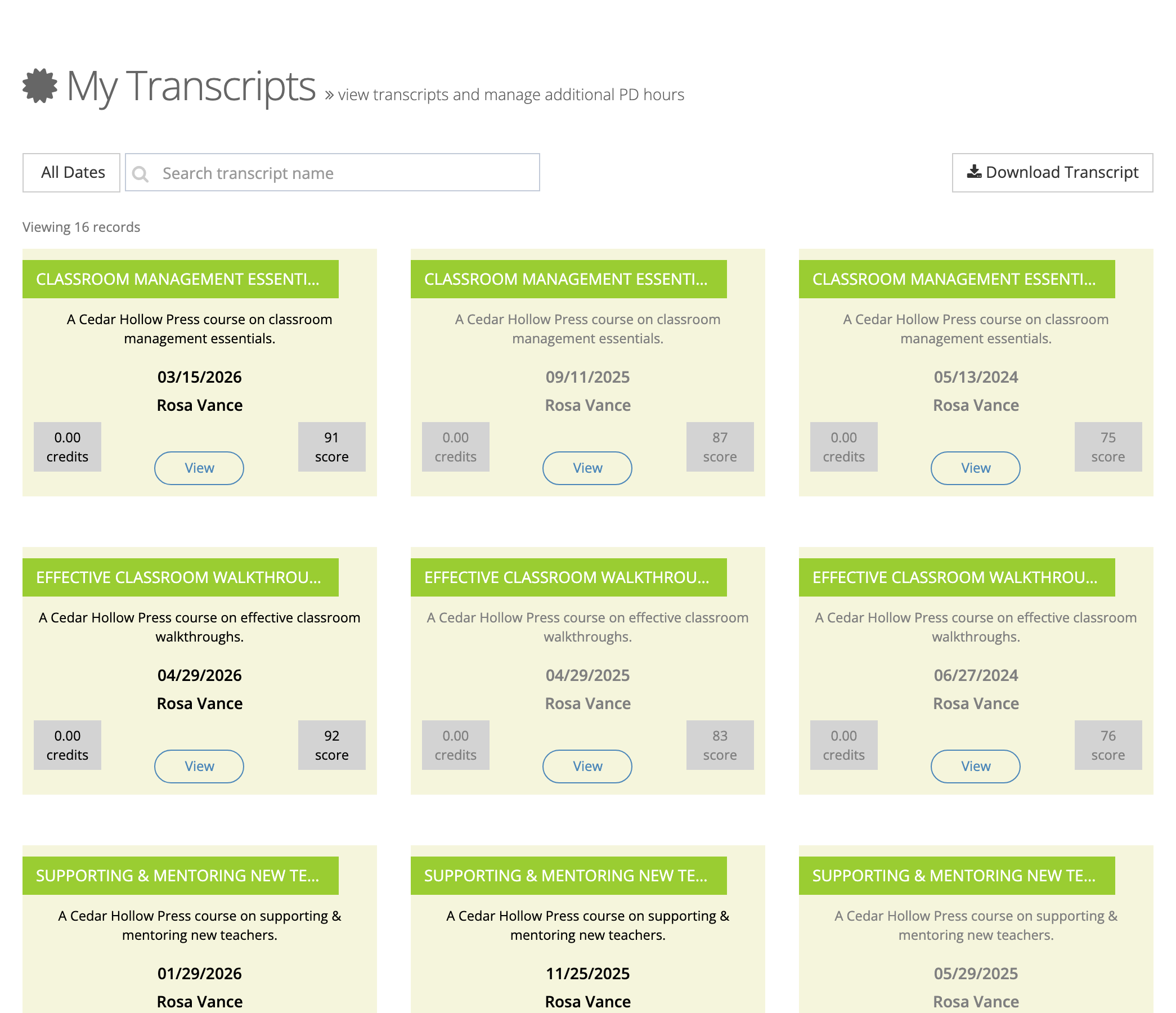
My Transcripts opens filtered to the current school year (starting July 1). If a completion seems to be missing, widen the date range first. See Viewing My Transcripts for the date filter, search, and the PDF download.
My Certifications
Section titled “My Certifications”My Certifications lists proctored assessments you passed that were certified, with the proctor and your final score. If you have never taken a proctored assessment, this page is empty. See Viewing Your Assessment Certifications.
When progress looks wrong
Section titled “When progress looks wrong”- A video section will not advance. On a required video, the Next button appears only after the video plays to the end.
- A completed course does not appear on My Transcripts. Check the date filter first. Some content is set up not to create a transcript, and courses inside some learning paths record only the path.
- Anything else (a missing course, a wrong score): contact your district’s eLearn administrator.