

Getting Started
Navigating the Platform
The top bar, the account menu, the My Home and System Administration sidebars, and the dashboards each role sees.
Every page has the same frame: a top bar across the top, a sidebar on the left, and the page in the middle. What appears in the sidebar depends on your roles and on whether your district uses weCLIMB, eLearn, or both. A teacher sees their own observations and courses; a principal also sees their school’s observations; a system administrator also sees the district’s settings.
The top bar
Section titled “The top bar”From left to right after the logo, the top bar can show:
- Home icon: opens My Dashboard. Everyone sees it.
- Gear icon (Settings): opens System Administration. Only system administrators see it.
- Publish: opens the publishing area, for users with the Publisher role in districts that publish their own content.
On the right:
- Envelope icon (Messages): appears once someone has sent you a message, such as a comment on an observation. The number shows unread messages. Open it to read them or click Mark all as read.
- Question-mark icon: opens Help Guides and Contact Support details (phone number, email address, and hours), when your provider has set them up. See Accessing Help and Support.
- Your name and initials (or photo): opens the account menu.
The account menu
Section titled “The account menu”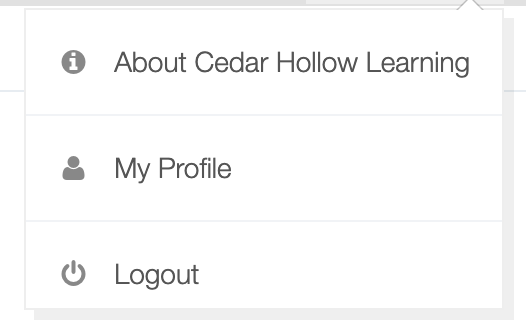
- About followed by the platform name: shows your district’s name and the release and build number. Support staff may ask for the build number.
- My Profile: your name, contact details, photo, password, notifications, and (for observers) observation settings. See Managing Your Profile.
- Logout: signs you out. See Logging In and Navigation.
The My Home sidebar
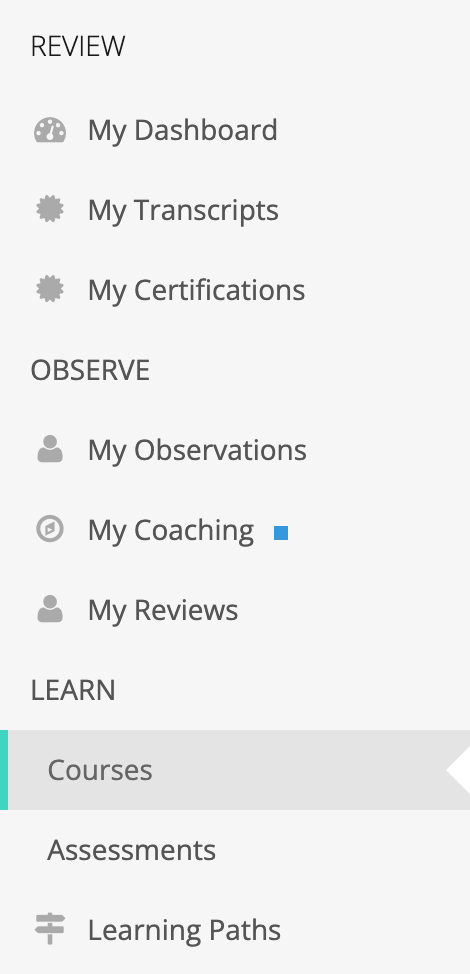
Section titled “The My Home sidebar”Every user sees the My Home sidebar. Links appear only when your roles and your district’s modules allow them, so two colleagues can see different lists.
REVIEW
Section titled “REVIEW”- My Dashboard. If you have more than one dashboard, they are grouped under Dashboards (see Dashboards below).
- My Transcripts and My Certifications: your completed eLearn content and PD hours, and the certifications you have earned. They appear when your district uses eLearn.
- Reports: for the Reporter role only. It holds Learn Reports and Assessment Reports (eLearn), Observation Reports and Coaching Reports (weCLIMB), Performance Reports (performance reviews), and Saved Reports.
OBSERVE
Section titled “OBSERVE”Appears when your district uses weCLIMB. Click the OBSERVE heading to open the Observations page.
- New Observation: start an observation (Observer role).
- My Observations: observations of your teaching (Observable role). A badge counts observations waiting for your reflection or acknowledgment.
- My Coaching: your coaching history, when a coach has worked with you. A small blue marker next to it means a coaching cycle is in progress or paused.
- Conducted Observations: observations you have done (Observer role).
- All Observations: observations across your organizations (Organization Administrator role).
- Coaching: when your district uses coaching cycles. My Roster lists the teachers you coach (Observer role). All Assignments lists every coaching assignment (system and organization administrators).
REVIEWS
Section titled “REVIEWS”Appears when your district uses performance reviews. Click the REVIEWS heading to open the reviews list.
- New Performance Review and Conducted Reviews (Evaluator role).
- My Reviews: reviews of you (Observable role). When you have no other review links, My Reviews sits under OBSERVE instead.
- All Reviews (Organization Administrator role).
Appears when your district uses eLearn. Click the LEARN heading to open the Learn page. The links below the heading appear only when you have that kind of content:
- Content Libraries
- One link for each content type, such as Courses and Assessments. The names come from the content provider.
- Learning Paths
- Videos
- Resources (documents and PDFs)
The System Administration sidebar
Section titled “The System Administration sidebar”System administrators click the gear icon to open System Administration. It opens on Manage Users, and the sidebar switches to the administration menu. Click the home icon to go back to My Home.
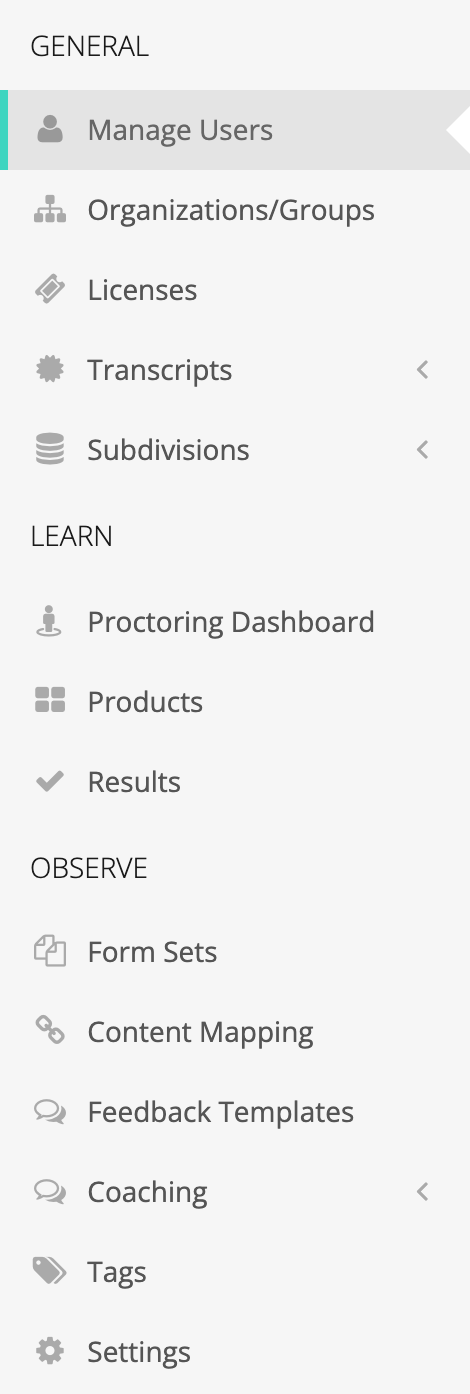
- GENERAL: Manage Users, Organizations/Groups, Licenses, Transcripts (when your district uses eLearn), Subdivisions (class periods, content areas, and grade levels when your district uses weCLIMB, and evaluation periods when it uses performance reviews), and Directory Sync when your district has it.
- LEARN (when your district uses eLearn): Proctoring Dashboard, Products, and Results.
- OBSERVE (when your district uses weCLIMB): Form Sets, Content Mapping (when your district also uses eLearn), Feedback Templates, Coaching (action step templates and cycle stages), Tags, and Settings. Districts that publish their own content also see Forms, Sections, and Questions.
For what each page does, see Managing Users and Organizations, eLearn Administration, and weCLIMB Settings.
Dashboards
Section titled “Dashboards”My Dashboard is where most people land after signing in. It shows tabs for what you have right now; a tab with nothing in it does not appear. Click a tab to scroll to its section. The tab bar stays at the top as you scroll.
| Tab | What it holds |
|---|---|
| Required Content | eLearn content you are required to complete. The badge counts items still open. |
| Continue Content | Content you started and have not finished |
| Content Libraries | The libraries assigned to your schools |
| Learning Paths | Sets of courses grouped toward a goal |
| Individual Content | Courses and assessments available to you |
| Observations | For observers, observable staff, and organization administrators in districts that use weCLIMB |
The Observations tab shows one card per role, each with a View button:
- My Observations (Observable role): how many times your classroom has been observed and when. Above the cards, Awaiting your response lists observations waiting for your reflection or acknowledgment, each with a Respond button.
- My Conducted Observations (Observer role): how many classrooms you have observed and when.
- All Observations (Organization Administrator role): observation activity across your organizations.
Other dashboards appear under Dashboards in the REVIEW section when your roles allow:
| Dashboard | Who sees it |
|---|---|
| Admin Dashboard | Organization administrators. They land here after signing in. See Admin Dashboard Overview. |
| Observe Dashboard | System and organization administrators, when your district uses weCLIMB. See Dashboard. |
| Coaching Dashboard | System and organization administrators, when your district uses coaching cycles |
| Proctoring Dashboard | Proctor administrators and system administrators. See Getting Started as a Proctor. |
On a phone or narrow window
Section titled “On a phone or narrow window”On a small screen, the top-bar links and the sidebar fold into a menu. Open it with the menu button in the top bar. It groups your links under My Home and, for system administrators, System Administration.