

Getting Started
Signing In and Resetting Your Password
Sign in with your email and password or an emailed code, reset a forgotten password, sign in on a phone, and sign out.
You can sign in to Master Teacher three ways: with your email and password, with Passwordless Login (a code sent to your email), or through your district’s single sign-on. This article covers each one, plus resetting a forgotten password, signing in from a phone browser, and signing out.
If you have never signed in before, start with Accepting Your Invitation.
Signing in with your password
Section titled “Signing in with your password”- Open your district’s Master Teacher address.
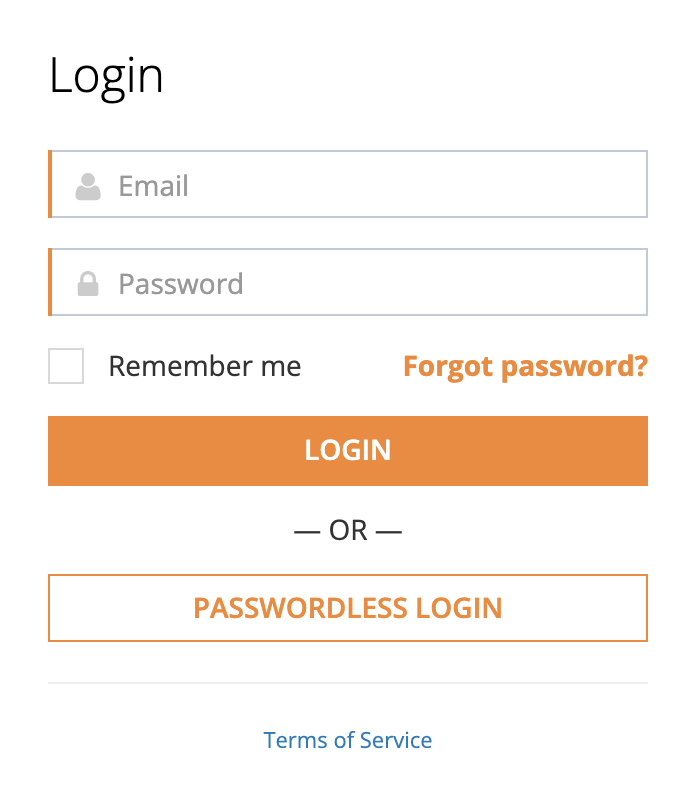
- On the Login page, type your Email and Password.
- Click Login.
Where you land depends on your roles:
- Organization administrators land on the Admin Dashboard.
- Everyone else lands on My Dashboard.
The page also has a Remember me checkbox. Checking it does not change anything today: you stay signed in until you click Logout or close your browser.
The Terms of Service link at the bottom opens the terms in a window. If your sign-in fails, see When You Can’t Get In.
Resetting a forgotten password
Section titled “Resetting a forgotten password”Request a reset email
Section titled “Request a reset email”- On the Login page, click Forgot password?.
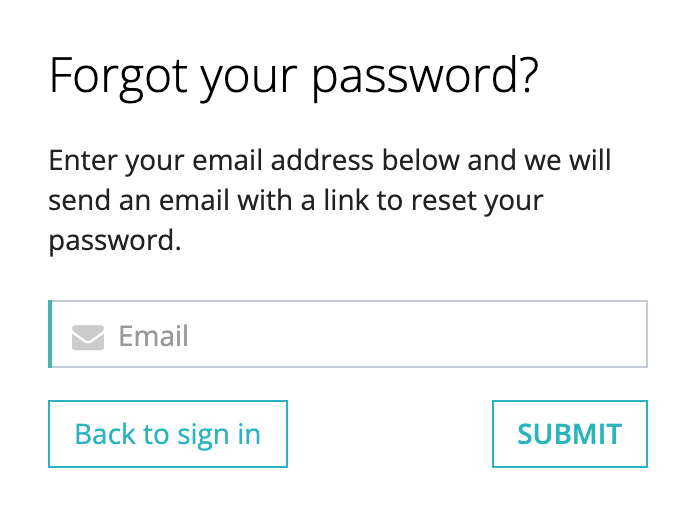
- On the Forgot your password? page, type your email address.
- Click Submit.
You return to the Login page with the message “You will receive an email with instructions about how to reset your password in a few minutes.”
If you see “The email you’ve entered doesn’t match any account.”, check the spelling, or try the address your district uses for you. Back to sign in returns you to the Login page without sending anything.
Choose a new password
Section titled “Choose a new password”The email has the subject “Reset password instructions” and a Change my password link. The link works for 6 hours. After that, request a new email.
- In the email, click Change my password.
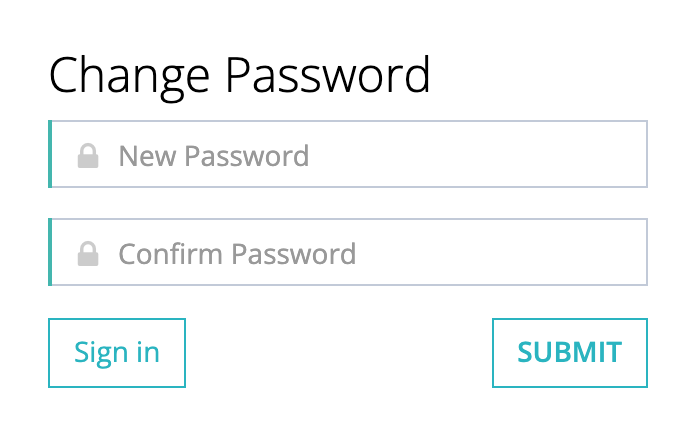
- On the Change Password page, type your new password in New Password. It must be at least 6 characters.
- Type it again in Confirm Password.
- Click Submit.
You see “Your password was changed successfully. You are now signed in.” and your dashboard opens. If you did not ask for the email, ignore it. Your password does not change until you use the link.
If your district uses single sign-on, you cannot reset your password here. See Single sign-on districts.
Signing in with an emailed code (Passwordless Login)
Section titled “Signing in with an emailed code (Passwordless Login)”Passwordless Login signs you in with a 4-digit code sent to your email, so you do not need your password. It helps when you are at a training session and cannot remember a password you set months ago.
- On the Login page, click Passwordless Login.
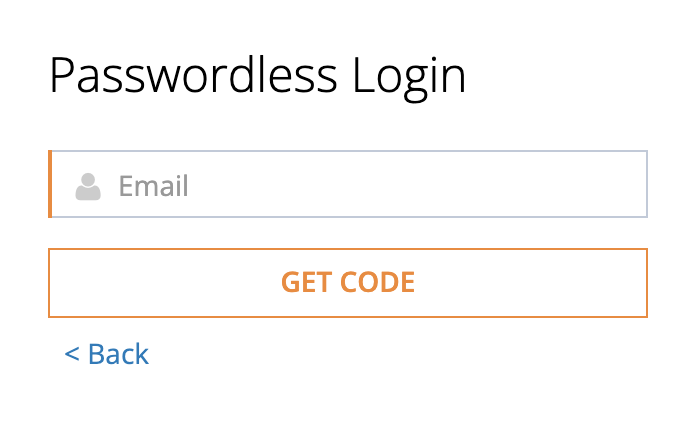
- On the Passwordless Login page, type your Email and click Get Code.
- Open the email with the subject “Your one time code” and find the 4-digit login code.
- On the Enter 4 digit code page, type the code and click Submit.
Your dashboard opens. A few things to know:
- A code works for 24 hours. If you request more than one, any of your five most recent codes works while it is less than 24 hours old.
- If you type a wrong code, you see “Incorrect code.” and a link to sign in with your password instead.
- After five wrong codes, Master Teacher emails you a new code and the earlier codes stop working.
- < Back and Cancel return you to the Login page.
If the page says “User not found”, the email address is not in Master Teacher. Contact your administrator.
Single sign-on districts
Section titled “Single sign-on districts”Some districts sign in through single sign-on (SSO), such as a Google, Microsoft, or other district account. In those districts:
- Opening your district’s Master Teacher address sends you straight to your district’s sign-in page. You do not see the Login page.
- You sign in with your usual district account and password.
- Forgot password? does not apply, and no reset email is sent. Change your password with your district’s account tools, or ask your district’s technology office.
- When you click Logout, Master Teacher sends you to your district’s sign-out page.
Signing in on a phone browser
Section titled “Signing in on a phone browser”When you sign in with your email and password in a phone’s web browser, Master Teacher opens a page of launch buttons instead of your dashboard. Tap Launch Web App to open My Dashboard in the browser.
The page can also show buttons that open a mobile app in your phone’s app store. Not every district uses a mobile app, so use those buttons only if your district has told you to. To see what each app does, read weCLIMB Mobile Overview and eLearn Mobile Overview.
Signing out
Section titled “Signing out”- Click your name or initials in the top-right corner.
- Click Logout.
You return to the Login page (in an SSO district, your district’s sign-out page). On a shared computer in a classroom, library, or front office, sign out when you finish so the next person cannot open your account.