

Getting Started
When You Can't Get In
What each sign-in message and error page means, why you might see it, and who can help you get back into Master Teacher.
Most sign-in problems come down to a handful of causes: a mistyped password, an old link, the wrong district address, or an account your district has paused. This article lists the messages Master Teacher shows, what causes each one, and what to do next.
If none of these fixes it, contact your district administrator first. They can see your account, resend your invitation, and change your roles. See Who to contact.
Quick reference
Section titled “Quick reference”| What you see | Likely cause | What to do |
|---|---|---|
| ”Invalid email or password.” | A typo in your email or password, or you are on another district’s sign-in address | Check both fields, then check the address in your browser. See Wrong email or password. |
| ”The invitation token provided is not valid!” | The invitation link is incomplete or was replaced by a newer invitation | Open the most recent invitation email, or ask your administrator to resend it. |
| ”Please login again (12)“ | You already used this invitation link to set your password | Sign in with your email and the password you created. |
| ”Reset password token has expired, please request a new one” | The reset link is more than 6 hours old | Request a new link from Forgot password? |
| ”Reset password token is invalid” | The reset link was already used, or a newer one replaced it | Use the newest reset email, or request a new link. |
| ”The email you’ve entered doesn’t match any account.” | The email on Forgot your password? is not on any account | Check the spelling, or ask your administrator which email your account uses. |
| ”You cannot manage your password here. Vist your authentication provider to change your password.” | Your district signs in through single sign-on | Change your password with your district’s sign-in provider. |
| ”Your account was not activated yet.” | Your account is suspended or archived | Contact your district administrator. |
| ”You need to sign in or sign up before continuing.” | You opened a page while signed out | Sign in. You land on your home page, so open the page again from there. |
| ”Incorrect code.” | The 4-digit Passwordless Login code is wrong or more than 24 hours old | Check the newest code email, or sign in with your password. |
| ”You have reached maximum failed attempts. We sent a new code to your email for verification.” | Five wrong codes in a row | Use the new code from your email. |
| ”You are not authorized to perform this action.” on an Access Denied page | Your roles do not include this page | Ask a system administrator listed on the page. |
| ”Oops! Page not found.” | The page does not exist, has moved, or belongs to another district | Click Return home. |
| ”Requested was rejected.” | The system refused a change | Go back, refresh the page, and try again. |
| ”Internal server error.” | Something failed on our side | Try again in a few minutes. If it repeats, contact support. |
Wrong email or password
Section titled “Wrong email or password”The message “Invalid email or password.” appears when the email or password does not match. The page does not say which one is wrong.
- Check the email for typos. Capital letters and spaces before or after the email do not matter.
- Retype the password. Passwords are case-sensitive.
- If you still cannot sign in, click Forgot password? and reset it. See Signing In and Resetting Your Password.
There is no lockout. Failed password attempts do not lock your account, so you can keep trying or reset the password at any time.
Signed in at another district’s address
Section titled “Signed in at another district’s address”Each district has its own sign-in address. If you sign in with the right email and password at a different district’s address (for example, a bookmark from a previous job or a link a colleague in another district sent you), Master Teacher signs you out and shows “Invalid email or password.” Your password is fine. Open the address from your own district’s invitation or welcome email and sign in there.
Invitation link problems
Section titled “Invitation link problems”Invitation links do not expire on their own. Two things can stop one from working:
- “The invitation token provided is not valid!” The link is incomplete (some email programs break long links across lines), or your administrator sent a newer invitation that replaced it. Open the newest invitation email and click Accept Invitation there. If you cannot find it, ask your administrator to resend the invitation.
- “Please login again (12)” You already accepted this invitation and set a password. Sign in with your email and that password. If you have forgotten it, use Forgot password?
For the full first sign-in walkthrough, see Accepting Your Invitation.
Reset link problems
Section titled “Reset link problems”A password reset link works once, for 6 hours after you request it.
- “Reset password token has expired, please request a new one” More than 6 hours have passed. Go back to the sign-in page, click Forgot password?, and request a new link.
- “Reset password token is invalid” The link was already used, or you requested another reset after it and the newer email replaced it. Use the link in the most recent email.
- “You can’t access this page without coming from a password reset email. If you do come from a password reset email, please make sure you used the full URL provided.” The page opened without the code from the email. Copy the whole link from the email into your browser.
If the reset email does not arrive within a few minutes, check your spam or junk folder, then ask your administrator to confirm the email address on your account.
Single sign-on districts
Section titled “Single sign-on districts”In a district that signs in through single sign-on, your password belongs to your district account, so your district’s technology help desk resets it. How SSO sign-in works is in Single sign-on districts.
If the provider signs you in but Master Teacher sends you back to the provider, your district account may not be connected to Master Teacher yet. Contact your district administrator.
Suspended or archived accounts
Section titled “Suspended or archived accounts”If your district administrator has suspended or archived your account, signing in with the right password shows “Your account was not activated yet.” A wrong password still shows “Invalid email or password.”
Districts suspend an account to pause access (for example, during a leave) and archive it when someone leaves the district. Archiving also suspends the account. Only an administrator can restore access, so contact your district administrator. Administrators can find the steps in Managing Users and Organizations.
”You are not authorized to perform this action.”
Section titled “”You are not authorized to perform this action.””You are signed in, but the page you opened needs a role you do not have. A teacher who follows a link to a System Administration page sees this, for example. Master Teacher shows an Access Denied page with the message at the top and a list of your district’s system administrators with their email addresses.
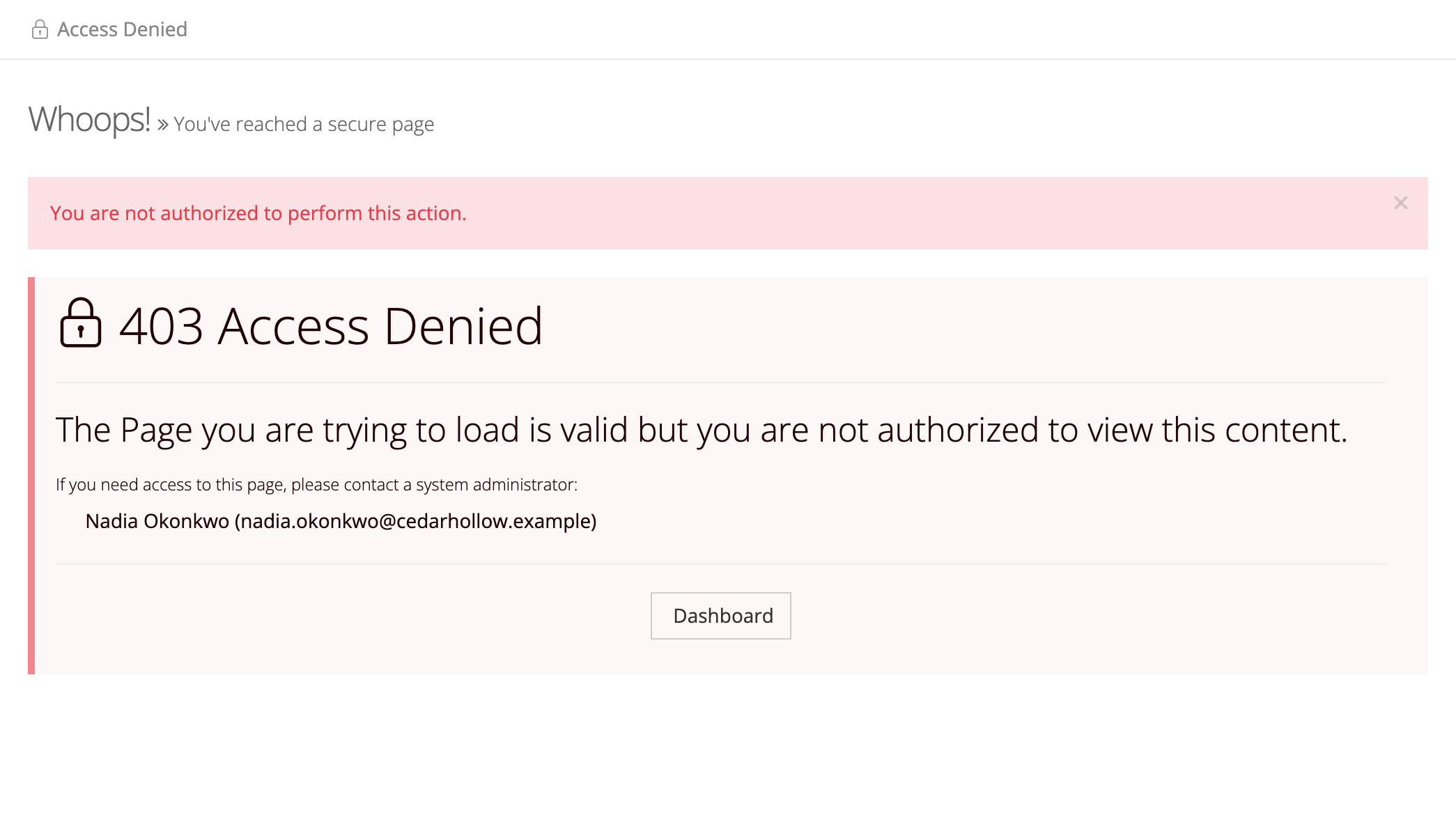
Click Dashboard to go back to your home page. If you need the page for your work, email one of the system administrators listed and tell them which page and what you were trying to do. Roles are explained in User Roles and Permissions.
Error pages
Section titled “Error pages”These pages appear in place of the page you asked for. Each has a Return home link that takes you back to your home page.
404: Page not found
Section titled “404: Page not found”404 Oops! Page not found. The page you requested either doesn’t exist, or has moved.
You see this when a link is mistyped or out of date, when a record has been removed, or when the page belongs to another district. Check the address, or go back to your dashboard and find the item from the menu.
422: Request rejected
Section titled “422: Request rejected”422 Requested was rejected. The change that you requested to make was rejected by the system
The system refused to save a change. Go back, refresh the page, and make the change again. If it happens again on the same page, contact support.
A different message, “This action was already performed. Please refresh the page and try again.”, appears at the top of the page when you submit the same action twice (for example, a double click). The first one was saved. Refresh the page to see it.
500: Internal server error
Section titled “500: Internal server error”500 Internal server error. Something went wrong on our end. Don’t worry, we have been notified of the error.
The error is on our side and is reported automatically. Wait a few minutes and try again. If the same page keeps failing, contact support and include the page address and what you clicked.
Observation email links
Section titled “Observation email links”Links in observation emails that open without a password have their own pages, such as “This link has expired” with a Send me a fresh link button. See Opening an Observation from Email.
Who to contact
Section titled “Who to contact”- Your district administrator. They manage accounts for your district: they can resend your invitation, confirm which email your account uses, restore a suspended account, and add roles. The Access Denied page lists your district’s system administrators.
- Support. For error pages that keep coming back, or when your administrator cannot help, use the contact details in the question-mark help menu at the top of the page. See Accessing Help and Support.
When you ask for help, include your email, your district’s Master Teacher address, the exact message you saw, and what you clicked just before it.