

Getting Started
Accepting Your Invitation
Open your invitation email, create your password, and agree to the Terms of Service the first time you sign in.
Most people get into Master Teacher for the first time through an invitation email. A district or school administrator adds you to the system, often before the first observation cycle or a professional development day, and the invitation lets you create your password.
This article walks you through the email, the Accept Invitation page, and the Terms of Service screen you see on your first sign-in. If your district uses single sign-on, skip to If your district uses single sign-on.
Administrators: to send, schedule, or clear invitations, see Inviting and Re-engaging Users.
The invitation email
Section titled “The invitation email”The standard invitation has the subject “Welcome to the Master Teacher application”. It tells you which roles you have (for example Observable or Observer), gives the address of your district’s site and your username (your email address), and includes an Accept Invitation link.
Your district or provider can replace the standard email with its own template, so your invitation may use different wording or a different subject. Every version includes the link that opens the Accept Invitation page.
The link does not expire on a schedule. It stops working after you use it, or if an administrator clears your invitation. If the link does not work, ask your administrator to send a new invitation.
Creating your password
Section titled “Creating your password”- In the invitation email, click Accept Invitation.
- On the Accept Invitation page, type a password in Create Password. It must be at least 6 characters.
- Type the same password in Confirm Password.
- Click Set my password.
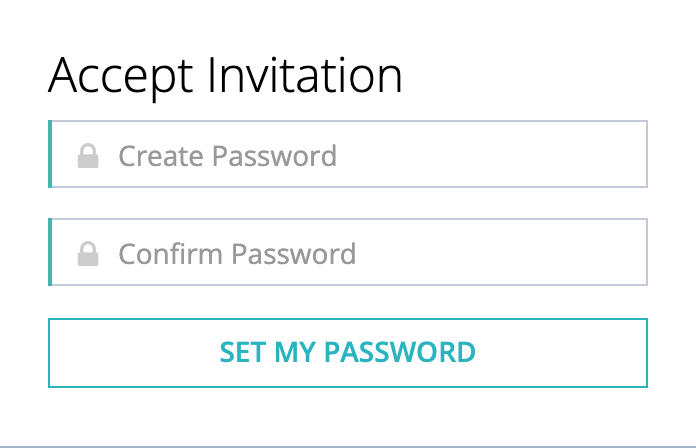
You are signed in right away. Next time, sign in with your email address and this password (see Signing In and Resetting Your Password).
If you open the invitation link again after you have set your password, it takes you to the sign-in page. Sign in there with the password you created.
Agreeing to the Terms of Service
Section titled “Agreeing to the Terms of Service”The first time you sign in, the Terms Of Service page opens with the message “You must agree to Terms of Service before accessing the system”. No other page opens until you agree.
- Read the terms in the scrolling box.
- Check I agree to these Terms of Service.
- Click Submit.
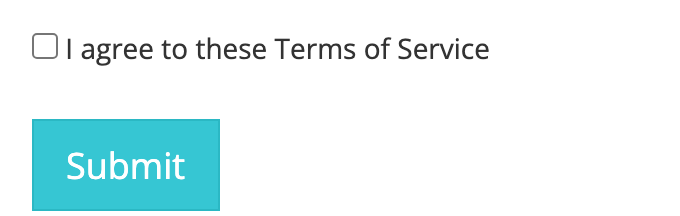
Check the box before you click Submit. The terms are not accepted without it. Once you agree, your dashboard opens:
- Organization administrators open on the Admin Dashboard.
- Everyone else opens on My Dashboard.
If the terms change later, the page opens again with “You must agree to new Terms of Service before accessing the system”. Agree again the same way.
If you are a proctor
Section titled “If you are a proctor”If your roles include Proctor Administrator, one more page follows the first time you open Master Teacher: you review and acknowledge your proctoring responsibilities. See Getting Started as a Proctor.
If your district uses single sign-on
Section titled “If your district uses single sign-on”In a district that signs in through single sign-on (SSO), such as a Google, Microsoft, or other district account, you do not create a Master Teacher password.
When you click Accept Invitation, Master Teacher marks your invitation accepted and sends you to your district’s sign-in page. Sign in there with your usual district account. For signing in later, see Single sign-on districts.