

Getting Started
Essential First Tasks
The first things to do after you sign in, for teachers, observers and coaches, and administrators, with links to the full instructions.
This article lists the first few things to do in your first week, by role. Each task links to an article with the full steps. Your menu shows only what your roles allow, so skip any section that does not apply to you.
Everyone
Section titled “Everyone”- Sign in. Use the link in your invitation email to set a password, or sign in the way your district tells you to. See Logging In and Navigation.
- Check your profile. Click your name in the top-right corner, then My Profile. Confirm your name, email, job title, and schools. See Managing Your Profile.
- Choose your notifications. On My Profile, scroll to Notifications and pick which emails you want. See Managing Your Notification Preferences.
Teachers and staff
Section titled “Teachers and staff”You land on My Dashboard each time you sign in.
- Start your assigned learning. When eLearn is on, My Dashboard has one tab for each kind of content you have, such as Required Content, Continue Content, and Individual Content. Click a card to open it. See Accessing Your Learning Content and Taking Courses.
- Respond to observations. If you can be observed, the Observations tab on My Dashboard lists observations waiting on you under Awaiting your response. Click Respond to write a reflection or acknowledge the observation. A red number next to My Observations in the menu shows how many are waiting. See Your Observations as a Teacher.
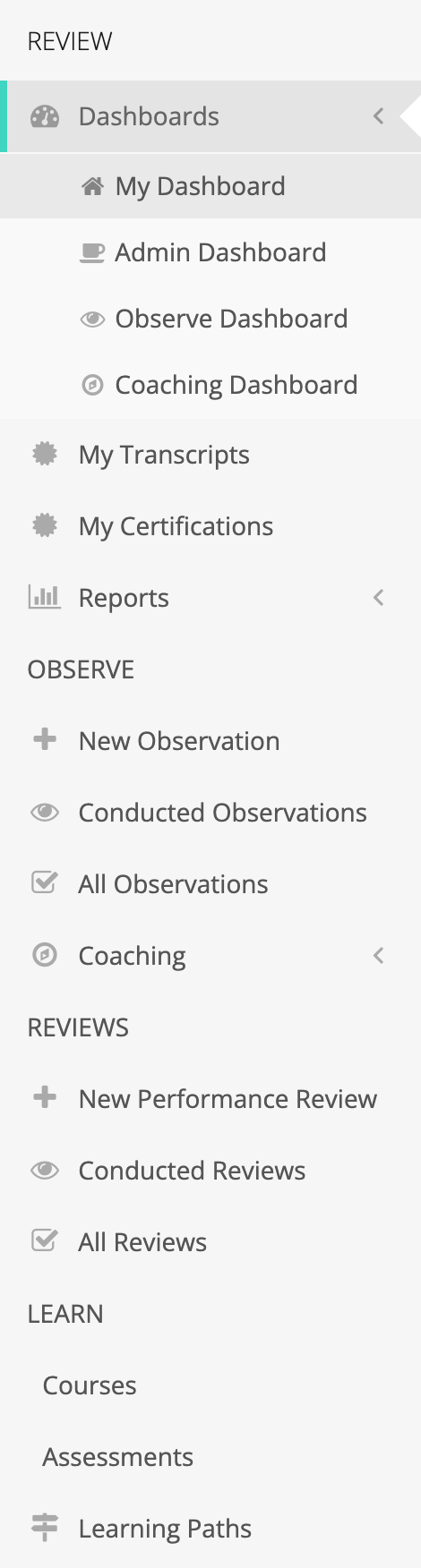
- Find your records. My Transcripts, under REVIEW in the menu, lists what you have completed, with links to certificates. See Viewing My Transcripts.
Observers and coaches
Section titled “Observers and coaches”Role: observer. You also need at least one school in your profile with teachers who can be observed.
- Look at your district’s forms. Ask your administrator which form set to use for walkthroughs and which for formal observations.
- Conduct your first observation. Click New Observation in the menu. In the Create Observation window, choose the Organization and Form Set, then click Begin Observation. See Conducting Your First Observation.
- Find your observations. Conducted Observations lists every observation you conducted, in any status, so you can finish drafts and close the ones that are ready. See Managing Observations.
- Open your coaching roster. If your district uses coaching cycles, open Coaching > My Roster to see the teachers you coach. See Coaching Roster & Assignments.
If you are an evaluator, New Performance Review starts a summative review. See Performance Reviews Overview.
Organization administrators
Section titled “Organization administrators”Role: organization administrator. A principal is the usual example. You manage the schools or groups you belong to.
- Read the Admin Dashboard. You land on it when you sign in. It shows observation totals, open observations, and course progress for your schools. See Admin Dashboard Overview.
- Review observations in your schools. All Observations lists every observation in your schools, from every observer. See Managing Observations.
To conduct observations yourself, you also need the observer role. To open the Reports menu, you need the reporter role.
System administrators
Section titled “System administrators”Role: system administrator. You manage the whole district.
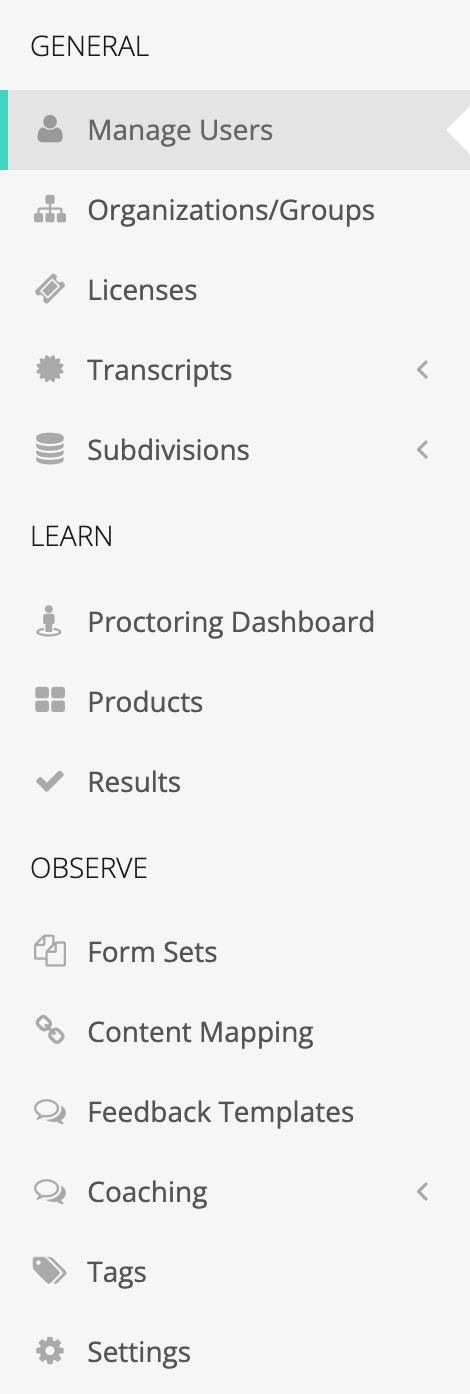
Click the gear icon in the top bar to open System Administration.
- Check the district setup. See System Configuration for where each setting lives and which ones your account representative keeps.
- Add staff and invite them. On Manage Users, click New, fill in the New User window, and click Save. Each person gets roles and schools here. See Managing Users and Organizations and Inviting and Re-engaging Users.
- Get schools ready for observations. Each school needs class periods, grade levels, and content areas, teachers with the observable role, and a form set. See Getting a School Ready for Observations.
- Review weCLIMB settings. Under OBSERVE, click Settings to set notifications, comments, and coaching cycles before the first observations go out. See weCLIMB Settings.
- Assign learning content. When eLearn is on, click Products under LEARN to assign licensed content to schools, groups, or the whole district. See Managing Course Assignments.