

Getting Started
Accessing Help and Support
Where to find help guides, support contact details, and live chat, and who to ask about roles and missing menus.
Help comes from three places: this help center, the help menu in the top bar, and the people who manage Master Teacher in your district. This article shows what each one offers and when to use it.
This help center
Section titled “This help center”Search at the top of any page, or browse the collections in the menu.
To ask a question, select Ask the assistant at the top of the page. A chat window opens, and an AI assistant answers from the articles in this help center. If it cannot answer, the conversation can go to the support team.
The help menu in the top bar
Section titled “The help menu in the top bar”The question-mark icon in the top bar opens the help menu. Its contents come from your provider, so they differ from district to district.
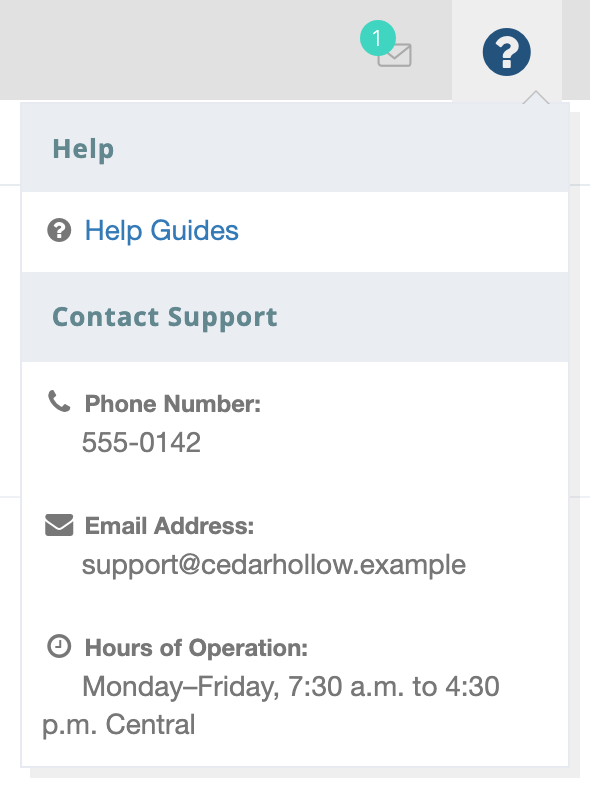
The menu can show:
- Help Guides (under Help): opens your provider’s help site in a new tab.
- Contact Support: the support Phone Number, Email Address, and Hours of Operation.
Each line appears only when your provider has filled it in. If your provider has set none of the help guides link, the phone number, and the email address, the question-mark icon does not appear.
You can also email support@masterteacher.com.
Live chat on the sign-in page
Section titled “Live chat on the sign-in page”If your provider has set up live chat, a chat window is available on the sign-in page. Use it when you cannot sign in. Live chat does not appear on other pages of the app.
If your district uses the weCLIMB mobile app
Section titled “If your district uses the weCLIMB mobile app”Not every district uses a mobile app. If yours does, open the app’s side menu and tap Support. The Support Information screen has a Go to help page button and your provider’s Support Phone Number, Support Email, and Support Hours. Tap the phone number to call or the email address to start a message. See weCLIMB Mobile Overview.
Questions for your district
Section titled “Questions for your district”Your district’s system administrators manage accounts, roles, and schools. Ask them, not support, when:
- A menu item you expect is missing. Menus follow your roles; see Understanding User Roles and Permissions and Who Sees What in eLearn.
- New Observation is missing, or the window says you have no schools assigned. You need the observer role and a school in your profile.
- A course you were told to take is not on My Dashboard. Content is assigned to schools and groups, so you may be in the wrong one.
- Your name, schools, or time zone are wrong. Staff cannot change their own time zone; see System Configuration.
When you contact support
Section titled “When you contact support”Include:
- The page you were on, and what you clicked.
- The exact wording of any error message.
- Your role, such as teacher, observer, or system administrator.
- A screenshot, if you can take one.