

Getting Started
Logging In and Navigation
Sign in to your district's account, see where you land for your role, and sign out.
This article is the short version of getting into Master Teacher and back out. The linked articles cover each step in detail. Once you are in, Navigating the Platform shows you the menus and dashboards.
Your first sign-in
Section titled “Your first sign-in”- Open the invitation email from your district and click Accept Invitation.
- Create your password. If your district uses single sign-on (SSO), you sign in with your district account instead and never create a Master Teacher password.
- Read the terms of service, check I agree to these Terms of Service, and click Submit. No other page opens until you agree.
See Accepting Your Invitation.
If you have the Proctor Administrator role, you also acknowledge your proctoring responsibilities once before any other page opens.
Signing in
Section titled “Signing in”- Open your district’s Master Teacher sign-in page.
- Type your Email and Password.
- Click Login.
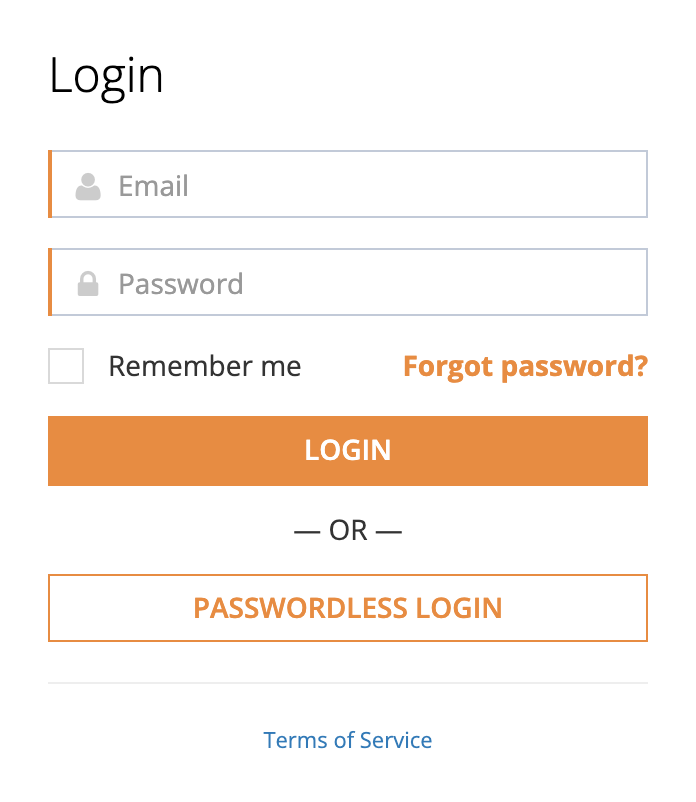
The form also has Forgot password? for a password you cannot remember and Passwordless Login for signing in with a code sent to your email. If your district uses SSO, the sign-in page sends you to your district’s sign-in provider. See Signing In and Resetting Your Password. If you cannot get in at all, see When You Can’t Get In.
Where you land depends on your roles:
- Organization administrators land on the Admin Dashboard.
- Everyone else lands on My Dashboard.
On a phone’s browser you may see a page offering the mobile apps and Launch Web App first. See Signing in on a phone browser.
Signing out
Section titled “Signing out”- Click your name or initials in the top-right corner.
- Click Logout.
You return to the sign-in page. If your district uses SSO, you are sent to your district’s sign-in provider to finish signing out there.
On a shared computer in a classroom, library, or front office, click Logout when you finish so the next person cannot open your account.