

weCLIMB Mobile
Coaching on Mobile
What coaches, teachers, and administrators can open in the weCLIMB mobile app's Coaching tab, and how to start a cycle and assign action steps from your phone.
Roles: coaches (Observer role) and coached teachers, in districts that use coaching cycles.
When your district uses coaching cycles, the app adds a Coaching tab. What it opens depends on your role:
| You are | The Coaching tab opens | What you can do |
|---|---|---|
| A coach (Observer role) | My Roster | Start and manage cycles, assign and update action steps |
| A teacher who is observed (and not an observer) | My Coaching | Read your action steps; nothing to edit |
| Both an observer and observed | My Roster | As a coach |
| An administrator without the Observer role | No Coaching tab | Manage coaching on the web |
Coaching screens call an observation a “walkthrough” (for example View walkthrough). It is the same observation you see on the Observations tab.
For coaches
Section titled “For coaches”My Roster
Section titled “My Roster”My Roster lists each teacher you coach, with their school, when you last visited, how many action steps are active, and a cadence chip: Not started, Overdue, Due soon, or On track. Tap a teacher to open their Coaching Cycle.
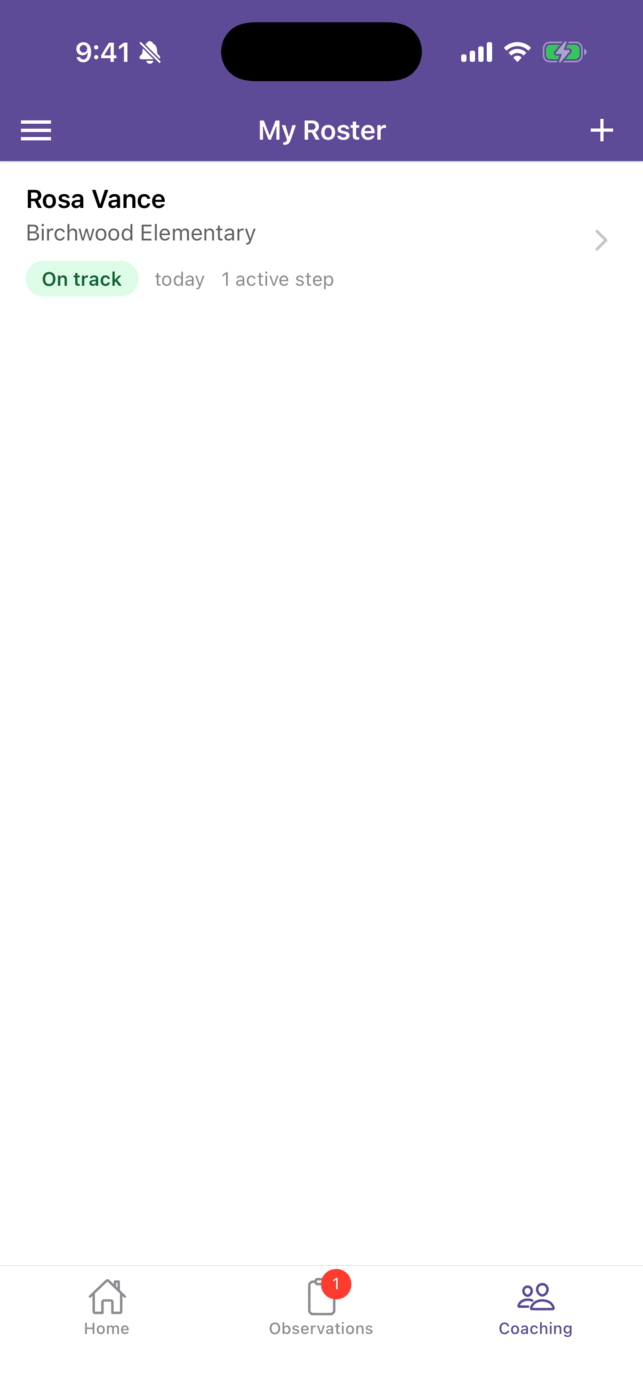
The Your roster card on Home shows the same overdue and due-soon counts. On the tab bar, the Coaching tab’s badge counts your overdue cycles.
Start a cycle
Section titled “Start a cycle”- On My Roster, tap + (or New assignment on an empty roster).
- Under Who are you coaching?, tap Teacher and choose from the list. Only teachers you can still start a cycle with are listed; search by name or email.
- Check School. Only schools you share with the teacher are offered.
- Fill in any of the Optional fields: Cycle stage, Start date (today unless you change it), Focus areas, Preferred form, and Notes (optional).
- Tap Create cycle. The new Coaching Cycle opens.
If you leave with unsaved changes, the app asks “Discard changes?” Tap Keep editing to stay.
The Coaching Cycle screen
Section titled “The Coaching Cycle screen”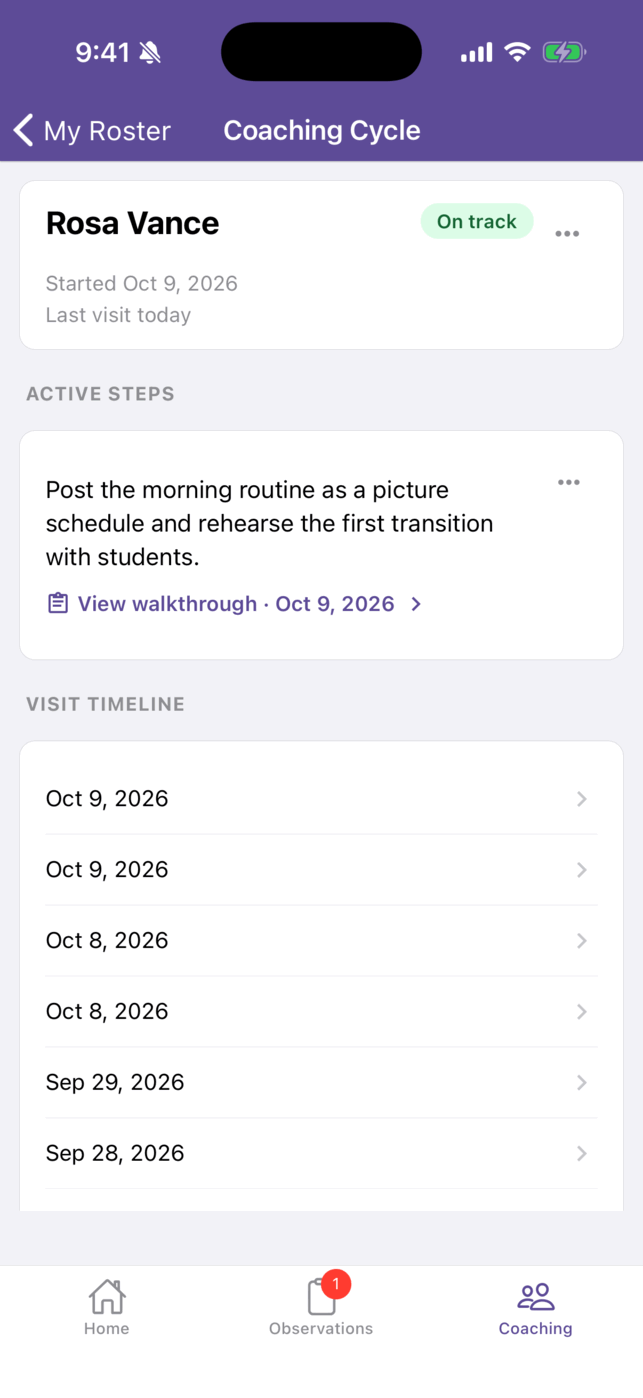
- Header: the teacher, the cycle stage, the start date, and the cadence chip. Tap ⋯ for Edit cycle, Pause cycle (or Resume cycle), Complete cycle, and Archive cycle. Completing sets aside any pending steps; archiving removes the cycle from your roster. Both ask you to confirm.
- Active steps: each step’s text, its focus areas, and the walkthrough it came from. Tap ⋯ on a step for Complete, Revise, Defer, Recommend a course, or Remove. A deferred step offers Resume.
- Complete asks “Which visit did the teacher achieve this on?” and takes an optional completion note.
- Defer (Set aside this step) asks for a Defer until date and an optional reason.
- Recommend a course lets you search the course catalog and recommend a course for this step.
- Visit timeline: the teacher’s observations by date. Tap one to open it.
Assign an action step from an observation
Section titled “Assign an action step from an observation”You can assign a step from the observation you just conducted.
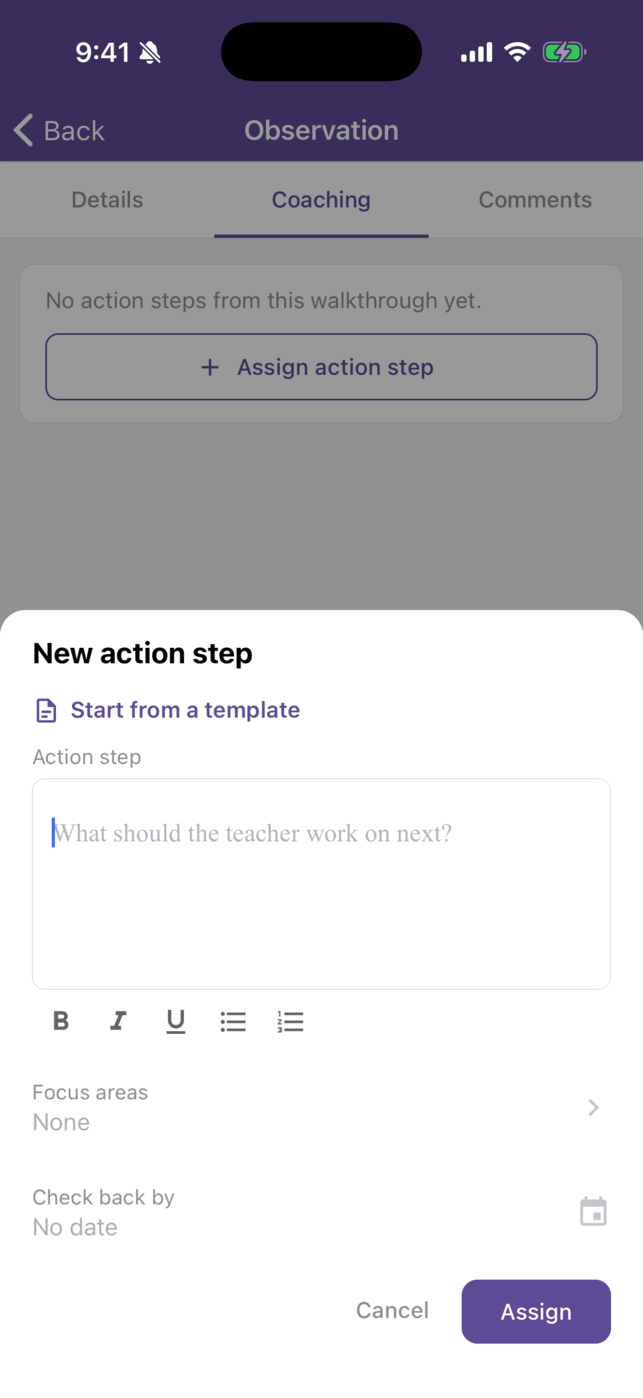
- Open the observation and tap its Coaching tab. The tab appears when the teacher has an active cycle.
- Tap Assign action step.
- In New action step, write the step in Action step (“What should the teacher work on next?”), or tap Start from a template.
- Optionally add Focus areas and a Check back by date.
- Tap Assign.
If the teacher has unfinished steps from an earlier cycle, Carry forward from a previous cycle lists them so you can bring one into this cycle.
For teachers
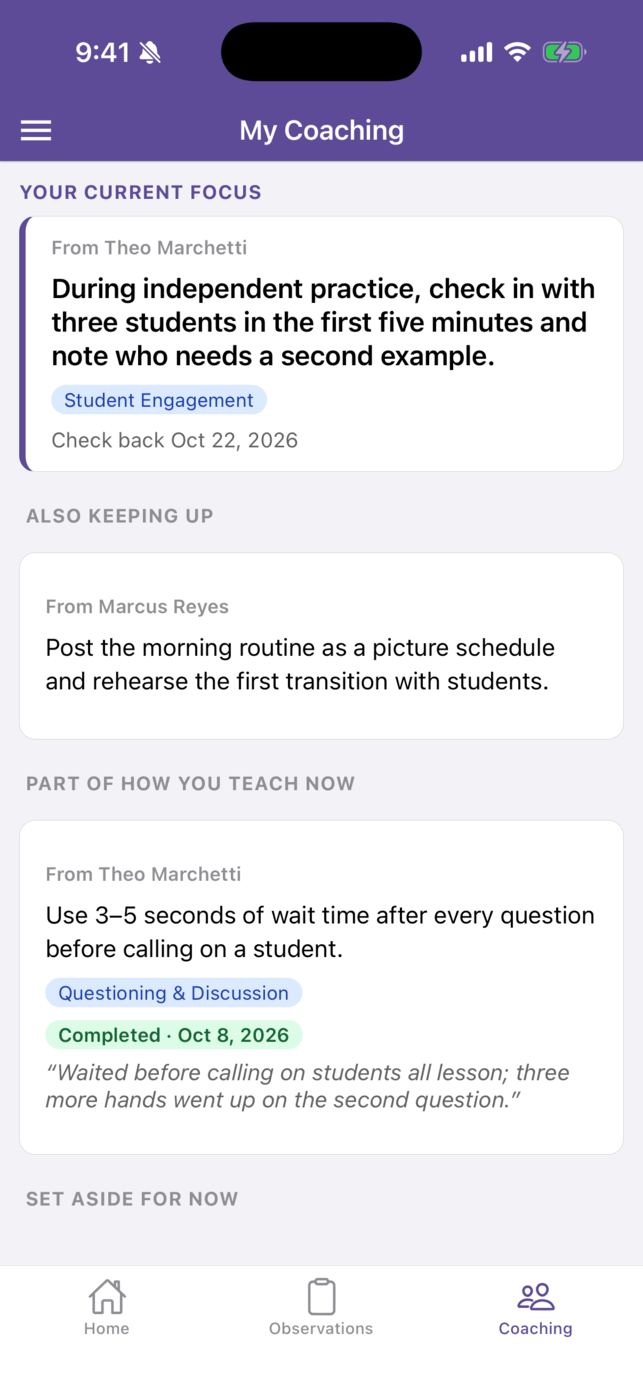
Section titled “For teachers”The Coaching tab opens My Coaching, a read-only view of what your coach has asked you to work on:
- Your current focus: your current action step, who assigned it, its focus areas, and the check-back date.
- Also keeping up: other active steps.
- Part of how you teach now: steps you’ve completed, with your coach’s note.
- Set aside for now: deferred steps.
- Earlier coaching: steps from past cycles.
If you have no steps yet, it reads No coaching yet. The Your coaching card on Home shows your current focus too. On an observation, the Coaching tab shows the steps that came from that walkthrough.
What to do on the web
Section titled “What to do on the web”Coaching setup and reporting stay on the web: cycle stages, action step templates, the coaching dashboard, and coaching reports. See Coaching Overview and How-to Guide: Coaching Cycles.