

weCLIMB Mobile
Reflecting and Acknowledging on Mobile
For teachers. Find observations that need your response, write a reflection, and acknowledge an observation in the weCLIMB mobile app.
Roles: for teachers (the person observed). Only the observed teacher sees these steps.
After your observer submits an observation, your district may ask you to respond in one or two steps:
- Reflection: your own thoughts on the lesson.
- Acknowledgment: confirmation that you’ve reviewed the observation. Acknowledging does not mean you agree with it.
Which steps you see depends on the observation’s form set. You can do both from your phone.
Find what needs your response
Section titled “Find what needs your response”Any of these takes you to the observation:
- Home: the Awaiting your response card lists each observation waiting on you, with the form set, the observer, the date, and a Reflect or Acknowledge chip. Tap the row.
- A push notification: tap Reflection requested or Acknowledgment requested. See Push Notifications on Mobile.
- Observations tab: filter by Awaiting Reflection or Awaiting Acknowledgment.
The links in notification emails open in your phone’s browser, not in the app. That page works too; see Opening an Observation from Email.
Read the whole observation before you respond: scroll the Details tab for the ratings, feedback, and OVERALL FEEDBACK.
Write your reflection
Section titled “Write your reflection”When the status is Awaiting Reflection, the Details tab starts with Share your reflection.
- Tap Write reflection. The Your reflection sheet opens.
- Read the Consider prompts under Reflection prompts. They are the questions your district set for this form set, or a standard set when it set none. Tap Reflection prompts to collapse them.
- Type your reflection in the box. You can use bold, italic, underline, and lists.
- Tap Submit. The app shows “Reflection submitted.”
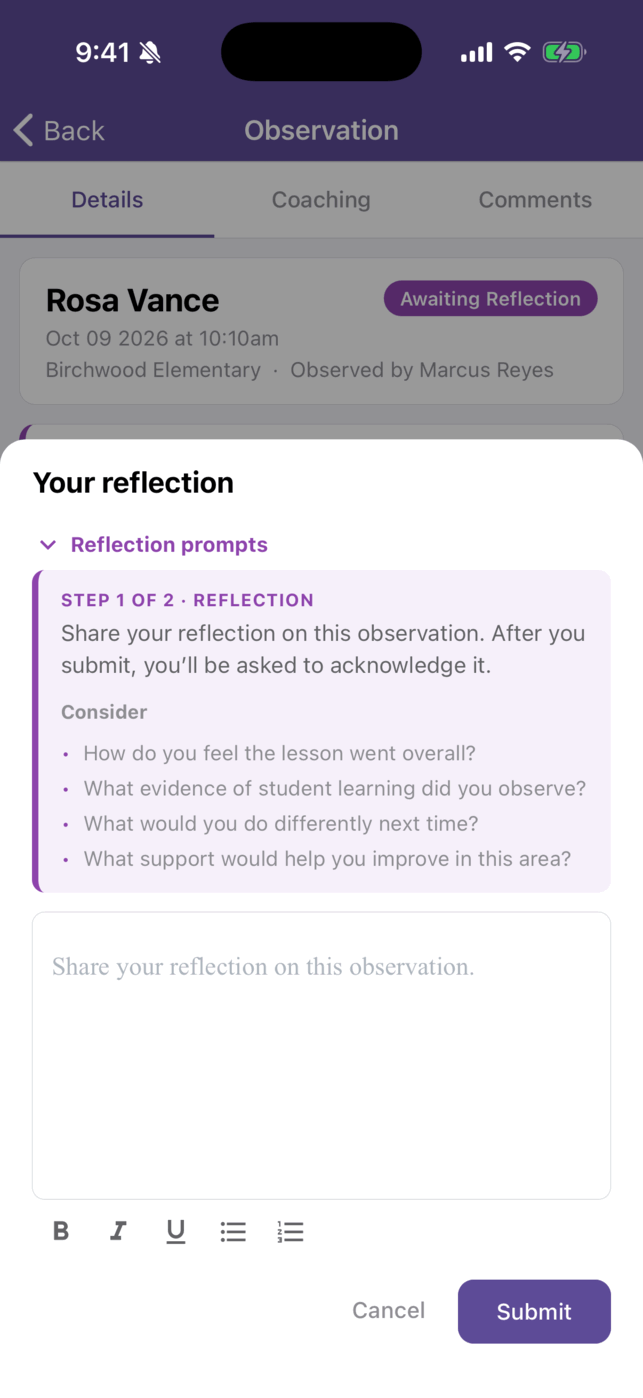
Once submitted, your reflection can’t be edited in the app. Cancel closes the sheet without saving.
The sheet always labels the reflection “Step 1 of 2” and says you’ll be asked to acknowledge next, even when your observation doesn’t require acknowledgment. If it doesn’t, the observation goes to your observer after your reflection.
Acknowledge the observation
Section titled “Acknowledge the observation”When the status is Awaiting Acknowledgment, the Details tab starts with Acknowledge this observation.
- Tap Acknowledge.
- Choose one:
- I acknowledge this observation.
- I acknowledge, but disagree with part of this observation. A box appears: Explain your disagreement (required). Write what you disagree with and why.
- Tap Acknowledge. The app shows “Acknowledgment recorded.”
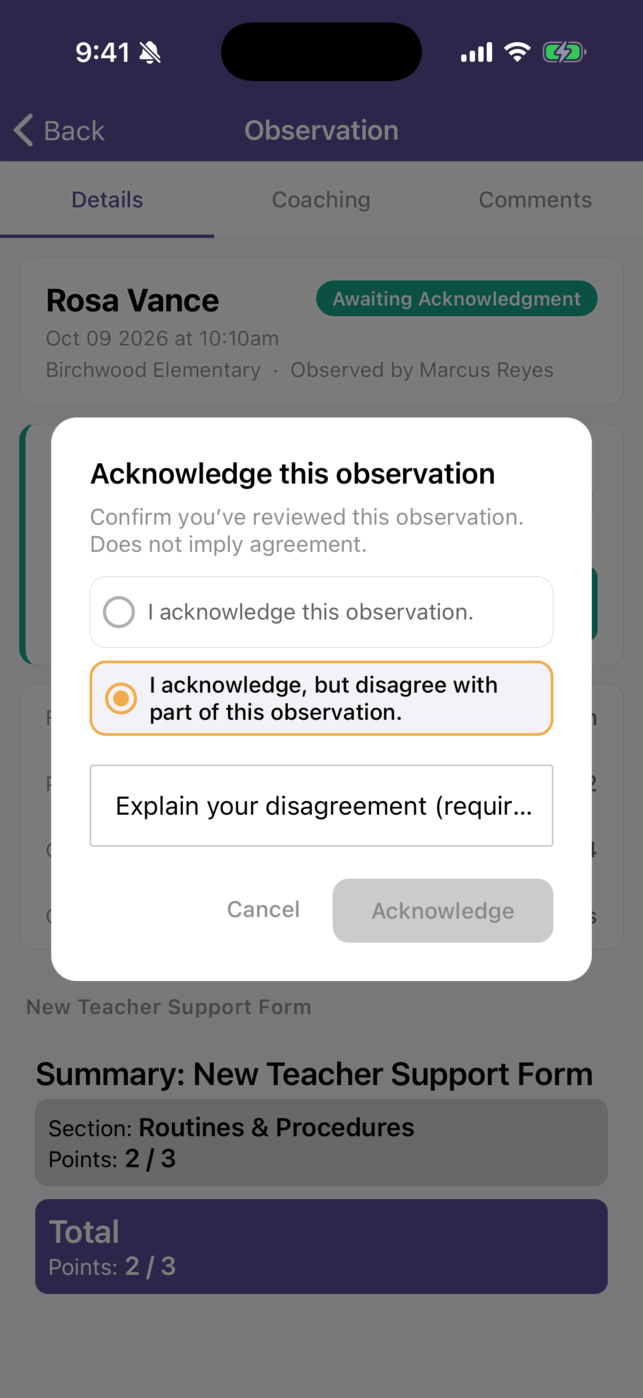
The Acknowledge button stays grey until you write an explanation for a disagreement.
After you respond
Section titled “After you respond”The observation moves to Awaiting Closure, and your observer is asked to close it. At the bottom of the Details tab:
- REFLECTION shows Your reflection with the date and time you submitted it.
- ACKNOWLEDGMENT shows Acknowledged or Acknowledged with disagreement, with the date and time.
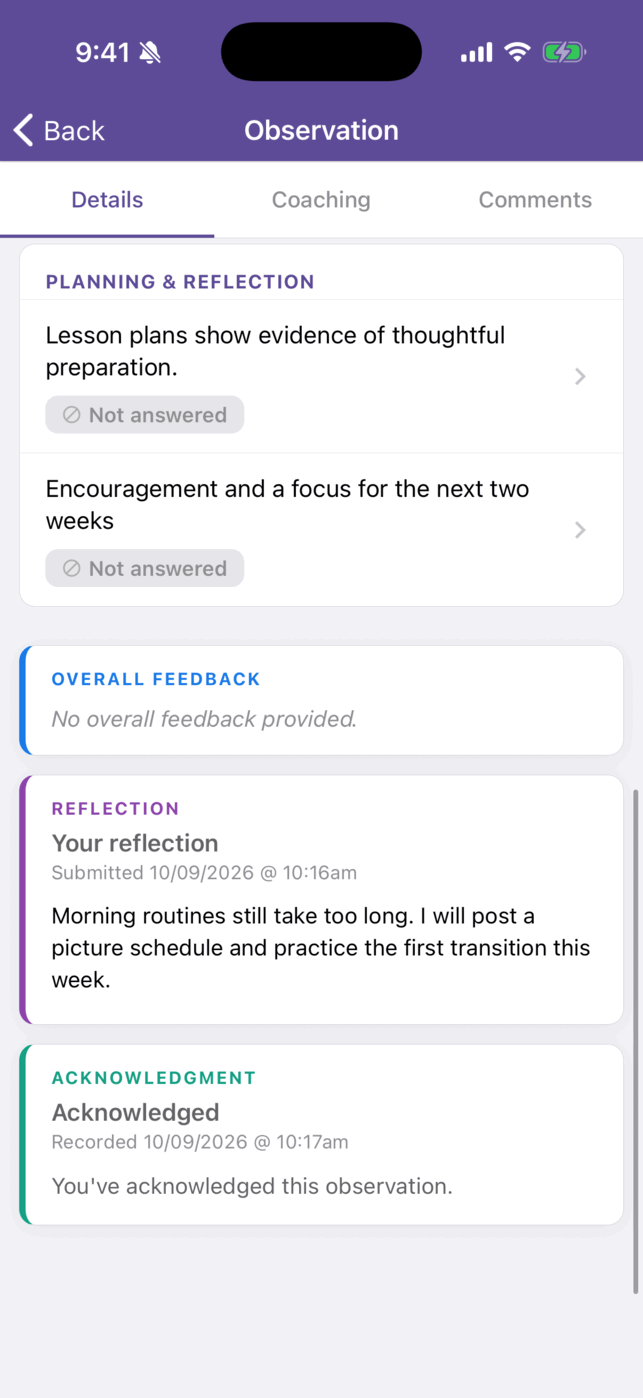
When your observer closes the observation, the CLOSURE block shows their closing comment, if they left one. If an administrator closed the observation before you acknowledged it, the ACKNOWLEDGMENT block reads “Closed without acknowledgment.”
Talk with your observer
Section titled “Talk with your observer”If your district uses comments, the Comments tab on the observation is the place to ask a question or add context. See Finding and Opening Observations on Mobile.