

weCLIMB Mobile
Saving, Submitting, and Closing on Mobile
Save an observation as a draft, submit it to the teacher, close it once the teacher responds, and reopen it, all from the weCLIMB mobile app.
Roles: Observer for observations you conducted. Organization and system administrators can do the same on other people’s observations, except their own.
An observation in the app moves through the same statuses as on the web: Open while it’s a draft, then Awaiting Reflection or Awaiting Acknowledgment while the teacher responds, Awaiting Closure when the teacher is done, and Closed. This article follows one observation through each step.
Save the draft
Section titled “Save the draft”When Save in the top-right corner of Create Observation turns white, tap it. (If it stays grey, see When Save turns on.)
The Saving Observation window shows the progress, including uploads of any photos and video. When it finishes, the app returns to the Observations list and the new observation appears at the top with the status Open.
Saving does not send anything to the teacher. The observation is a draft until you submit it.
If the save fails, the app says “A system error occurred while submitting the observation.” Your work is still on the screen. Check your connection and tap Save again.
Edit a draft
Section titled “Edit a draft”- Open the observation from the Observations list.
- Tap Edit in the top-right corner.
- Change the classroom details or answers.
- Tap Save. The app returns to the read view and shows “Observation saved”.
Cancel leaves edit mode and discards your changes without asking.
Submit the observation
Section titled “Submit the observation”Open the draft. The Details tab starts with a Draft callout: “Finish the form below, then submit to send this observation to” the teacher.
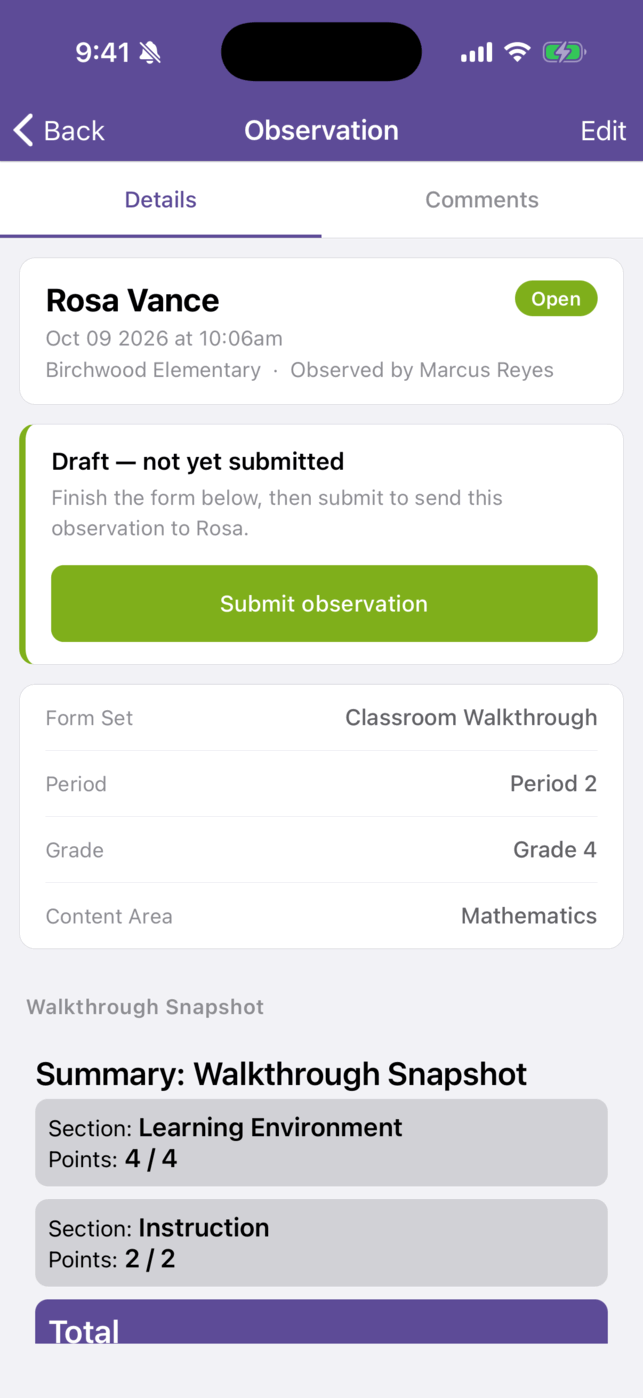
Tap Submit observation.
There is no confirmation step. The app submits as soon as you tap and then shows “Observation submitted.” On the web, a confirmation window lists what will happen before you commit; the app skips it. Make sure the observation is finished before you tap.
What happens after you submit
Section titled “What happens after you submit”It depends on the observation’s form set:
| Form set asks for | Status after submitting | What the teacher is asked to do |
|---|---|---|
| Reflection (with or without acknowledgment) | Awaiting Reflection | Write a reflection, then acknowledge if required |
| Acknowledgment only | Awaiting Acknowledgment | Acknowledge the observation |
| Neither | Closed | Nothing. The observation is final. |
While you wait, the bottom of the Details tab shows REFLECTION and ACKNOWLEDGMENT blocks marked Pending (“Awaiting Rosa Vance’s reflection.”). On Home, the observation is counted under Waiting on teachers in Your observations.
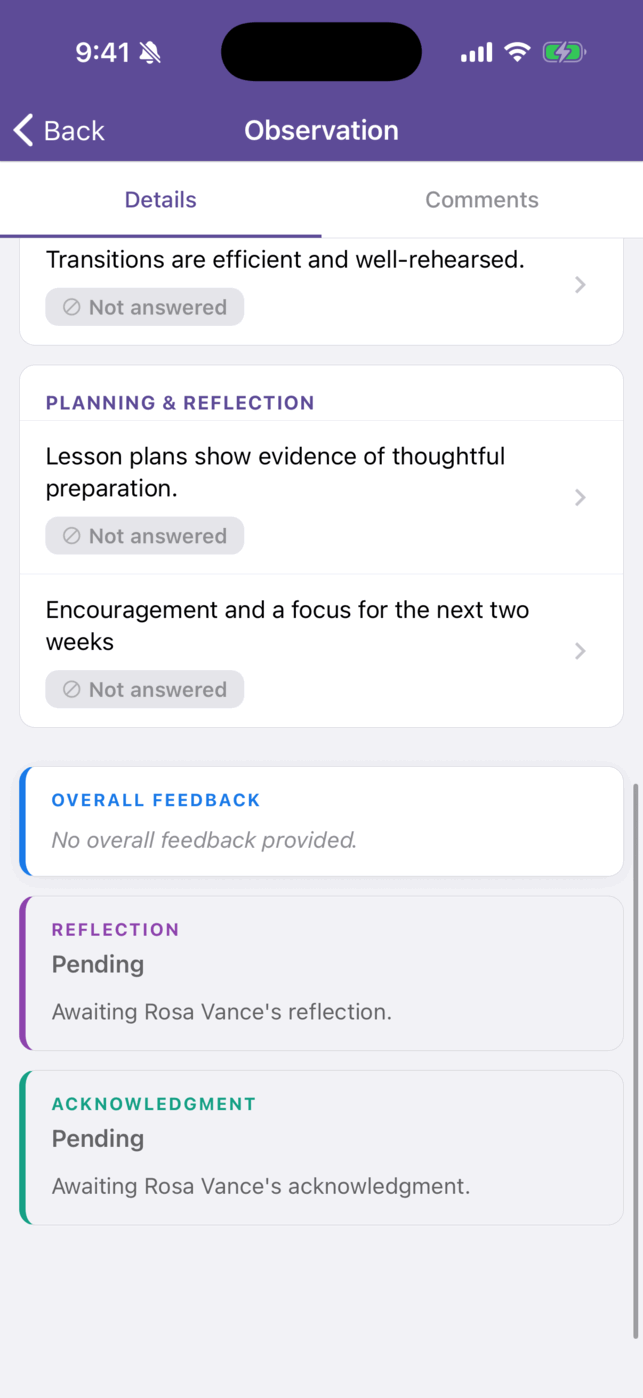
The teacher is notified by email and, if they use the app, by push notification. The app has no Resend email button and no administrator override to close without the teacher’s response. Use the web for either: see Waiting on the teacher.
Close the observation
Section titled “Close the observation”When the teacher finishes, the status changes to Awaiting Closure and the Details tab shows Ready to close: “Rosa has completed their responses. Close this observation to finalize it.”
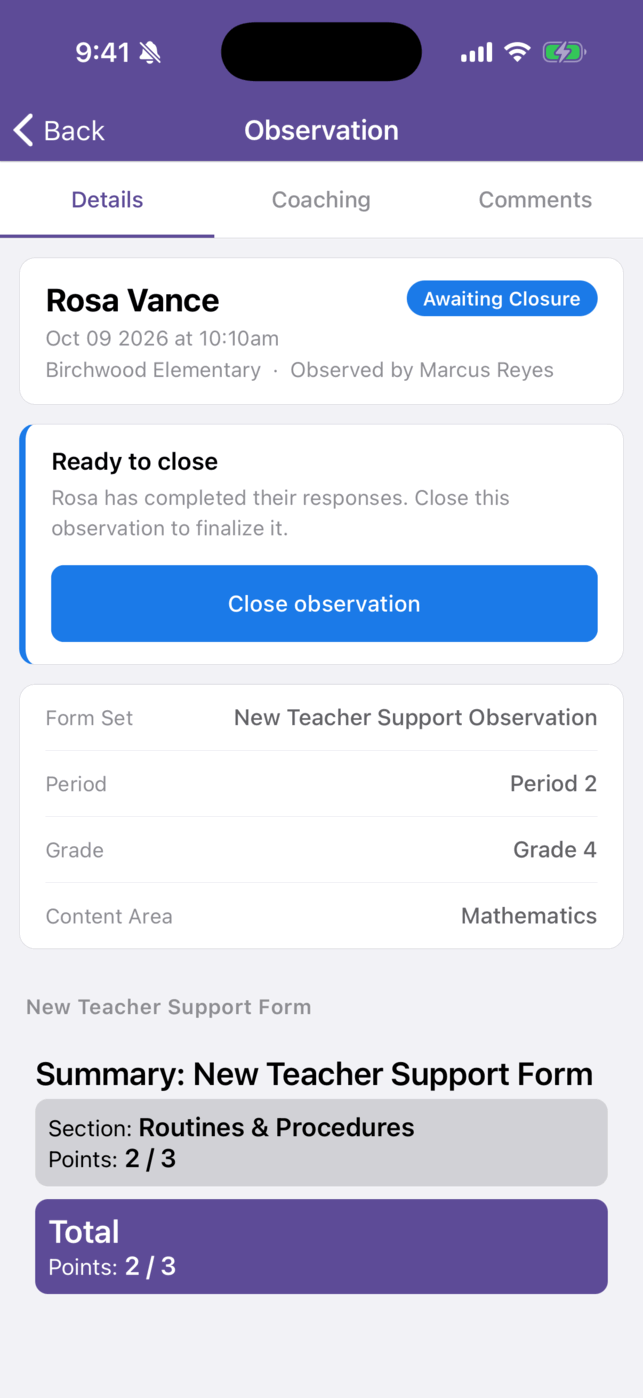
- Tap Close observation.
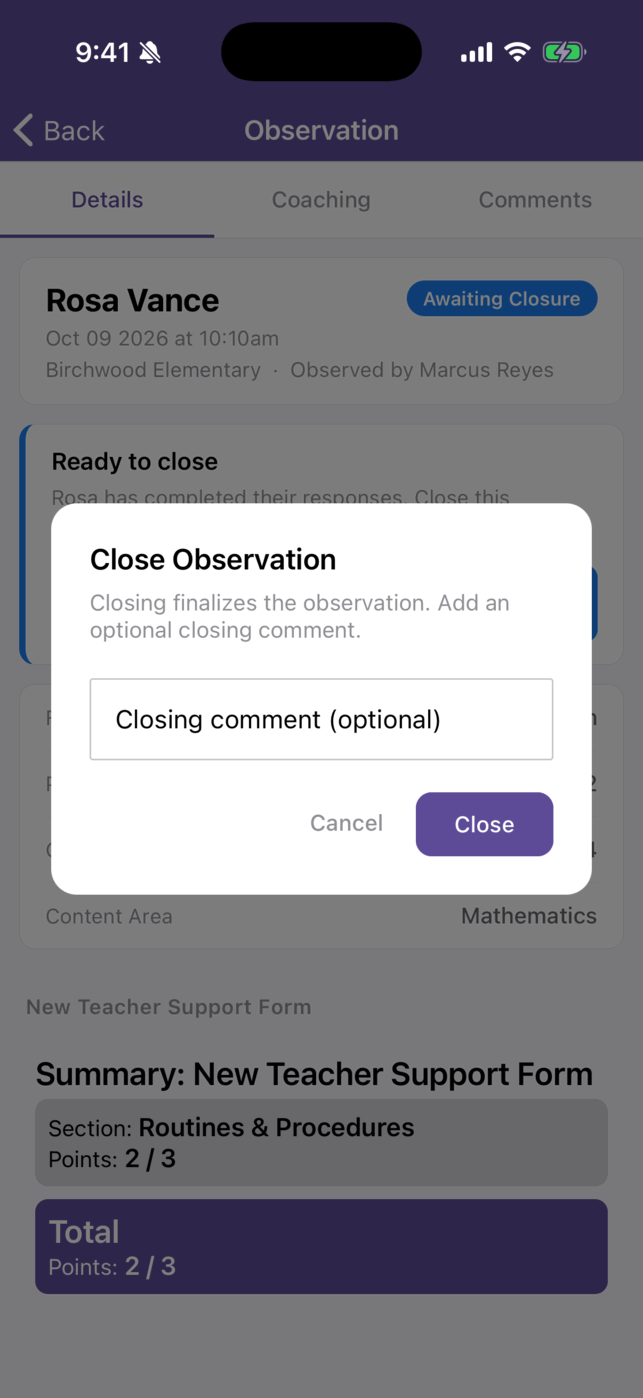
- In Close Observation, type a Closing comment (optional) if you want the teacher to read one.
- Tap Close. The app shows “Observation closed.”
The observed teacher can’t close their own observation.
Reopen a closed observation
Section titled “Reopen a closed observation”Administrators, observers, and evaluators can reopen a closed observation that is not their own.
- Open the closed observation.
- Tap Reopen in the top-right corner.
- Type a Reason (required).
- Tap Reopen. The app shows “Observation reopened.”
The reason is recorded, as on the web. The app has no reopen history view and no Reopen & reset audit option; use the web for those. See Scores and Reopening.
Delete an observation
Section titled “Delete an observation”On the Observations list, swipe left on an observation and tap Delete. Confirm with DELETE. Delete works on any observation that isn’t Closed and that you can edit, including one waiting on the teacher. A closed observation can’t be deleted.