

weCLIMB Mobile
Starting an Observation on Mobile
Begin an observation in the weCLIMB mobile app, fill in every required classroom field, and know when Save turns on.
Roles: Observer. Administrators without the Observer role don’t see the start buttons in the app.
Starting an observation on your phone takes two screens: a short Begin Observation window where you choose the date, school, and form set, then the Create Observation screen where you record the class and fill in the form.
Open the Begin Observation window
Section titled “Open the Begin Observation window”Use either of these:
- On Home, tap Start an observation.
- On the Observations tab, tap + in the top-right corner.
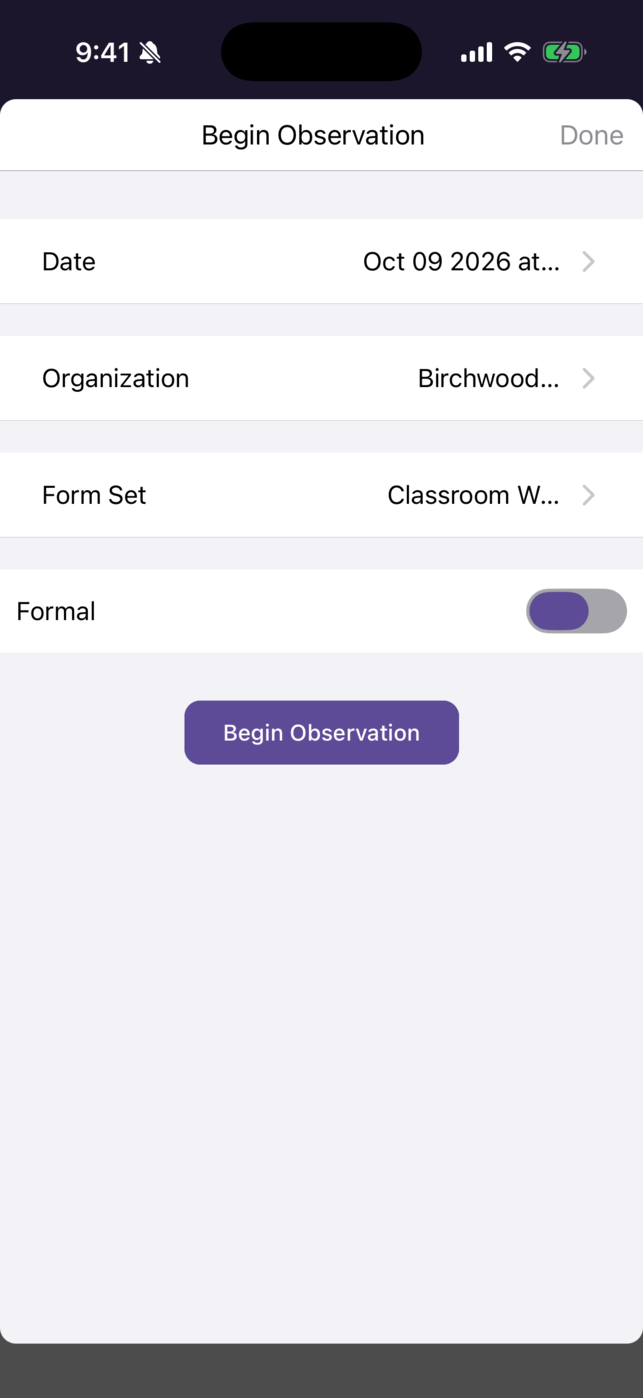
The window fills in the current date and time, your first school, and that school’s first form set. Change any of them before you continue:
| Row | What it does |
|---|---|
| Date | Opens Change time and date. Pick the date and time of the visit. |
| Organization | Opens Select Organization: the schools where you can observe. |
| Form Set | Opens Select Form Set: the form sets available at that school. |
| Formal | Marks the observation as formal. Shown only when your district uses performance reviews. |
Tap Begin Observation.
These four choices are fixed once you continue. The next screen shows them as read-only. To change one, tap Cancel and start again.
If the Create Observation screen doesn’t open after you tap Begin Observation, the app couldn’t load the form. Check your connection and try again.
Fill in the classroom information
Section titled “Fill in the classroom information”The Create Observation screen opens with Classroom Information at the top. Date, Organization, Form Set, Observer (your email address), and Formal are already set.
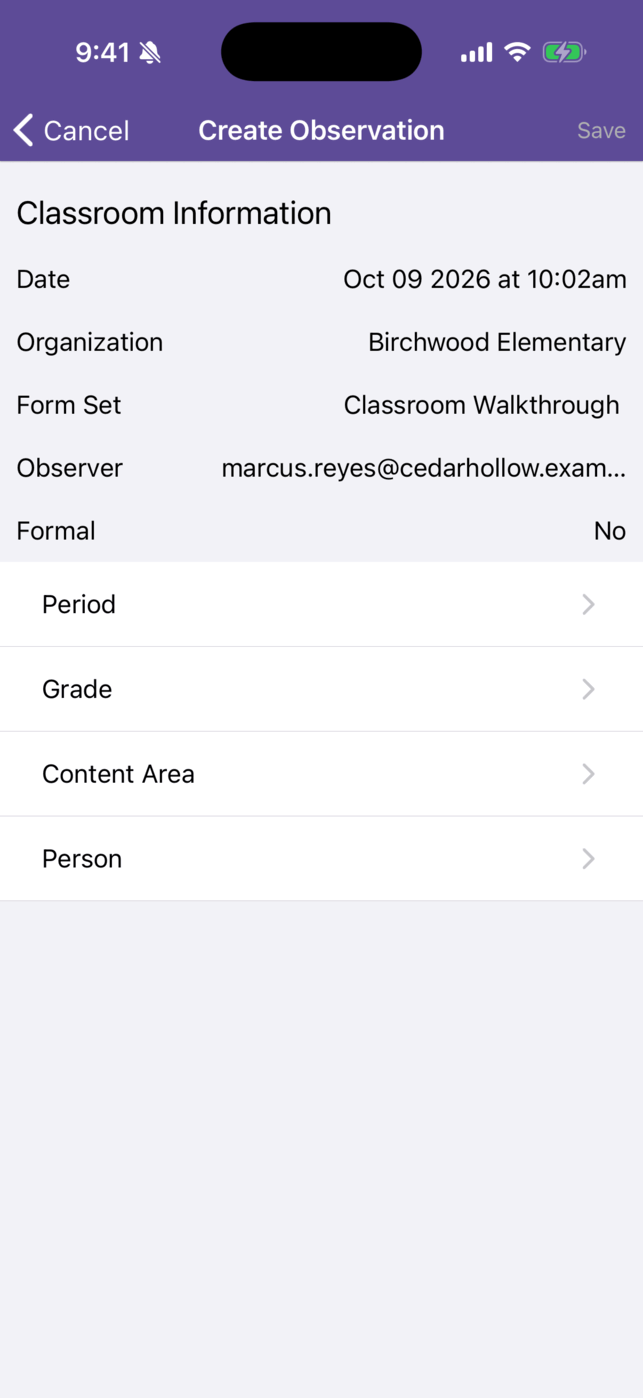
Four more rows are required. Tap each one and pick from the list:
| Row | Picker title |
|---|---|
| Period | Select Class Period |
| Grade | Select Grade Level |
| Content Area | Select Content Area |
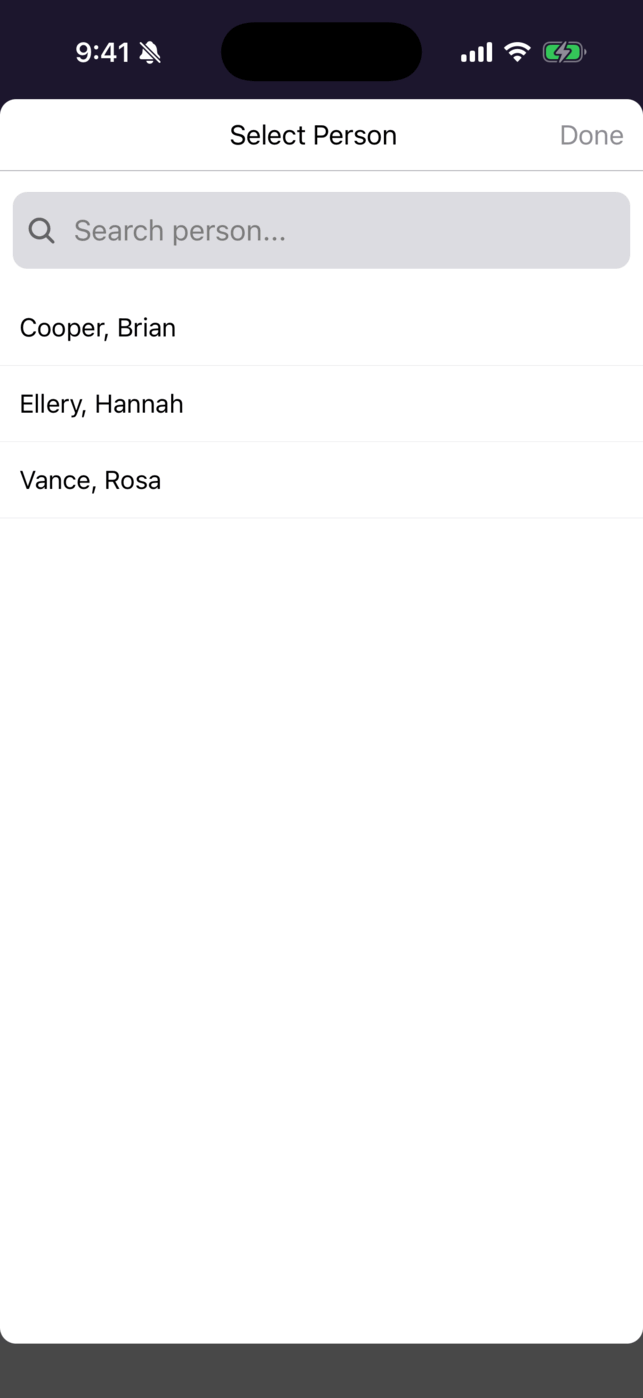
| Person | Select Person. Type in Search person… to filter. Names are listed last name first. |
Picking an item closes the list and returns you to the screen.
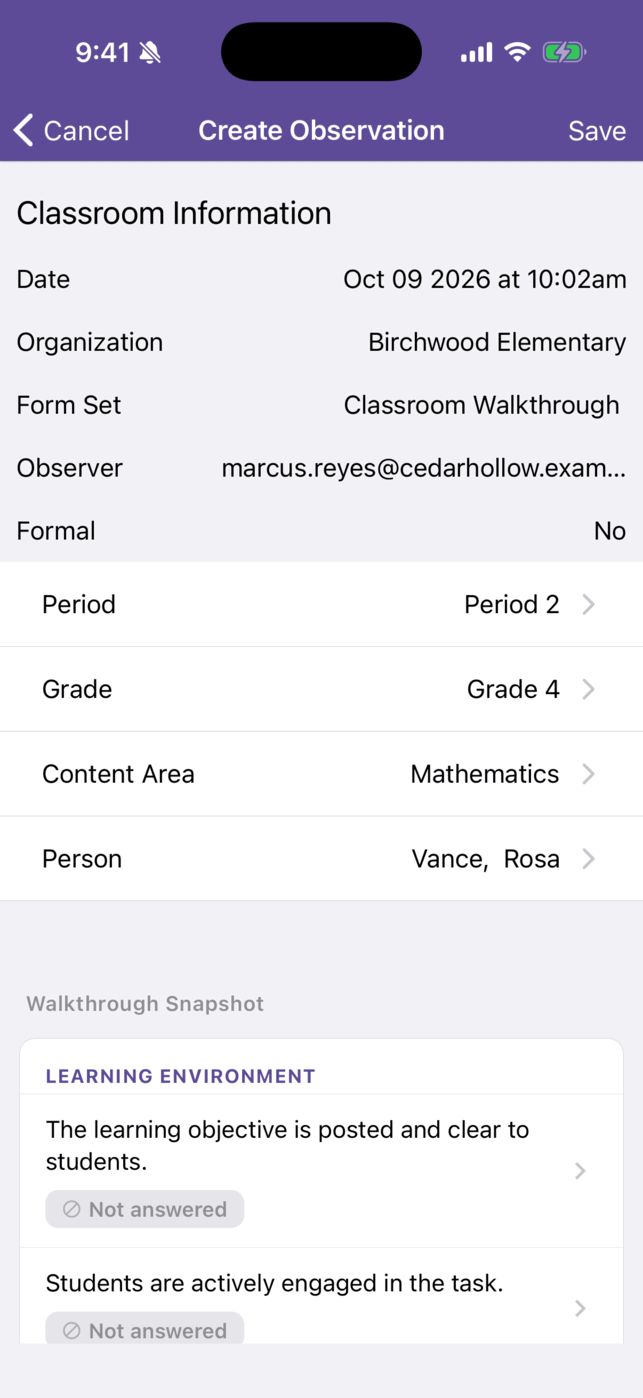
The form appears only after all four are chosen. Until then the screen ends after Person.
When Save turns on
Section titled “When Save turns on”Save in the top-right corner stays grey until all of these are done:
- Period, Grade, Content Area, and Person are chosen.
- Every question marked Required is answered.
- Every question marked Attachment required has at least one photo or video.
When the last one is filled in, Save turns white and you can tap it.
If a form has a required question that asks for a written answer, Save stays grey in the app even after you type the answer. Start an observation with that form set on the web instead.
There are no partial drafts
Section titled “There are no partial drafts”The app can’t save an observation halfway. Your answers stay on the phone, in the app, until you tap Save, and nothing reaches Master Teacher before then.
- Cancel in the top-left corner closes the screen and discards everything, with no confirmation.
- Closing the app, or the app quitting, also discards the observation.
If you need to stop partway through, finish the required items and tap Save. The observation is saved as a draft that you can edit and submit later. On the web, by contrast, Save Draft works at any point. See Conducting Your First Observation.
Next steps
Section titled “Next steps”- Answer the questions: Filling In the Observation Form on Mobile
- Save and submit: Saving, Submitting, and Closing on Mobile