

weCLIMB Mobile
Finding and Opening Observations on Mobile
Search, filter, and sort the Observations list in the weCLIMB mobile app, and use the Details, Coaching, and Comments tabs on an observation.
Roles: for everyone. The list shows the observations you’re allowed to see, the same as on the web.
The Observations tab is one list of every observation you can see: the ones you conducted, the ones about you, and, for administrators, the ones in your schools. The web splits these into My Observations, Conducted Observations, and All Observations; the app keeps them in one list and gives you search and filters instead.
The Observations list
Section titled “The Observations list”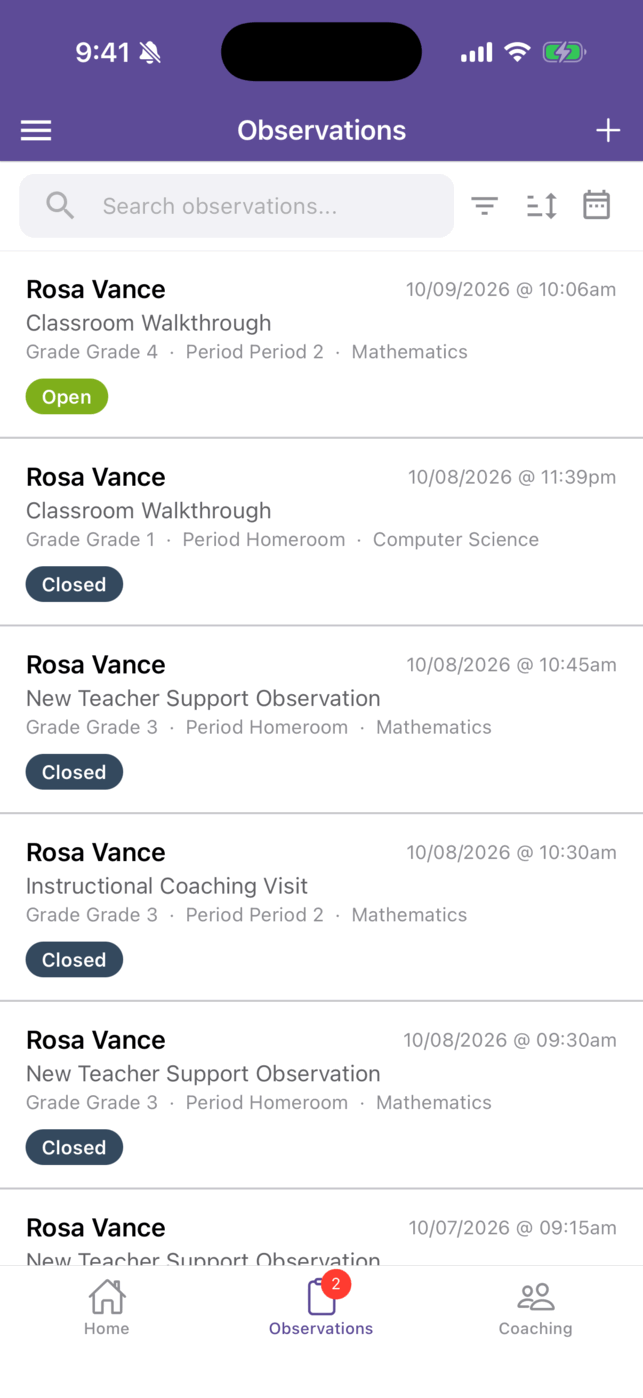
Each row shows the teacher, the date and time, the form set, the grade, period, and content area, and a status pill. The newest observations are at the top. Pull down to refresh. The list loads 50 at a time and loads more as you scroll.
Observers see + in the top-right corner to start a new observation.
Search and filter
Section titled “Search and filter”- Search: type in Search observations… to match a teacher’s or observer’s first or last name, the school, the grade, the period, or the content area. Search for one word at a time: a full name with a space doesn’t match.
- Status: tap the filter icon to open Filter by status and choose All statuses, Awaiting Closure, Open, Awaiting Reflection, Awaiting Acknowledgment, or Closed.
- Sort: tap the sort icon to open Sort observations and choose Date (newest first) or Status (most critical first).
- Dates: tap the calendar icon to open Date Filter. Choose Current Semester, Last Semester, Current Year, or Last Year, or set Start and End dates. Tap Done.
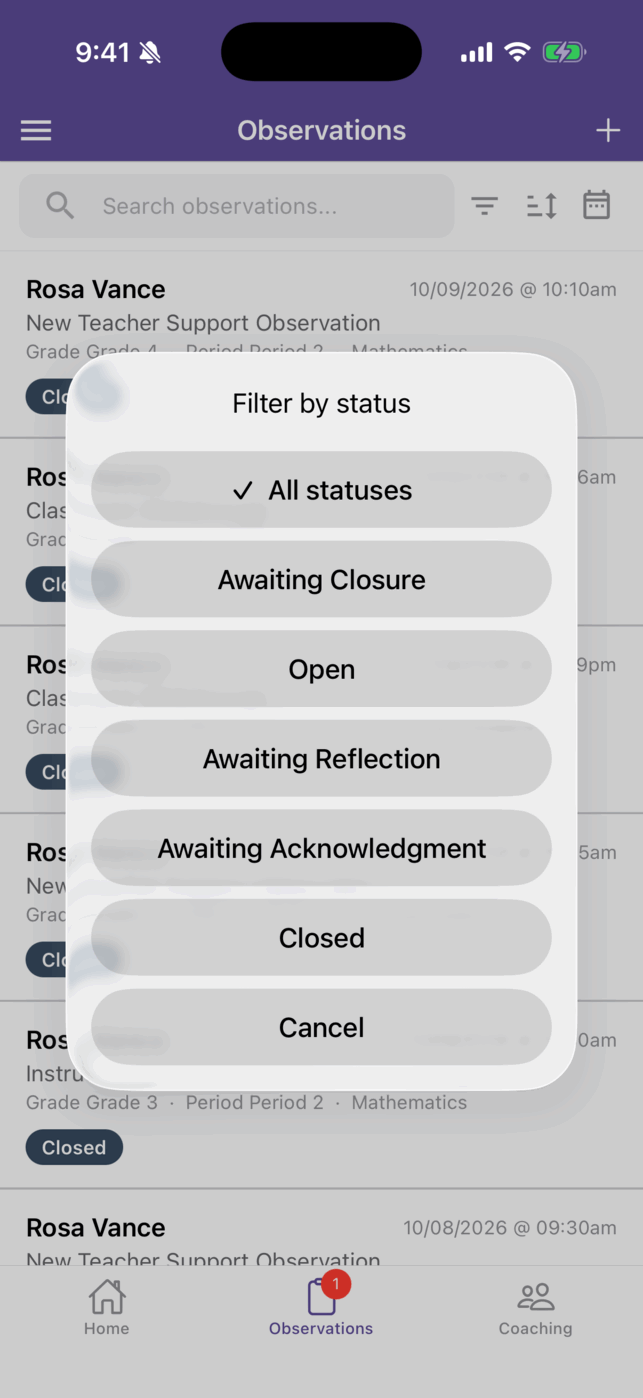
An active filter appears as a chip above the list. Tap the chip to clear it.
The rows on the Your observations card on Home open this list already filtered, for example to your observations that need closing, or, from the “has been waiting over 2 weeks” row, to those waiting on a teacher for more than two weeks.
Open an observation
Section titled “Open an observation”Tap a row. The observation opens with up to three tabs:
- Details: the teacher, status, school, and observer; a callout with the next step, if there is one; the classroom details; the forms with their answers and scores; and the OVERALL FEEDBACK, REFLECTION, ACKNOWLEDGMENT, and CLOSURE blocks. Tap a question to read its answer, feedback, and files.
- Coaching: shown when coaching applies to this observation. See Coaching on Mobile.
- Comments: shown when your district uses comments.
The buttons in the header depend on the status and your role: Edit on a draft you can edit, and Reopen on a closed observation you can reopen. See Saving, Submitting, and Closing on Mobile.
Recommend courses
Section titled “Recommend courses”If questions on the form are mapped to courses, the Details tab can show RECOMMEND COURSES (“based on this observation”). Check the courses you want to recommend, leave the Notify switch (it shows the teacher’s first name) on to tell the teacher, and tap Recommend. The teacher doesn’t see this section on their own observation.
Comments
Section titled “Comments”The Comments tab is a conversation thread for everyone on the observation.
- Tap Add a comment….
- Type your comment in the Add a comment sheet.
- Tap Post.
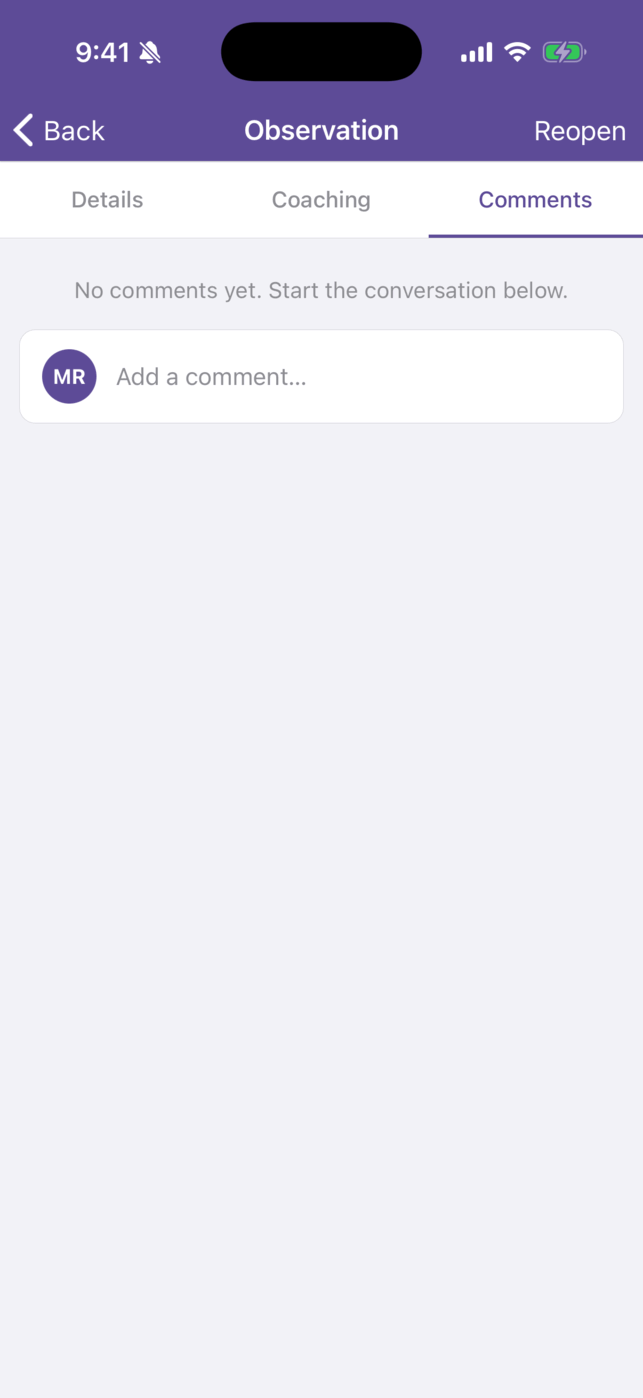
To change or remove one of your own comments, tap ⋯ on it (or press and hold it) to open Comment actions, then choose Edit or Delete. Deleting asks “Delete this comment?” and can’t be undone.
People on the observation can be notified of new comments by push and email. See Comments and Attachments for how the thread works on the web.