

weCLIMB Mobile
Signing In to the Mobile App
Sign in to the weCLIMB mobile app with your password or Microsoft single sign-on, and where to reset a forgotten password.
Roles: for everyone with a Master Teacher account.
You sign in to the mobile app with the same email address you use for Master Teacher on the web. There is nothing to set up first: no server address, no district code. The app works out how your account signs in from your email address.
Step 1: Enter your email
Section titled “Step 1: Enter your email”- Open the app.
- Type your work email address in Email.
- Tap Next. The button stays grey until the address looks complete.
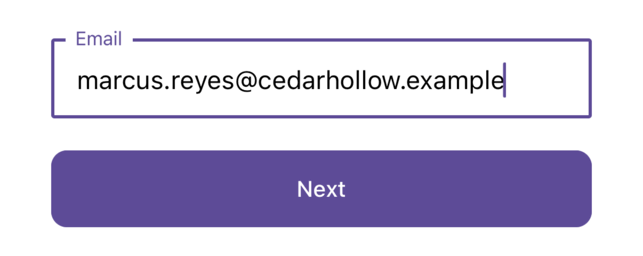
If the email doesn’t match an account, a red message appears under the field. Check the spelling, or ask your administrator which address your account uses.
What happens next depends on how your district signs in.
Step 2a: Sign in with a password
Section titled “Step 2a: Sign in with a password”If your account uses a Master Teacher password, a Password field appears.
- Type your password. Tap the eye icon to show or hide what you typed.
- Tap Sign In.
To go back and use a different email, tap Cancel.
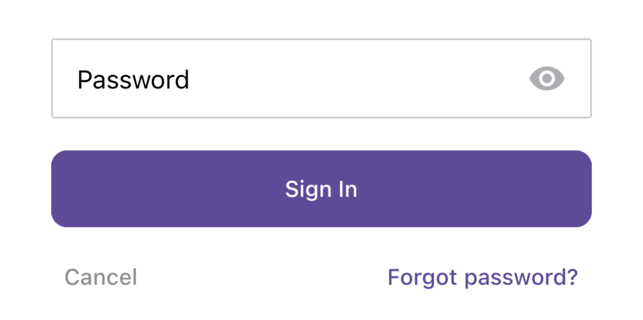
If the password is wrong, a red message appears under the field.
Step 2b: Sign in with Microsoft
Section titled “Step 2b: Sign in with Microsoft”If your district signs in with Microsoft, the app opens the Microsoft sign-in page in a browser sheet instead of asking for a password. Sign in there as you do on your school computer. When Microsoft confirms who you are, the sheet closes and the app opens on Home. To stop, close the sheet.
Google sign-in is not supported in the app. If your district signs in with Google, the app shows “Google SSO is currently not supported.” after you tap Next. Use Master Teacher on the web in your phone’s browser instead.
The app has no sign-in links or one-time codes. A link in a notification email opens in your phone’s browser, not in the app. See Opening an Observation from Email.
Forgot your password
Section titled “Forgot your password”Reset your password on the web. The app’s Forgot password? link opens a Forgot Password? window with your email filled in, but tapping Submit shows “Email was not found.” even when the address belongs to your account, and no reset email is sent.
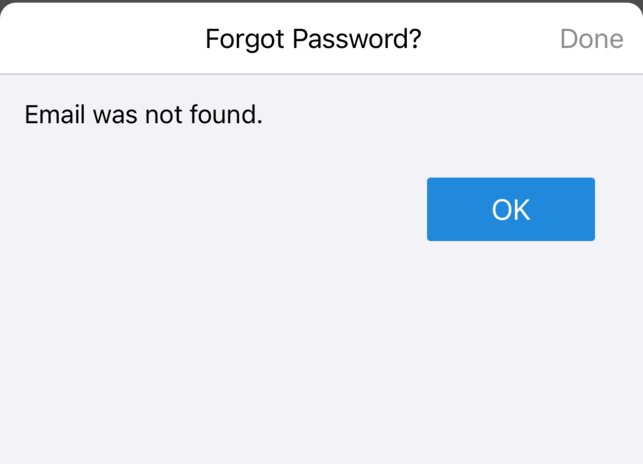
To reset it, open Master Teacher in your phone’s browser and follow Resetting a forgotten password. Then come back to the app and sign in with the new password.
If your district signs in with Microsoft, your password belongs to Microsoft, not Master Teacher. Reset it the way your district tells you to.
Staying signed in
Section titled “Staying signed in”The app keeps you signed in on that phone until you tap Sign off in the side menu. You don’t need to sign in each time you open it.
If your session expires while you are saving an observation, the app shows Sign in to continue (“Your user session has expired.”). Enter your email and password, and the app finishes saving the observation you were working on.
Signing off
Section titled “Signing off”- Tap the menu icon (☰).
- Tap Sign off at the bottom of the side menu.
The app returns to the sign-in screen and stops sending push notifications to that phone until someone signs in again.
If you can’t sign in
Section titled “If you can’t sign in”- “doesn’t match any account”: the email is not the one on your Master Teacher account, or your account is inactive. Ask your administrator.
- Wrong password: reset it on the web (see Forgot your password).
- Google sign-in message: use Master Teacher on the web.
- The app stays on a spinning wheel after you open it: the app could not reach Master Teacher. Check your connection, then close the app and open it again.