

eLearn Mobile
Viewing Certificates in the App
See your transcript entries on the eLearn app's Certificates tab, filter them by date, and open a certificate.
Roles: for everyone who takes courses in eLearn.
The Certificates tab lists your transcript: every course you completed and every PD hours record your district entered for you. It is the same record as My Transcripts on the web. When a principal or a license renewal asks for proof of a completed course, you can open the certificate from your phone.
The list
Section titled “The list”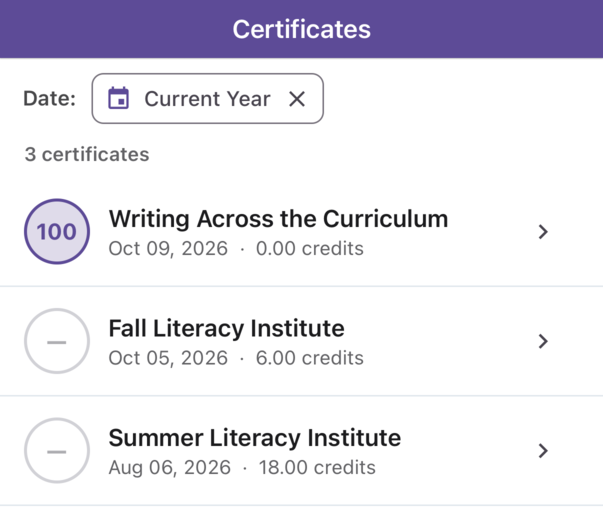
Entries are listed newest first. Above them, a count reads, for example, 18 certificates. Each entry shows:
- Score: your score in a circle, or a dash when the entry has no score (for example, a district PD day).
- Name of the course or training.
- Date and credits: the completion date and the credits earned, for example “Oct 09, 2026 · 0.00 credits”.
When you have no entries, the tab shows No certificates yet and “Complete a course to earn your first certificate.”
Pull down on the list to refresh it after you finish a course.
Filtering by date
Section titled “Filtering by date”The Date: filter starts at All Time. Tap it to open the Date Filter sheet:
- All Time
- Current Semester and Last Semester
- Current Year and Last Year (your district’s school years)
- Start and End: pick your own dates.
- Clear date filters
The semester and school-year choices use the dates your district set in Master Teacher, and each shows its date range. The filter then shows the choice you made (or your custom range) with an ×. Tap the × to go back to All Time.
Opening a certificate
Section titled “Opening a certificate”Tap an entry. What happens depends on the entry:
- A course with one certificate: the app creates the certificate and opens it on the View Certificate screen.
- A course with several certificates: choose one from the Choose Certificate list.
- A certificate that needs more information: some certificates ask for details such as dates before they are created. Fill in the form and tap Submit. The app explains that “The following information will not be stored in our system and will only be used to generate certificates for your current log in session.”
- A PD hours record with an attached file: the file your administrator uploaded opens on the View Certificate screen.
- No certificate: the app shows No Certificate available.
If a certificate cannot be created, the app shows An error occurred while fetching certificate. Please try again or contact support if problem persists.
Saving or printing a certificate
Section titled “Saving or printing a certificate”The View Certificate screen shows the certificate but has no save, share, or print button. To save or print it, open My Transcripts on the web. See Downloading Certificates.
What the tab does not include
Section titled “What the tab does not include”- Transcript download: download your full transcript on the web. See Viewing My Transcripts.
- Search: the tab has no search box. Use the date filter to narrow the list.
- Assessment certifications: the My Certifications page is web only. See Viewing Your Assessment Certifications.
If a completion is missing or wrong, check the date filter first. You cannot add or edit entries in the app or on the web; contact your district’s Master Teacher administrator.