

eLearn Mobile
Installing and Signing In to the eLearn App
Get the eLearn app, sign in with your password or Microsoft account, and know what to do when sign-in does not work.
Roles: for everyone who takes courses in eLearn.
You sign in to the app with the same account you use for Master Teacher on the web. There is no separate app account and no sign-up screen. If you have never signed in to Master Teacher, accept your invitation on the web first. See Accepting Your Invitation.
Installing the app
Section titled “Installing the app”Search your device’s app store for Master Teacher eLearn and install it. The app runs on iPhone, iPad, and Android phones and tablets.
Signing in
Section titled “Signing in”Sign-in takes two steps. The app first checks your email address to learn how your district signs you in.
- Open the app, type your email address in Enter email, and tap Next.
- Finish signing in the way your account is set up:
- Password: type it in Enter password and tap Sign In. Tap Cancel to go back and change the email address.
- Microsoft account: the app shows Waiting for Login and opens the Microsoft sign-in screen. Sign in there and the app opens. Tap Cancel to stop.
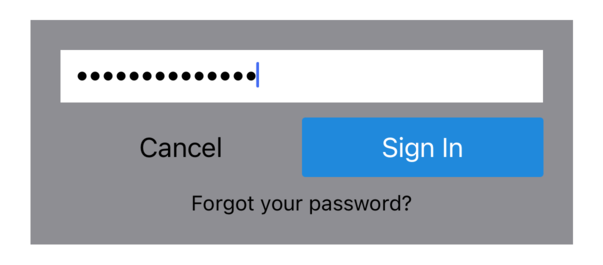
The app opens on the Home tab. It keeps you signed in, so you go straight to Home the next time you open it.
When your district uses Google sign-in
Section titled “When your district uses Google sign-in”If your district signs you in with Google, the app shows Google SSO is currently not supported. after you tap Next, and you stay on the email step. The app does not offer Google sign-in. Use eLearn in your web browser instead. See Signing In and Resetting Your Password.
Messages you may see
Section titled “Messages you may see”If something is wrong, a message appears in red under the field. The text comes from Master Teacher, for example:
- The email you’ve entered doesn’t match any account. Check the spelling, or use the address your district has on file.
- Invalid email or password. Check your password, or reset it on the web (see below).
- Sorry, this account has been deactivated. Contact your district’s Master Teacher administrator.
Forgot your password?
Section titled “Forgot your password?”The Forgot your password? link on the password step does not reset your password. It opens a form and then answers Email was not found., even for a valid address.
Reset your password on the web instead:
- Open Master Teacher in your web browser.
- On the sign-in page, click Forgot password? and follow the steps in Signing In and Resetting Your Password.
- Return to the app and sign in with the new password.
If your district signs you in with a Microsoft account, your password belongs to your district. Change it with your district’s account tools.
Opening the app from weCLIMB
Section titled “Opening the app from weCLIMB”If you also use the weCLIMB mobile app, tap eLearn in its side menu. When the eLearn app is installed, it opens already signed in to your account. In the same way, the weCLIMB item in this app’s side menu opens the weCLIMB app signed in.
Signing out
Section titled “Signing out”- On the Home tab, tap the menu button at the top left.
- Tap Sign off at the bottom of the side menu.
The app signs you out right away (there is no confirmation) and returns to the sign-in screen. Sign off on a shared device, such as a school iPad cart.
Signed out without warning
Section titled “Signed out without warning”If Master Teacher no longer accepts your saved sign-in, the app shows Unauthorized request. and returns to the sign-in screen. Sign in again.