

eLearn Mobile
Taking a Course in the App
Work through a course in the eLearn app's player, move between sections, watch videos, and finish the course.
Roles: for everyone who takes courses in eLearn.
Courses open in the app’s course player. You move through a course one section at a time, and each section you finish counts toward your progress on the web too. A teacher can start a course on a school laptop and finish the next section on a phone at home.
To find a course, see Finding Courses in the App.
Opening a course
Section titled “Opening a course”Tap a course on Home, Libraries, or Discover. The player shows Fetching course data… while it loads, then opens at the section where you left off.
The first time you open a course, Master Teacher uses one of your district’s licenses for it. If none are left, the player shows All licenses for this product have been claimed. Please contact your administrator to order more. Contact your district’s Master Teacher administrator.
The player
Section titled “The player”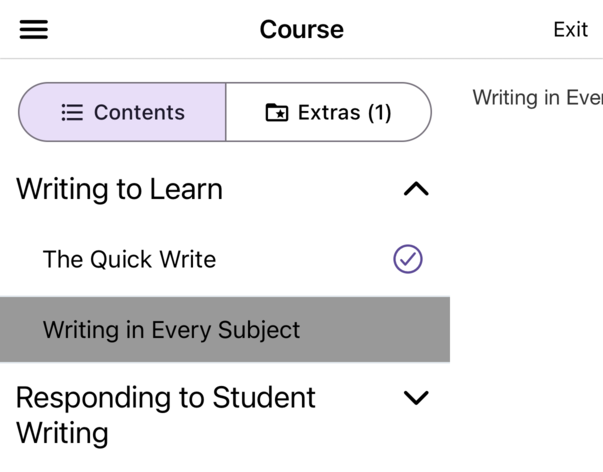
- Title bar: the kind of content (for example Course or Assessment), the menu button at the left, and Exit at the right.
- Menu button: shows or hides the course outline.
- Contents: the course’s chapters, each with its sections. Tap a chapter to expand or collapse it. The section you are on is highlighted, and a check mark marks each section you finished.
- Extras (N): extra resources the publisher attached to the course, with their count. Tap one to open it in the player. To go back to the course, tap Contents and tap your section. A course with no extras shows There are no items.
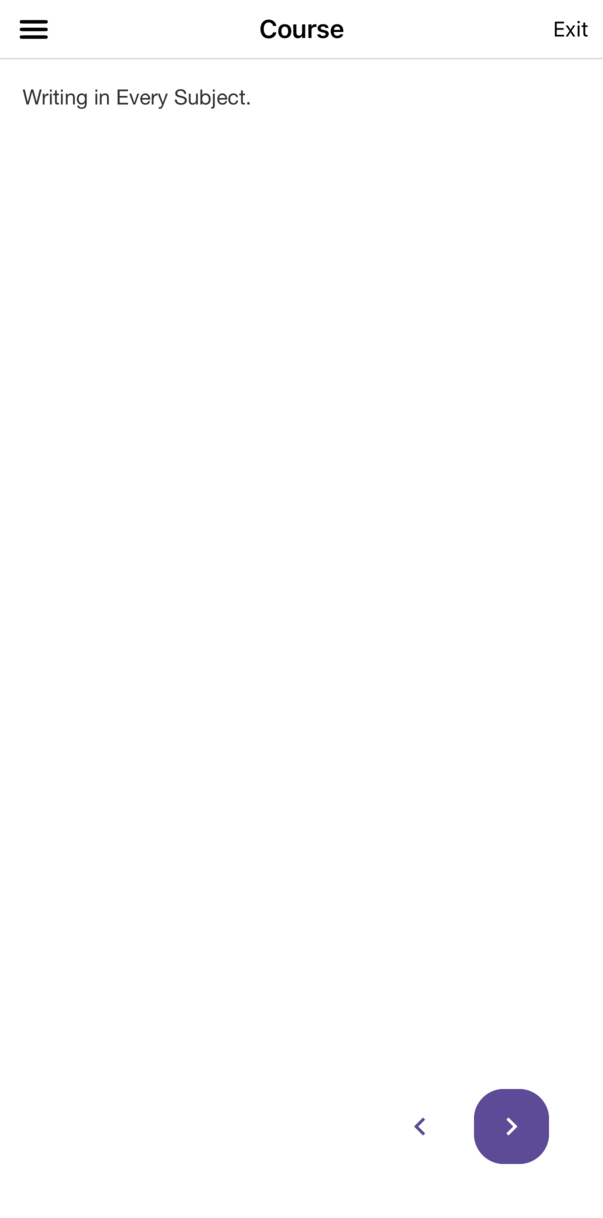
- Arrow buttons at the bottom right: the back arrow goes to the previous section, and the forward arrow goes to the next one.
On a phone, the outline slides over the content and the arrow buttons are hidden until you close it. On a tablet held sideways, the outline stays open beside the content.
Moving through a course
Section titled “Moving through a course”- Read or watch the section.
- Tap the forward arrow. The app marks the section complete and opens the next one.
- Tap the back arrow to return to the previous section. It does not appear on the first section.
You can also tap a section in Contents to go to it. The app moves through every course in order: you can open any section you already finished and the section you are on, but you cannot skip ahead.
Section types
Section titled “Section types”- Pages: text and images from the publisher.
- Videos: play in the app’s video player with the usual controls. Until you finish a video, the forward arrow is unavailable and you cannot skip ahead in the video. When the video ends, the app marks the section complete. On a section you already finished, you can move to any point in the video.
- PDFs: open in the app’s document viewer.
- Exams: see Answering Exams in the App.
Videos stream while you watch them, so you need an internet connection. Nothing is downloaded for offline viewing.
Leaving and coming back
Section titled “Leaving and coming back”Tap Exit to close the player. There is no confirmation, and the sections you finished stay finished. The next time you open the course, in the app or on the web, it picks up where you left off.
Finishing a course
Section titled “Finishing a course”The forward arrow does not appear on a course’s last section.
- When the last section is a video: watch it to the end, and the app marks the section and the course complete.
- When the last section is an exam: submit the exam. See Answering Exams in the App.
- When the last section is a page or a PDF: the app has no button that finishes it, so the course stays in progress. Open the course on the web, which opens at that last section, and click Next to finish the course. See Taking Courses.
A finished course adds an entry to your transcript, which appears on the app’s Certificates tab.
The Certificate button
Section titled “The Certificate button”When a course awards a certificate, a Certificate button appears beside the arrow buttons. Tap it to open the course’s certificate on the View Certificate screen, and go back to return to the course. Before you finish the course, it shows No Certificate available. Tap Done to return to the course. For more about certificates, see Viewing Certificates in the App.
When something goes wrong
Section titled “When something goes wrong”- An error occurred while getting Course information.: the course did not load. Check your connection, tap Exit, and open the course again.
- A blank screen instead of the player: that kind of content does not open in the app. Use the web. See When Content Will Not Open.