

eLearn Mobile
Finding Courses in the App
Where your assigned courses, libraries, and assessments appear in the eLearn app, and which tab to use when one is missing.
Roles: for everyone who takes courses in eLearn.
The app shows the content your district assigned to you, the same content you see on My Dashboard on the web. Three tabs list it in different ways, and they do not all show the same things.
Which tab to use
Section titled “Which tab to use”| You want to | Use |
|---|---|
| Pick up a course you started, or see what is required | Home (for courses from the standard Master Teacher course catalog) |
| Find any course by name, including your district’s own courses | Discover |
| Work through a library or learning path in order | Libraries |
| Open an assessment | Libraries (open the library that contains it) |
Home lists only courses from the standard Master Teacher course catalog. Courses from other publishers (including courses your district created), case studies, and assessments never appear in Home’s In Progress, Required, or Completed sections. Find them in Discover or Libraries.
Home groups your courses into sections, each with a red count badge:
- In Progress: courses you have opened but not finished.
- Required: courses your district marked as required for you.
- Completed: courses you finished.
- Libraries: your content libraries and learning paths.
In Progress, Required, and Completed start collapsed. Tap a section’s header to show or hide its courses. A section with nothing in it does not appear. Pull down on the list to refresh it.
Each row shows the course name and, when the publisher set one, an estimated time (for example, a timer icon and “45m”). Tap a course to open it in the course player. Tap a library to jump to it on the Libraries tab.
Discover
Section titled “Discover”Discover lists everything assigned to you.
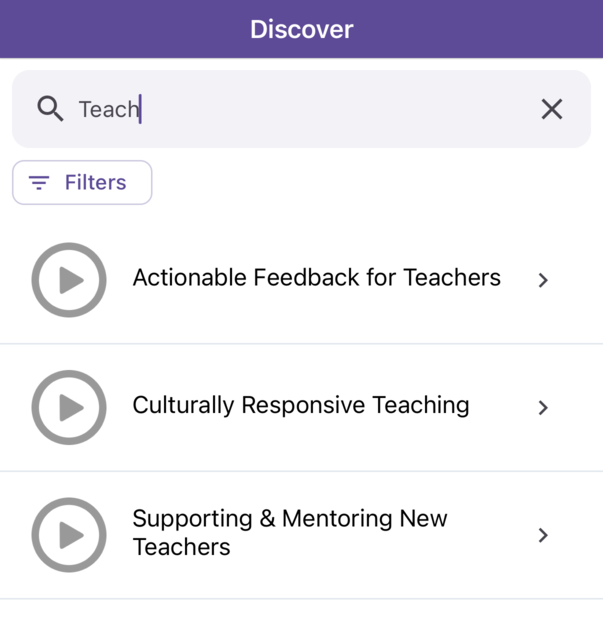
- Search courses: type part of a name. The list updates when you stop typing. Tap the × in the box to clear it.
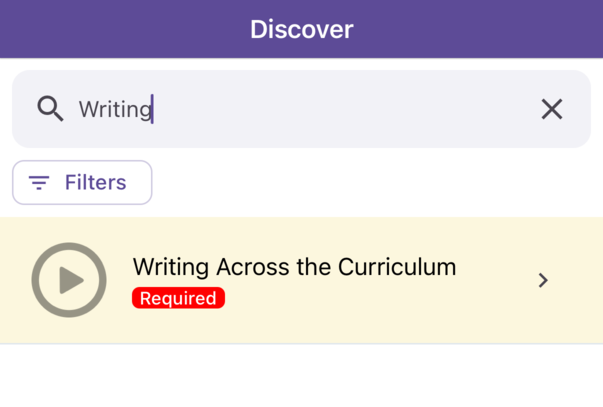
- Row colors: a yellow row with a red Required label is required for you. A gray row is in progress.
Filters
Section titled “Filters”Tap Filters to open the Filters sheet. It has two parts:
- Product Types: one chip per kind of content assigned to you, such as Courses or Assessments.
- Topics: the topics your content is tagged with, with a Search topics box. Choosing a product type narrows the topics to that type.
Your choices appear as tags under the Filters button, which then reads Filters · 1 (or the number of choices). Tap the × on a tag to remove it.
Choosing a product type does not filter the list. The list is replaced by A system error occurred. Please try again or contact support if problem persists. Remove the product-type tag to bring the list back, and use Search courses to narrow it instead.
Libraries
Section titled “Libraries”The Libraries tab lists your content libraries and learning paths. Each row shows the name, the publisher (“by: Cedar Hollow Press”), and what it contains (“Package contains 3 contents”).
- Tap a row to see the library’s contents. Tap an item to open it.
- Tap the image area at the left of a row (it can be blank) to open Library Details, with the publisher, contents, and description.
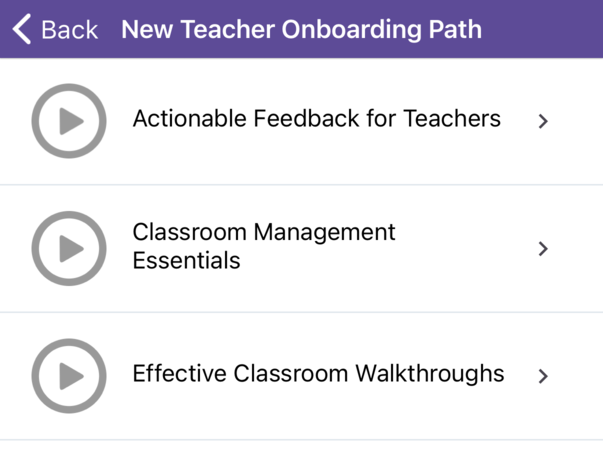
Learning paths open as a plain list of their items. The app does not show a learning path’s overall progress, and Library Details labels a learning path “Content Library”. To track a learning path, use the Learning Paths tab of My Dashboard on the web. See Accessing Your Learning Content.
Assessments from the standard Master Teacher catalog are left out of Discover, so open them from the library that contains them.
What opens in the app
Section titled “What opens in the app”Courses and assessments open in the course player. See Taking a Course in the App.
Other kinds of content, such as case studies, standalone videos, and standalone PDFs, open a blank screen in the app. Open them on the web instead. See When Content Will Not Open.
Proctored courses and assessments
Section titled “Proctored courses and assessments”When a course or assessment is set up for proctoring, tapping it opens a box titled Proctored Code instead of the player. Type the code your proctor gave you and tap Submit, or tap Cancel.
The app has no Proctor Lobby or session window. If your proctor runs a proctored session, take the assessment on the web. See Proctored Assessments.
When a course is missing
Section titled “When a course is missing”- Check Discover and search for the course name.
- Check the libraries on the Libraries tab.
- Pull down on the list to refresh it.
- If it is still missing, the course may not be assigned to you yet. Ask your district’s Master Teacher administrator.