

eLearn Mobile
Answering Exams in the App
Answer the exam in a course or assessment in the eLearn app, read your grade, and know when to finish on the web.
Roles: for everyone who takes courses in eLearn.
Some courses end with an exam, and an assessment is a single exam. Both open in the app’s course player, where the exam appears as a section. The title bar reads Course or Assessment.
To open an assessment, find it in a library on the Libraries tab, or search for it on Discover (assessments from the standard Master Teacher catalog appear only in libraries). See Finding Courses in the App.
Answering the questions
Section titled “Answering the questions”Questions are numbered Q1, Q2, and so on. A red asterisk marks a question you must answer.
- One answer: tap the circle next to your choice.
- Several answers: tap each box that applies.
When you are done, tap Grade exam (when the exam shows your score) or Submit (when it does not) at the bottom right.
If you skipped a required question, the app shows There was an error with your submission. with the reason. Answer the question and tap the button again.
Short-answer questions
Section titled “Short-answer questions”The app does not show short-answer questions. If an exam has one that you must answer, you cannot submit it in the app. Take that exam on the web. See Course Assessments and Exams.
Your grade
Section titled “Your grade”When the exam shows scores, your result appears above the questions after you submit:
- Grade: your score as a percentage, in green when you passed and red when you did not.
- This is your 1st attempt taking this exam (or 2nd, 3rd, and so on).
- Question marks: a green check next to each question you answered correctly. When the publisher shows missed questions, a red × marks each one you missed.
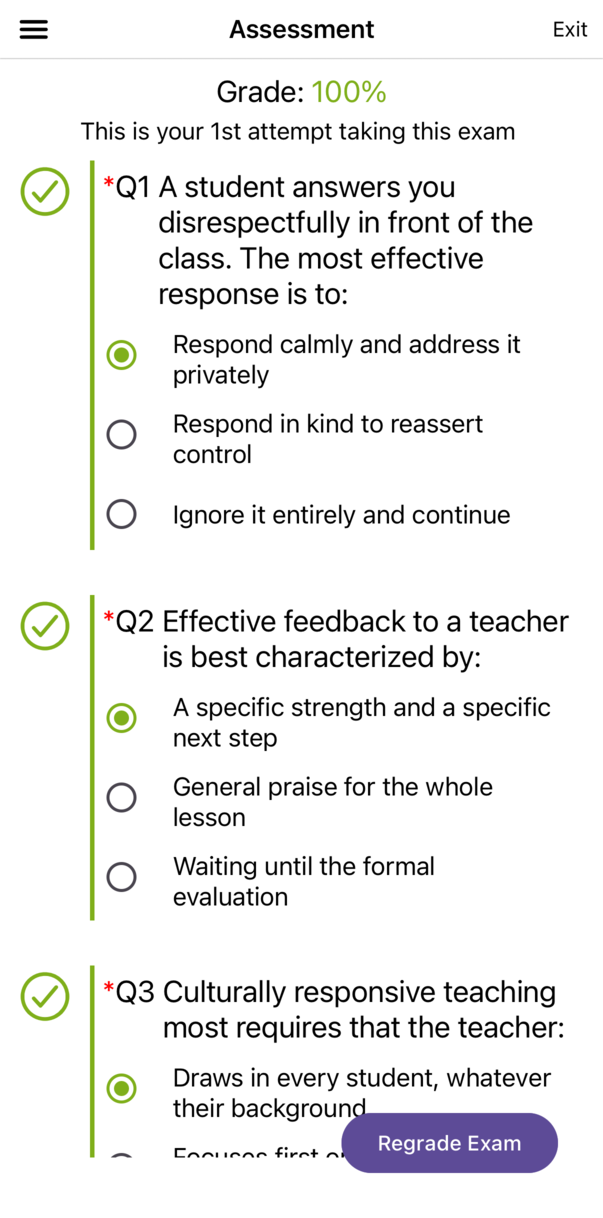
When the exam has a passing grade and you pass, the app opens the course’s certificate. If there is no certificate to show (for example, the course has none, or sections remain after the exam), it shows No Certificate available. Tap Done to return to the exam. See Viewing Certificates in the App.
After you submit, the forward arrow appears so you can go on to the next section, if there is one.
Retaking an exam
Section titled “Retaking an exam”When the exam allows retakes with no limit on attempts, the button changes to Regrade Exam (or Submit). Change your answers and tap it to submit again.
When the exam limits the number of attempts, the app does not offer the retake. Retake the exam on the web. See Course Assessments and Exams.
Proctored assessments
Section titled “Proctored assessments”A proctored assessment asks for a Proctored Code before it opens. The app has no Proctor Lobby or session window, so if your proctor runs a session for the assessment, take it on the web. See Proctored Assessments.