

Administration
System Configuration
Where each district-wide setting lives, who can change it, and which settings belong to each person instead.
Your district’s configuration is spread across a few pages in System Administration, plus a handful of settings your Master Teacher account representative keeps for you. This article shows where each one lives so you can find it before the school year starts.
Role: system administrators. Some pages require that your account belong to the district itself, not only to a school. Each section says so where it applies.
Settings you manage in System Administration
Section titled “Settings you manage in System Administration”Click the gear icon to open System Administration. These pages hold the district-wide setup:
| What you want to set up | Where it lives | Article |
|---|---|---|
| Notifications, magic links, comments, coaching cycles | Settings under OBSERVE (the page titled Observe Settings) | weCLIMB Settings |
| Class periods, content areas, and grade levels | Subdivisions | Class Periods, Content Areas, and Grade Levels |
| Evaluation periods for performance reviews | Subdivisions > Evaluation Periods | Creating Evaluation Periods |
| Staff accounts, roles, and schools | Manage Users and Organizations/Groups | Managing Users and Organizations |
| Invitations and re-engagement emails | Manage Users | Inviting and Re-engaging Users |
| Licenses | Licenses | License Management |
| Accounts and roles from Microsoft Entra ID | Directory Sync | Directory Sync with Microsoft Entra ID |
Every observation records a class period, a grade level, and a content area, and a school missing any one of the three cannot be observed. Before observations start, see Getting a School Ready for Observations.
weCLIMB Settings and Directory Sync appear only for system administrators whose account belongs to the district itself. A system administrator assigned only to a school does not see them.
Settings your account representative keeps
Section titled “Settings your account representative keeps”Some settings are kept by your Master Teacher account representative, not by district staff. Contact them to change any of these:
- District name, short name, website, and time zone. The short name labels the district link in the weCLIMB menu (for example, CHSD Dashboard). If no short name is set, the link shows the district’s ID number instead (for example, 84 Dashboard).
- Which modules your district uses. eLearn and weCLIMB are turned on separately. A module that is off does not appear in the menus.
- Performance reviews. When they are on, Evaluation Periods appears under Subdivisions.
- Coaching cycles. Making them available also turns them on. After that, you can pause and resume them with Enable coaching cycles? in weCLIMB Settings.
- Content creation. Whether your district can build its own forms, sections, and questions.
- Directory Sync. When it is on, Directory Sync appears in System Administration.
- Single sign-on and LTI. How staff sign in. When single sign-on is on, staff cannot change their password in Master Teacher.
- Observable limit. The number of people who can hold the observable role at once. When your district reaches it, the observable checkbox in the user form is unavailable for anyone who doesn’t already have the role. Hover the info icon beside it to see the current count against the limit.
- Proctored session defaults. Cross-tenant proctoring, and whether new proctored sessions start with auto enroll and auto complete turned on.
- Changes to eLearn results. Whether system administrators can update, delete, or reassign results. See Correcting Results.
- Email branding and email templates. The look and wording of the emails Master Teacher sends.
Settings that belong to each person
Section titled “Settings that belong to each person”A few settings look district-wide but are saved on each person’s account. Change them in Manage Users: open the person, then click Edit. The same fields appear in the New User window.
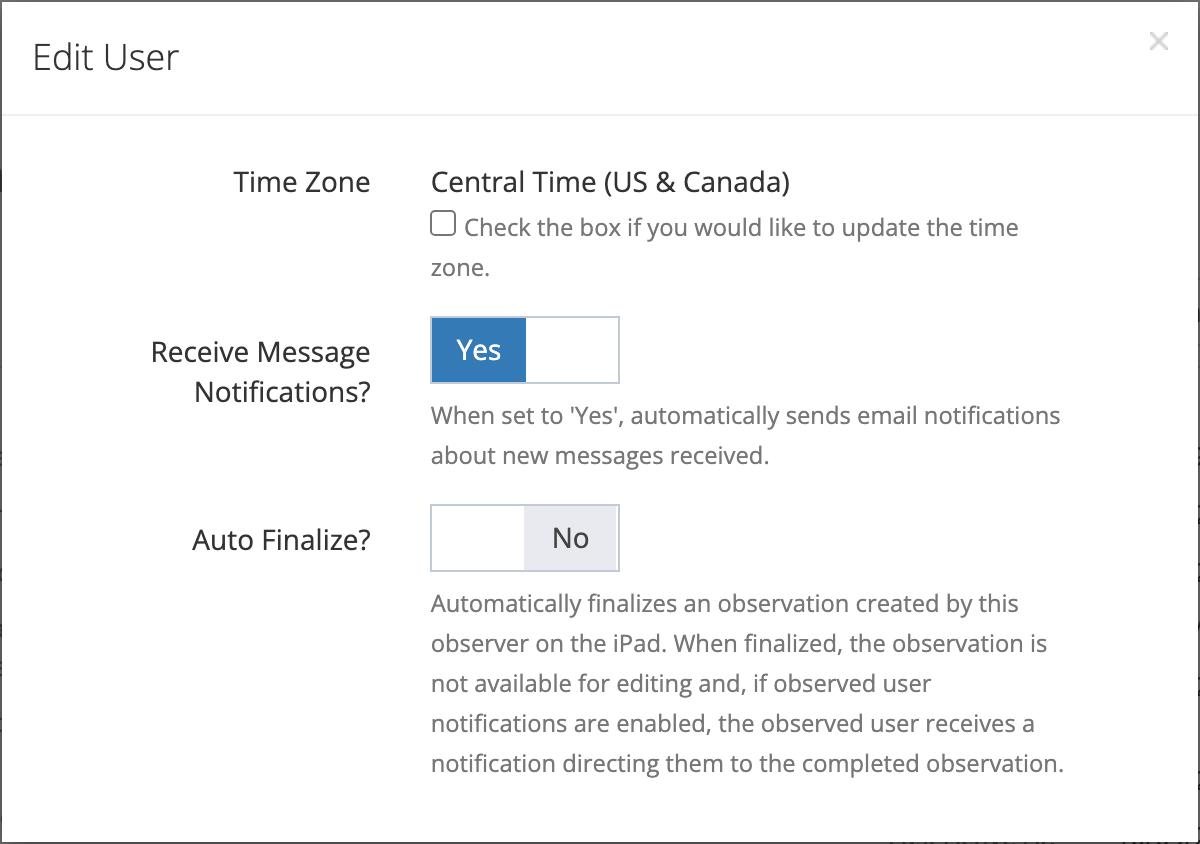
- Time Zone. See Time zones.
- Receive Message Notifications? Turns emails about new messages on or off for this person. It appears only when Enable comments? is on in weCLIMB Settings.
- Auto Finalize? Appears only for observers. The window describes it as finalizing an observer’s iPad observations automatically, but it has no effect today: neither the server nor the current mobile app acts on it. The district default is Auto-finalize on submit? in weCLIMB Settings. On the person’s page, Auto Finalize shows (using district setting) when the person has no value of their own. Saving the New User or Edit User window always saves the switch’s value, so anyone created or edited there no longer follows the district setting. Observers can also change their own value under Observation settings in My Profile (Auto-finalize on submit).
Whether to send an invitation, and when, is chosen as you create each user. See Inviting and Re-engaging Users.
Time zones
Section titled “Time zones”Every person has an active time zone, chosen in this order:
- The time zone saved on the person’s account, if there is one.
- Otherwise, the district time zone, which your account representative sets.
- If neither is set, Central Time (US & Canada).
To give one person a different time zone:
- In Manage Users, open the person, then click Edit.
- Time Zone shows the person’s active time zone. Check “Check the box if you would like to update the time zone.”
- Pick a time zone from the list (it offers U.S. time zones), then click Save.
To send a person back to the district time zone, check the box, clear the selection, and click Save. The Time Zone field does not appear when you edit your own account, and My Profile has no time zone setting, so staff cannot change their own time zone. Ask another system administrator, or your account representative for the district time zone.
The active time zone decides:
- Dates and times on pages, on the web and in the mobile app, for the person signed in.
- Observation PDFs, which use the observed teacher’s time zone.
- Email dates. Observation and acknowledgment emails show the date in the recipient’s time zone.
- Scheduled invitations. You enter a scheduled send time in your own time zone. When yours differs from the person’s, your time zone’s name appears under the date field.
- Exports that run in the background, such as transcript PDFs, which use the time zone of the person who requested them.
Before the school year starts
Section titled “Before the school year starts”- Confirm with your account representative that the right modules and features are on, and that the district time zone is correct.
- Set up class periods, content areas, and grade levels, and attach them to each school.
- If you run performance reviews, create evaluation periods that match your evaluation calendar.
- Review the switches in weCLIMB Settings, including the notification emails, before the first observations go out.
- Add staff by hand, by import, or through Directory Sync, then send invitations.