

Administration
Directory Sync with Microsoft Entra ID
Connect your district's Microsoft Entra ID so staff accounts, roles, and buildings stay in step with your directory.
Directory Sync connects Master Teacher to the directory your district already keeps in Microsoft Entra ID (formerly Azure Active Directory). Once it is set up:
- New staff get an account without anyone typing them in.
- Staff who leave are archived, with their observations, transcripts, and history kept.
- Name and email changes in Entra reach Master Teacher on their own.
- Membership in Entra groups decides each person’s roles and buildings.
Entra sends changes using SCIM, the standard provisioning protocol Entra supports. It sends them in cycles about 40 minutes apart, so a change in Entra shows up in Master Teacher within the hour.
Who can use it: system administrators whose account belongs to the district itself. A system administrator assigned only to a school does not see it. Your Master Teacher account representative turns Directory Sync on for your district. If you don’t see Directory Sync under GENERAL in System Administration, ask them to enable it.
Plan for about 30 minutes with the person who administers Entra for your district. You need someone who can create an enterprise application in Entra.
Before you start
Section titled “Before you start”Decide how your Entra groups line up with Master Teacher:
- Role groups grant roles. For example, a Principals group might grant Organization Administrator and Evaluator, and a Teachers group might grant Observable.
- Building groups place people in a school. For example, Staff - Birchwood Elementary grants the Birchwood Elementary building.
A person’s roles and buildings from the directory are the combination of every mapped group they belong to. Many districts already have groups like these for email lists or Microsoft Teams.
If your district keeps each person’s school in a user attribute instead (Department or Office location, for example), you can use that for buildings too. See Buildings from a user attribute.
Step 1: Start the connection in Master Teacher
Section titled “Step 1: Start the connection in Master Teacher”- Click the gear icon to open System Administration, then click Directory Sync.
- Under Directories, find Microsoft Entra ID and click Set up.
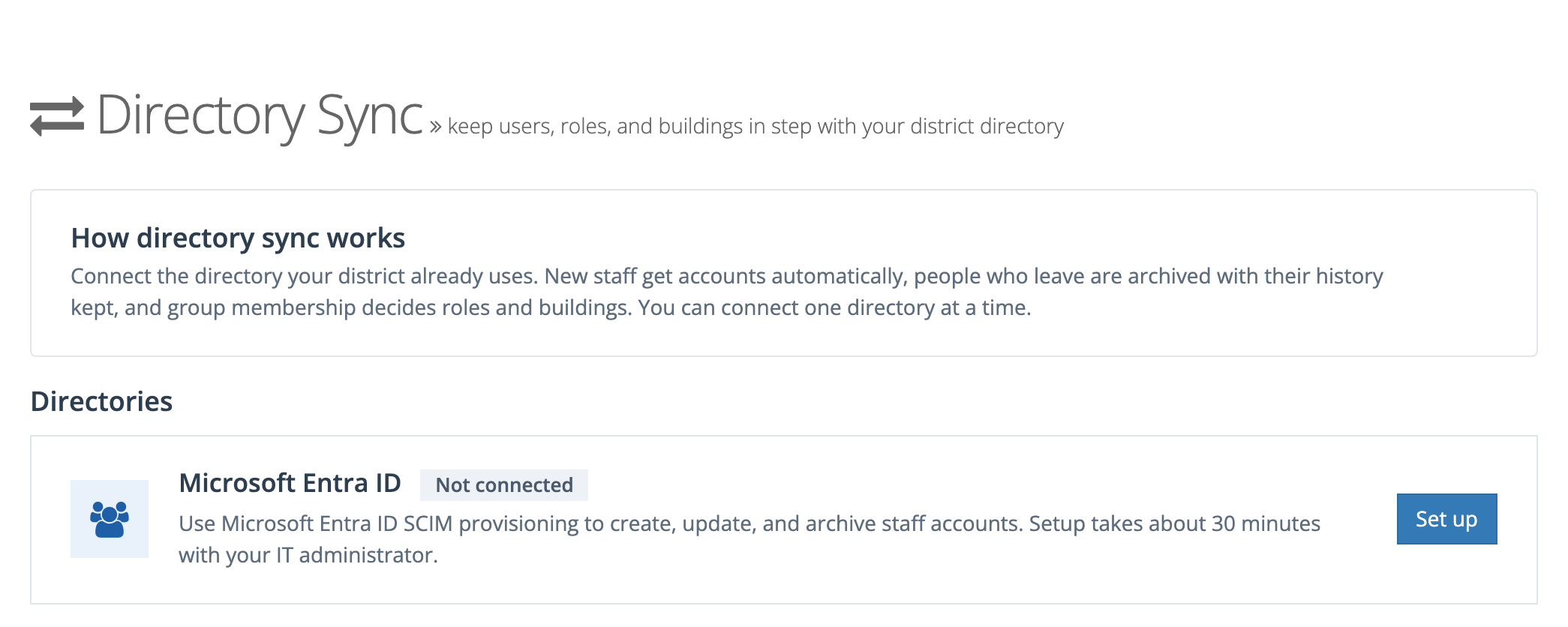
The Microsoft Entra ID page opens. Its Connection section shows the connection status, the Tenant URL you will give Entra (with a Copy button), and Secret tokens, where you generate the token. Until Entra sends its first groups, a Finish setting up checklist below it repeats the steps in this article.
- Click Generate token.
- In the New secret token window, click Copy token. The window warns that the token won’t be shown again. If you lose it, generate a new one.
- Click Done.
The token list then shows the start of each token, when and by whom it was created, and when Entra last used it.
You can keep up to two tokens at a time. A second token lets you move Entra to a new token before you revoke the old one, so sync never stops.
Step 2: Create the enterprise app in Entra
Section titled “Step 2: Create the enterprise app in Entra”These steps happen in the Microsoft Entra admin center (entra.microsoft.com).
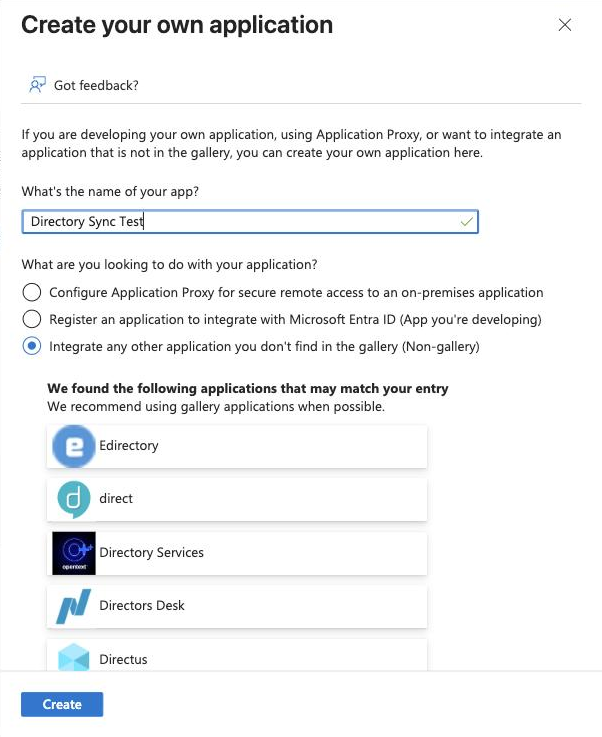
- Go to Entra ID › Enterprise apps and choose New application.
- Choose Create your own application.
- Name it (for example, Master Teacher Directory Sync).
- Choose Integrate any other application you don’t find in the gallery (Non-gallery), then Create.
Step 3: Connect provisioning
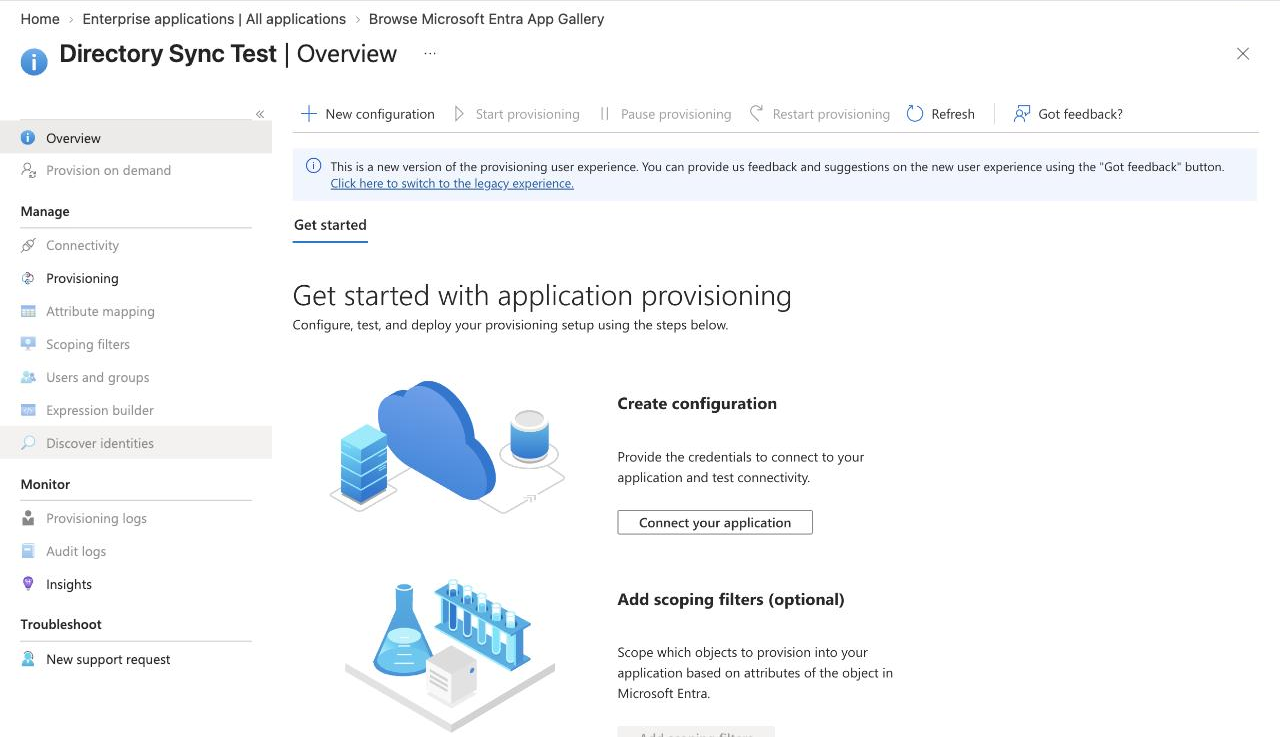
Section titled “Step 3: Connect provisioning”- In the new app, open Provisioning and choose Connect your application (or New configuration).
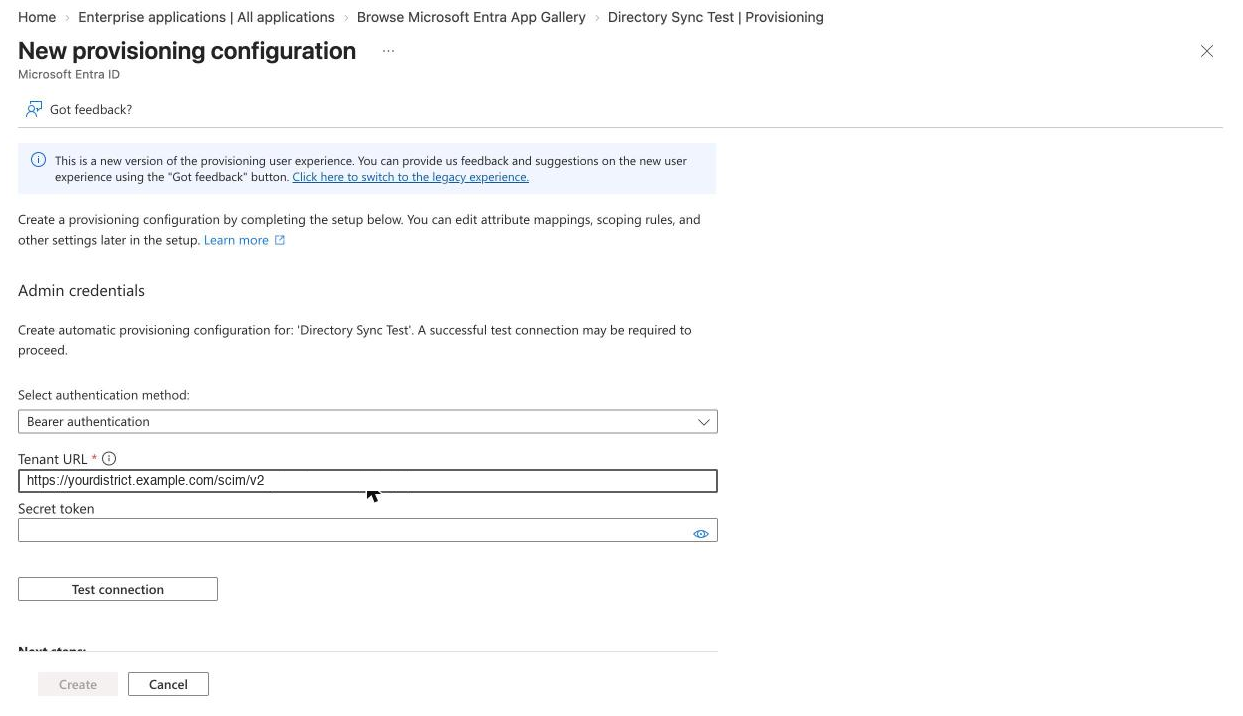
- For Select authentication method, choose Bearer authentication.
- Paste the Tenant URL from Master Teacher.
- Paste the Secret token you copied in Step 1.
- Choose Test connection.
- Choose Create.
Back in Master Teacher, the connection status changes from Waiting for first request to Connected once Entra’s test reaches it.
| Status | What it means |
|---|---|
| Not connected | No token yet. Generate one and paste it into Entra. |
| Waiting for first request | You have a token, but Entra hasn’t used it yet. |
| Connected | Entra is sending requests. The line below shows when the last one arrived. |
| No recent requests | No requests in 7 days. Check the provisioning job in Entra. |
| Token rejected | Entra is using a revoked token. Paste your current token into Entra. |
Step 4: Assign groups and start provisioning
Section titled “Step 4: Assign groups and start provisioning”- In the Entra app, open Users and groups and add the groups that carry roles and buildings. Entra sends only people who are in an assigned group (or assigned directly).
- Open Provisioning and choose Start provisioning.
To try one person first, use Provision on demand in the Entra app. It sends a single user right away instead of waiting for the next cycle.
The first full cycle can take a while for a large district. Master Teacher matches staff who already have an account by email address, so they keep their history instead of getting a second account. An account first created through your district’s single sign-on is matched by its sign-in name.
Once groups arrive, four tiles above Group mappings count Directory users, people Archived by the directory (last 30 days), Groups mapped, and Items need attention.
Step 5: Map groups to roles and buildings
Section titled “Step 5: Map groups to roles and buildings”Groups appear in Group mappings after Entra sends them. A group changes no one’s access until you map it.
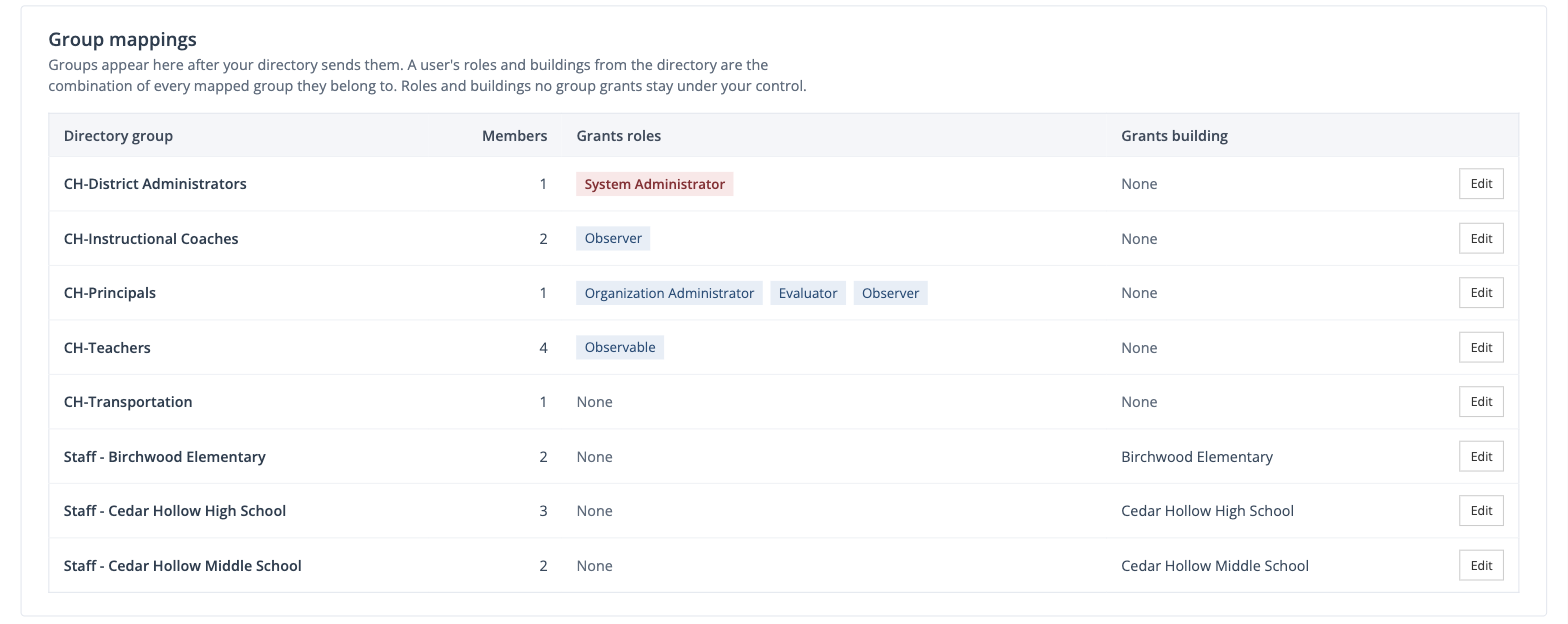
- Click Edit next to a group.
- Under Roles this group grants, check the roles. Under Building this group grants, choose a building (or No building).
- Click Preview impact. Master Teacher shows how many people gain and lose access, and what they gain or lose.
- Click Apply.
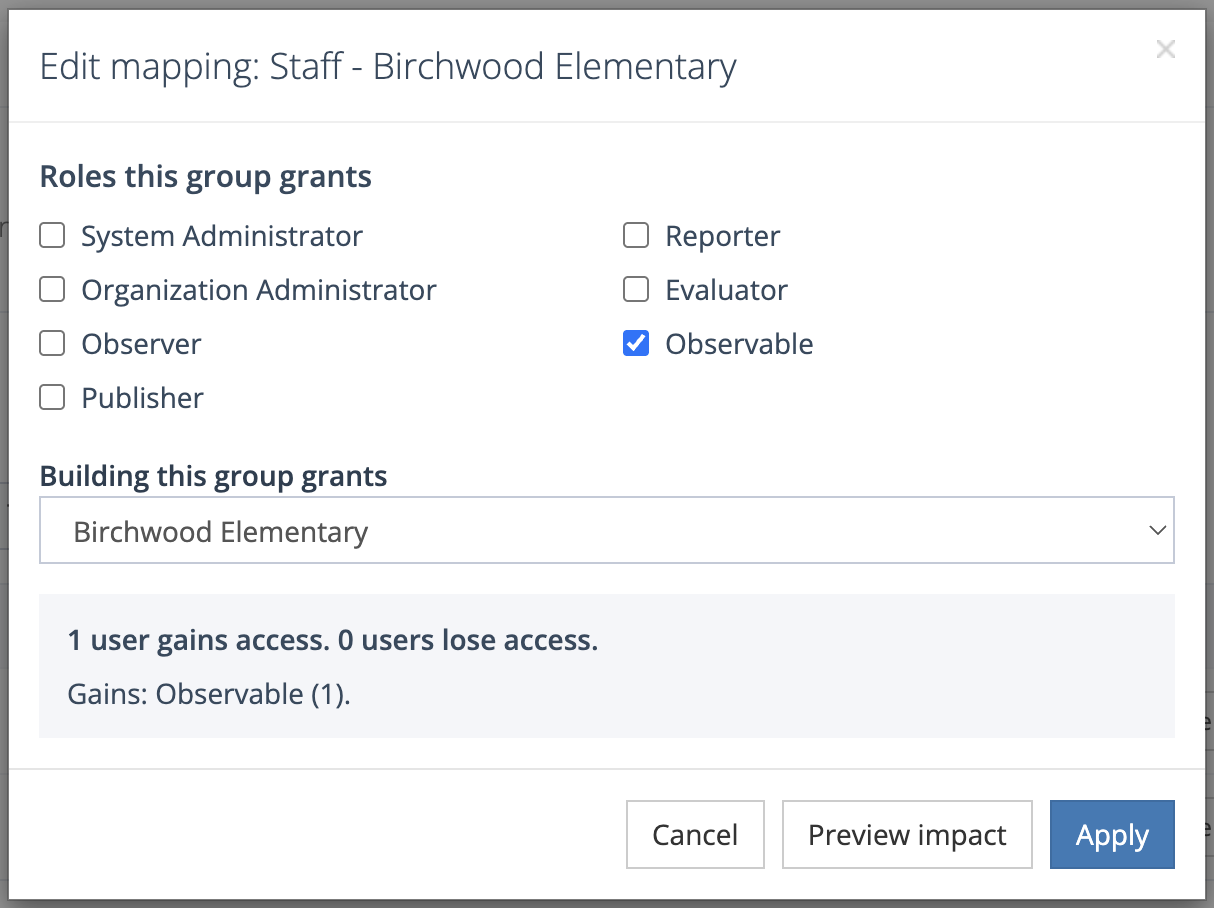
Apply stays unavailable until you preview. If you change a choice after previewing, the window reads “Your choices changed. Preview again before applying.”
The preview also warns you about two cases:
- If the change would take access from many people at once, the removals wait for your approval under Needs attention (see Held change below).
- If the change would remove your last system administrator, it can’t be applied.
What the directory controls, and what stays yours
Section titled “What the directory controls, and what stays yours”The directory controls only the roles and buildings that at least one mapped group grants. Everything else stays under your control.
For example, if no group grants Reporter, you keep assigning Reporter by hand in Manage Users, and the directory never removes it. If a group does grant Evaluator, then Evaluator follows group membership: someone who leaves that group loses it.
System Administrator groups
Section titled “System Administrator groups”When a mapping would grant System Administrator, the preview asks you to check “I understand that anyone in this group can become a system administrator for the whole district once I approve them.” Even then, each person the group would make a system administrator waits under Needs attention until you click Approve.
A group change never removes the System Administrator role from your last system administrator. That person keeps the role and appears under Needs attention as Kept as your last system administrator. If Entra removes or disables that person’s account, Master Teacher archives it and Needs attention tells you to add someone to a System Administrator group in Entra or ask your account representative to add an administrator. That notice has a Dismiss button.
Buildings from a user attribute
Section titled “Buildings from a user attribute”If a person is in no building group, Master Teacher can place them using a user attribute instead. Group mappings always win when both apply.
- Under Settings, choose an attribute for Building from user attribute. It starts
on Don’t use an attribute. The choices are:
- Department
- Office location
- Building (custom attribute), for districts that keep the school in another field.
Your Entra administrator maps that field to
urn:ietf:params:scim:schemas:extension:directorysync:2.0:User:buildingin the app’s Attribute mapping.
- Click Map values to buildings.
- Next to each value your directory sends, choose a building (or leave it Not mapped), then click Save. Matching ignores capital letters and extra spaces.
Until every value is mapped, the Settings section shows how many values are unmapped.
Settings
Section titled “Settings”The Settings section saves each change as you make it.
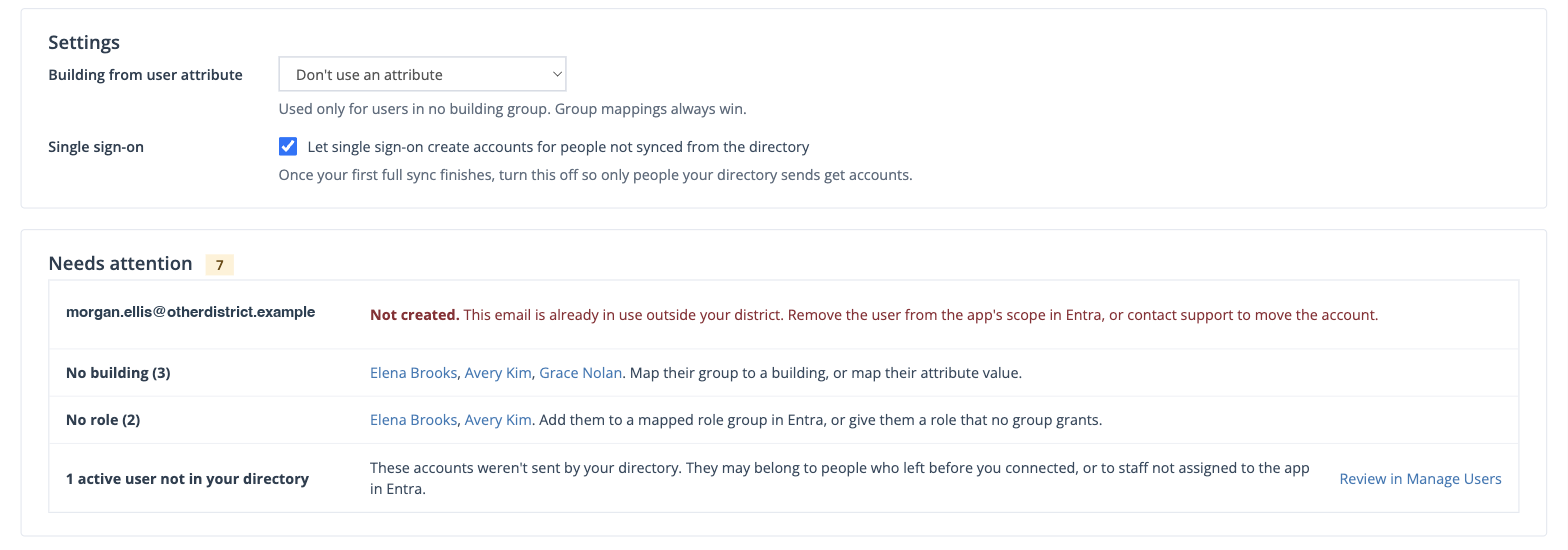
Single sign-on. Let single sign-on create accounts for people not synced from the directory starts checked. While it is checked, anyone who signs in with your district’s single sign-on gets an account even if the directory hasn’t sent them. Leave it on during your first sync. Once the first full cycle finishes, turn it off so only people your directory sends get accounts.
Directory users sign in with your district’s single sign-on. Master Teacher sends them no invitation emails.
Needs attention
Section titled “Needs attention”This list shows what Directory Sync could not settle on its own. When it is empty, it reads “Nothing needs your attention.”
| What you see | What it means | What to do |
|---|---|---|
| An email with Not created | The email belongs to an account outside your district. | Remove the person from the app’s scope in Entra, or contact support to move the account. |
| A name that “Matches” an account you archived | Someone the directory sent has the same email as a person you archived. | Link to archived account restores that account with its history. Start fresh creates a new account. |
| A name “Added to a group that grants System Administrator” | A group would make someone a system administrator. | Approve or Decline. |
| A system administrator whose email the directory changed | Password resets go to that address, so it changes only with your approval. | Approve or Keep current email. |
| Held change for a number of users | One directory change would remove access from more people than the safety limit: 10% of your directory users, but never fewer than 5 or more than 25. | Apply removals if it was intended. If it was a mistake, undo it in Entra, then click Dismiss. |
| No building | People the directory sent who have no building. | Map their group to a building, or map their attribute value. |
| No role | People the directory sent who have no role. | Add them to a mapped role group in Entra, or give them a role that no group grants. |
| Observable role withheld | Your observable limit is reached, so these people did not get the Observable role. | Archive observables you no longer need, or ask your account representative for more. |
| Organization administrator for buildings from several groups | These people administer every building they belong to. | Check that this is intended. |
| Kept as your last system administrator | Their group no longer grants System Administrator, but they are your only one. | If this person should lose the role, give another account the System Administrator role first. The directory can remove it on a later change. |
| active users not in your directory | Accounts the directory has never sent. They may belong to people who left before you connected, or to staff not assigned to the app in Entra. | Click Review in Manage Users. |
Recent activity
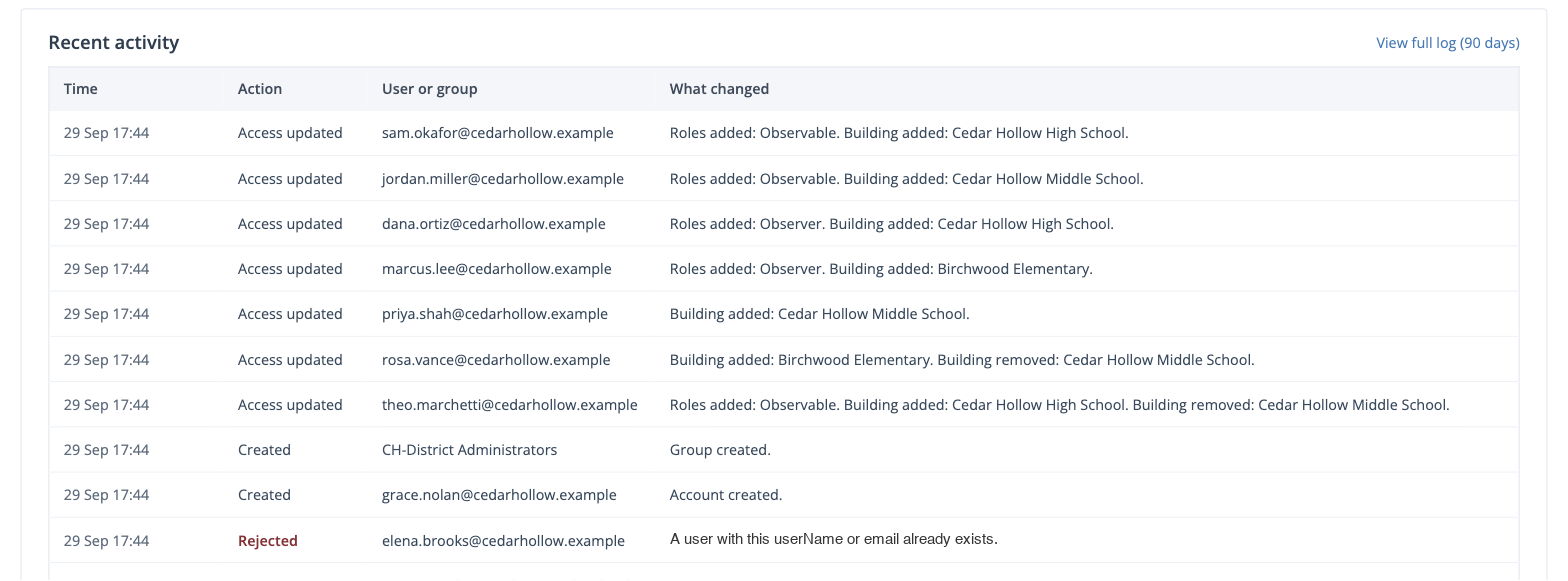
Section titled “Recent activity”Recent activity lists each account and group Entra created, changed, or removed, and each role and building change that followed. Each row shows the Time, the Action, the User or group, and What changed. A request Master Teacher turned away reads Rejected or Failed. Click View full log (90 days) for the complete history.
Directory users in Manage Users
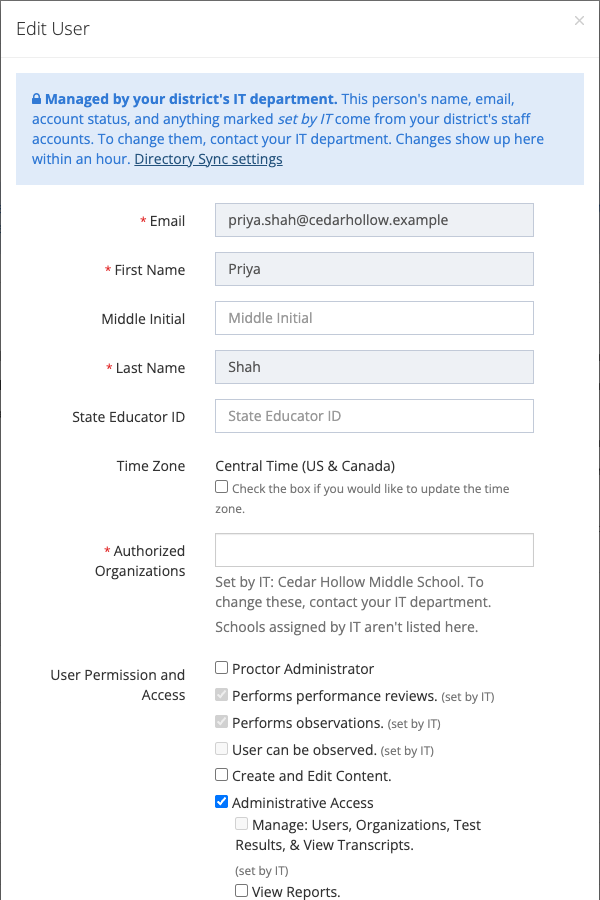
Section titled “Directory users in Manage Users”A person the directory manages shows a Managed by your district’s IT department. notice on their page and in the Edit User window. Principals and other staff who manage users see that the change belongs to IT, and the notice tells them to contact the IT department.
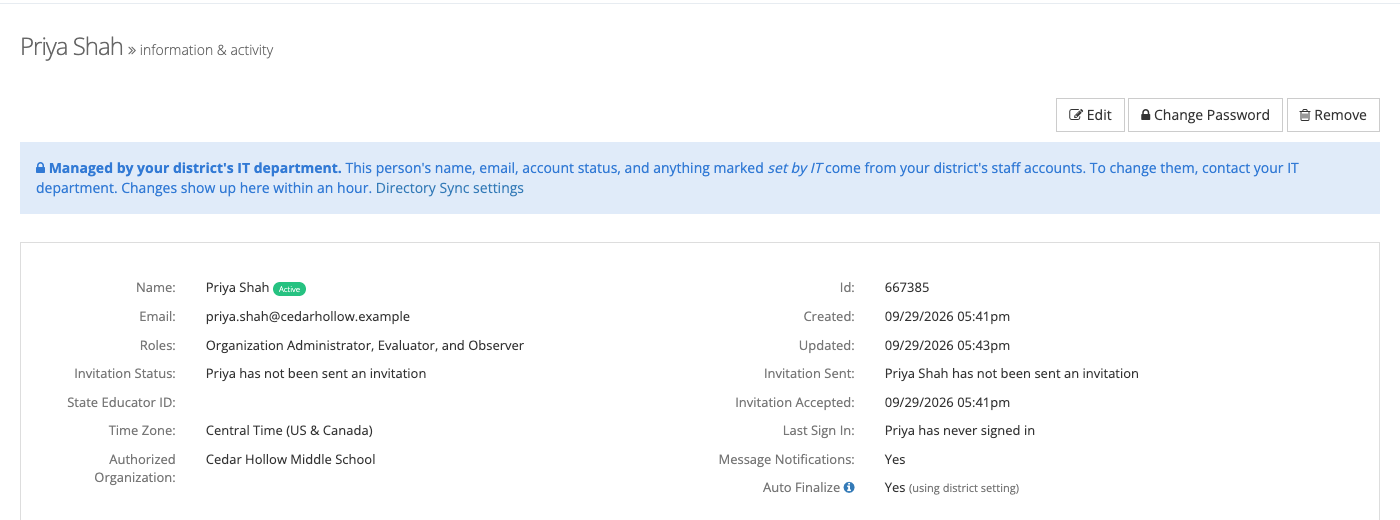
For these people:
- Name, email, and account status come from Entra and can’t be edited in Master Teacher.
- Roles a mapped group grants are marked (set by IT) and can’t be changed here. Roles no group grants can still be edited.
- Buildings a group grants are listed under Authorized Organizations as Set by IT: followed by the building names. For someone in many buildings, the line names three and gives a count for the rest. These buildings aren’t offered in the list (“Schools assigned by IT aren’t listed here.”). To put someone in one of them, add them to its group in Entra.
- Archiving is handled by the directory. When Entra removes someone or marks them disabled, Master Teacher archives them and keeps their history.
- Bulk archive and bulk organization changes skip directory users. A user import keeps the buildings the directory grants.
Replacing a token
Section titled “Replacing a token”- Click Generate a second token and copy it.
- In Entra, paste it into the app’s Secret token and choose Test connection.
- In Master Teacher, click Revoke next to the old token, then Revoke token to confirm. Entra requests that use the old token fail right away.
If the connection status shows Token rejected, Entra is using a token that was revoked. Paste your current token into Entra, or generate a new one.
Disconnecting
Section titled “Disconnecting”- At the bottom of the page, click Disconnect….
- Read the summary, then click Disconnect directory.
Disconnecting revokes every token and returns directory users to manual control. They keep their current roles and buildings, nothing is deleted, and your group mappings are kept in case you reconnect. Turn off provisioning in the Entra app as well, so Entra stops sending requests.