

Reseller Notes
Reseller Notes: Directory Sync with Microsoft Entra ID
What Directory Sync does, how to turn it on for a district, what to tell the district's IT staff, and what to say when a district asks.
Published
Districts that keep their staff in Microsoft Entra ID can now connect it to Master Teacher. Entra then creates accounts for new staff, archives people who leave, keeps names and emails current, and assigns roles and buildings from Entra group membership.
This is the most common request from larger districts at the start of a school year, when hundreds of accounts change at once.
It is off by default. A district sees nothing new until you turn it on for them.
Screens below are from a fictional district built for this document. Every name, school, and email address in them is invented.
Turning it on for a district
Section titled “Turning it on for a district”- In the reseller portal, open the district under Accounts and choose Edit.
- Set Enable Directory Sync (SCIM)? to Yes and save.
The district’s system administrators then see Directory Sync in their side menu. Only system administrators whose account belongs to the district itself can open it.
Turning the switch off again stops Entra’s requests from being accepted. Accounts the directory created stay as they are.
What the district needs
Section titled “What the district needs”- Microsoft Entra ID, and someone who can create an enterprise application there (usually the district’s IT administrator).
- About 30 minutes for the first setup.
- Groups that line up with roles and schools. Most districts already have them for email lists or Teams, such as Principals, Teachers, or Staff - Lincoln Elementary.
- Single sign-on with Microsoft, so directory users can sign in. Directory users get no invitation email. See Single sign-on alongside Directory Sync.
Questions to ask the district’s IT before setup
Section titled “Questions to ask the district’s IT before setup”Five answers decide how the setup goes. Ask them on the first call.
- “How do you record which school someone works in: groups, a user attribute such as Department or Office, or both?” Groups work best. A person in two buildings sits in two groups and gets both. An attribute holds one value, so it can only place a person in one building. Use it as a fallback for people in no building group.
- “Are your building groups nested inside another group, such as All Staff?” Entra does not follow nested groups when it provisions an app. If the district assigns a parent group, only people directly in that group come across, not the members of the groups inside it. They need to assign each building group to the app directly.
- “Do you have groups for roles, such as Principals, Instructional Coaches, and Teachers?” If not, their IT can create them, often as dynamic groups built from job title. Or the district can keep assigning roles by hand in Master Teacher. The directory never changes a role that no group grants.
- “Could any group you plan to assign contain students?” Everyone in an assigned group gets an account. They should assign staff-only groups, or add a scoping filter in Entra (for example, on employee type) that leaves students out.
- “Does your Microsoft license include Entra ID P1?” Assigning groups to an app needs P1, which comes with Microsoft 365 A3 and A5. Without it, Entra only lets them assign people one at a time.
Point the district’s administrator to the help article Directory Sync with Microsoft Entra ID. It walks through both the Master Teacher and the Entra side, with screenshots.
What the district sees
Section titled “What the district sees”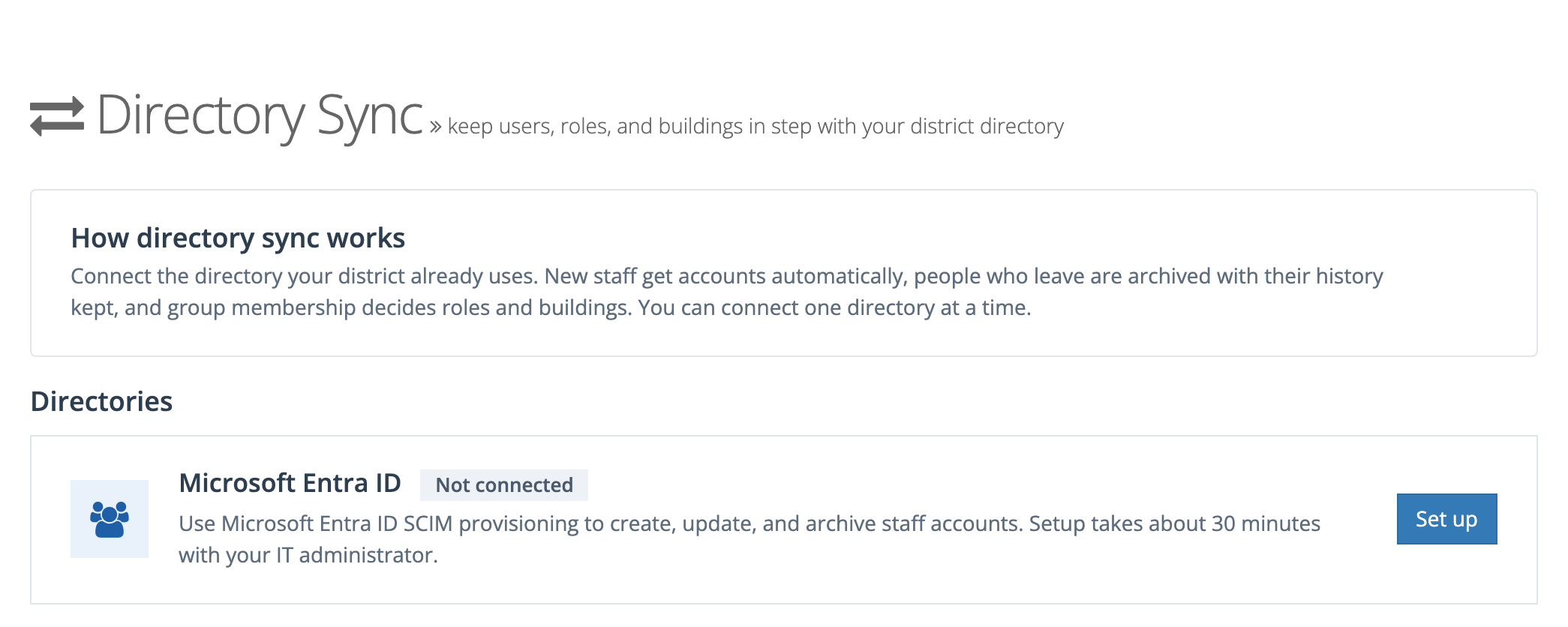
Directory Sync lists the directories a district can connect. Microsoft Entra ID is the only one today. If a district asks for Google Workspace, Okta, Clever, or ClassLink, please pass the request on: requests decide which directory comes next.
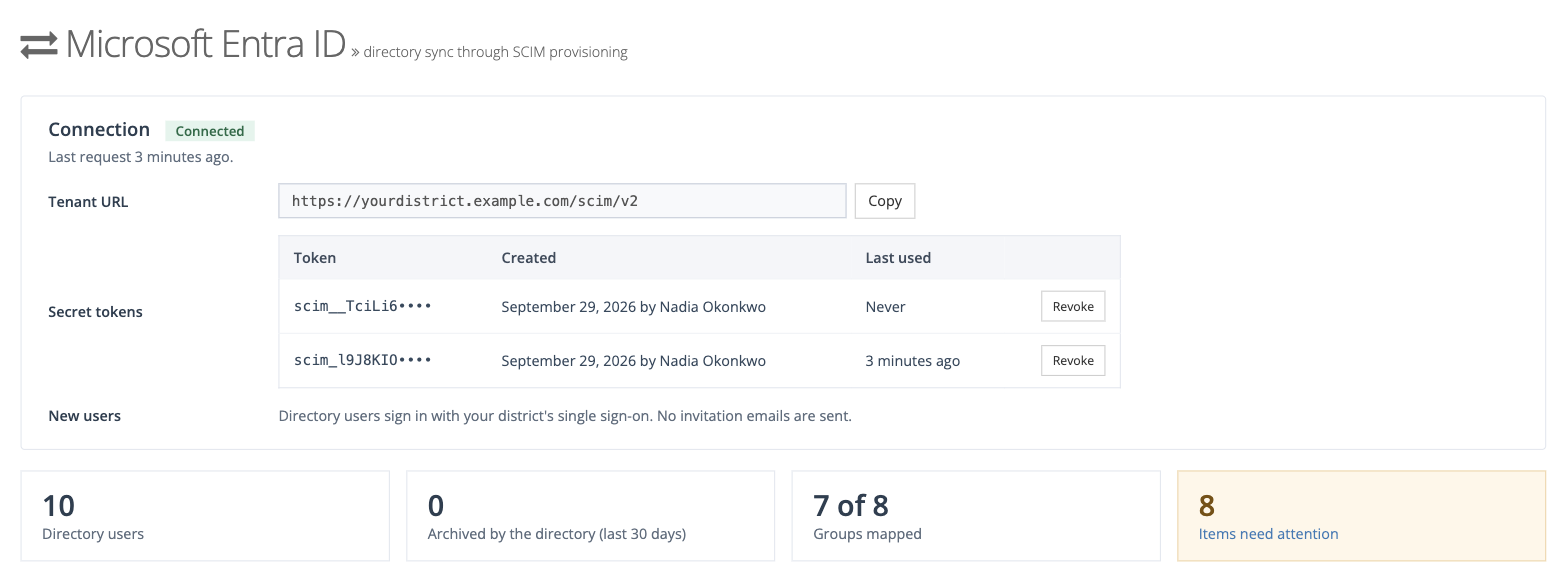
The district copies a Tenant URL and a one-time secret token into Entra’s provisioning settings. The token is shown once. If they lose it, they generate a new one.
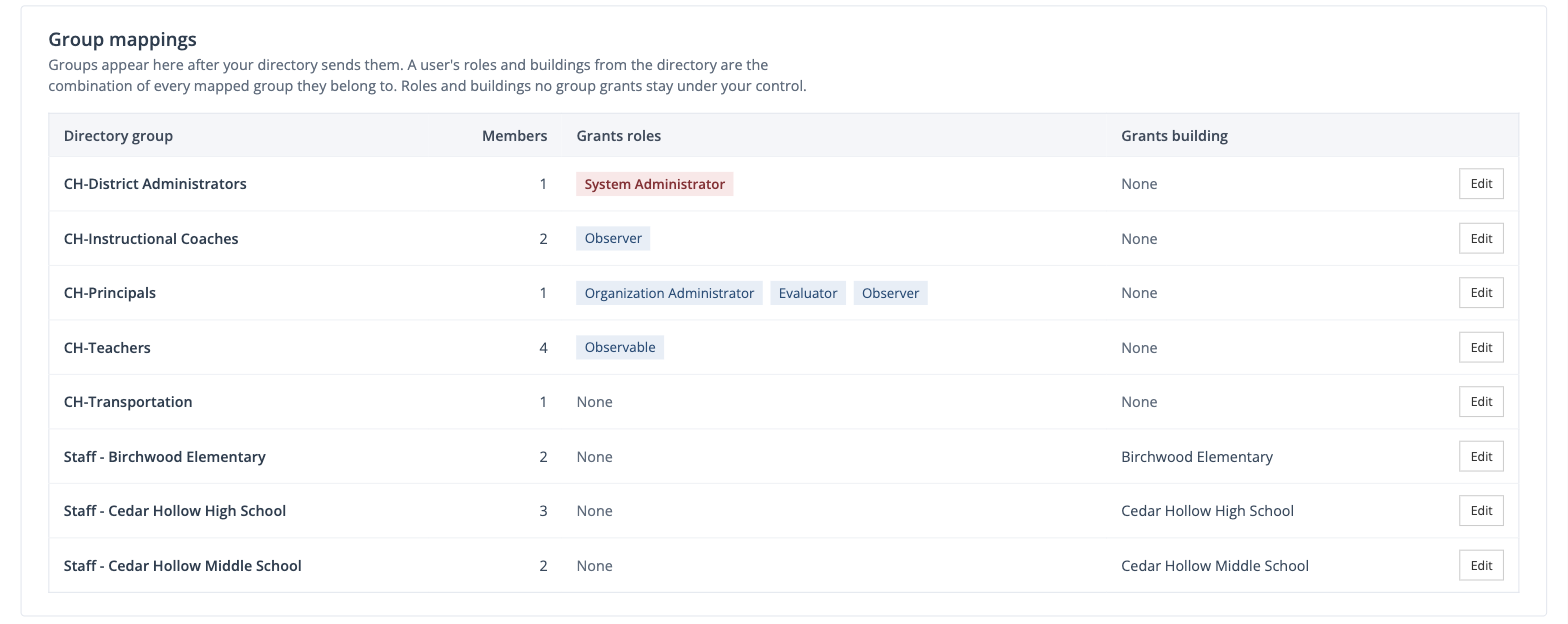
Once Entra sends its groups, the district maps each one to the roles and building it grants. A group changes nobody’s access until it is mapped, and every change is previewed first.
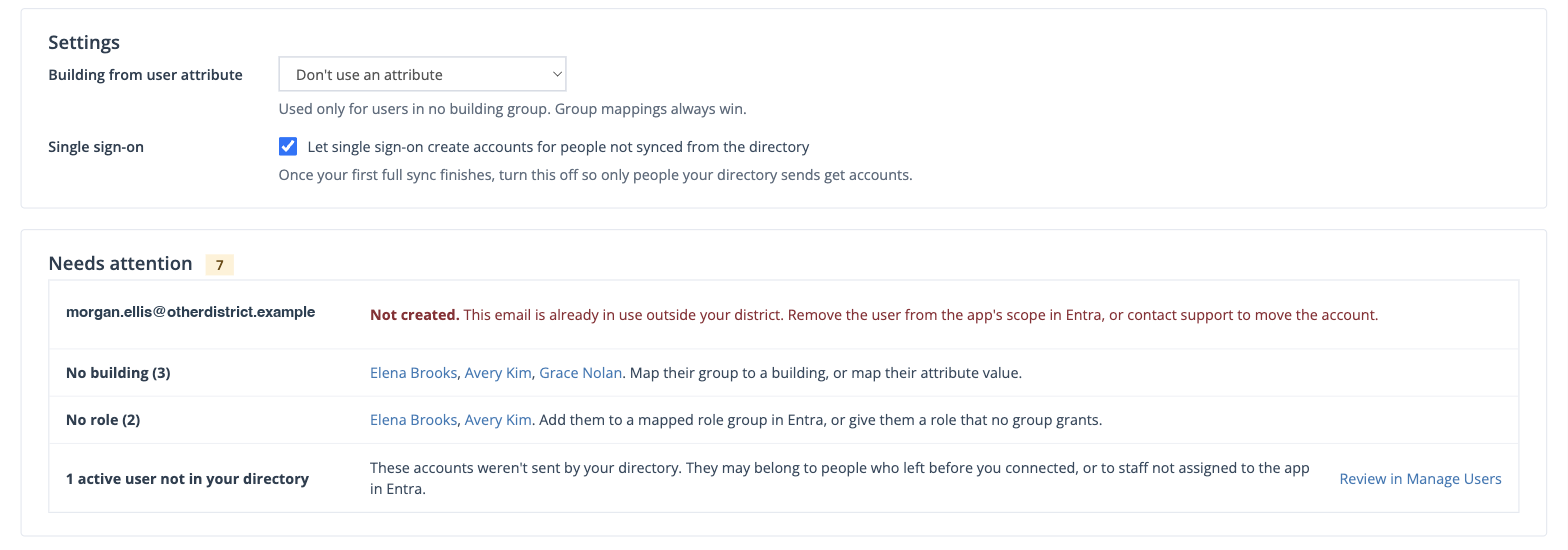
Needs attention collects anything that needs a person’s decision.
Single sign-on alongside Directory Sync
Section titled “Single sign-on alongside Directory Sync”Directory Sync and single sign-on are meant to run together. Directory Sync decides who has an account and what they can do. Single sign-on is how those people sign in. Accounts the directory creates have no password anyone knows, so without single sign-on a directory user’s only way in is Forgot password.
What to tell the district:
- Sign-in finds the directory account. Master Teacher matches a Microsoft sign-in to the account the directory created, using the person’s Entra sign-in name first and their email second. A district whose sign-in names differ from their email addresses still lands people in the right account.
- People who leave lose access right away. When the directory archives someone, single sign-on stops letting them in, even if their Microsoft account still works for other things.
- Turn off account creation after the first sync. While Let single sign-on create accounts for people not synced from the directory is on, anyone who can sign in with the district’s Microsoft domain gets an account. That can include students if they share the domain. Leave it on during the first sync, then turn it off so only people the directory sends get in.
- Order matters less than it looks. If single sign-on has already been running, the accounts it created are matched and taken over when the directory sends the same person. Nobody gets a second account, and their history stays.
- Assign the same groups in both places. If the district’s single sign-on app in Entra is set to require assignment, the groups assigned to Directory Sync need to be assigned there too, or synced people will be turned away at the Microsoft sign-in screen.
Safeguards worth knowing
Section titled “Safeguards worth knowing”-
Roles no group grants stay manual. If a district hands out Reporter by hand and no group grants it, the directory never touches it.
-
System Administrator is never automatic. Each person a group would make a system administrator waits for approval.
-
A system administrator’s email changes only with approval. This protects password resets.
-
The last system administrator is kept. The directory can’t lock a district out.
-
Large removals wait. If one change would take access from many people at once, it is held for review.
-
Observable limits hold. When a district reaches its licensed observable count, new people don’t get the Observable role, and the district sees why under Needs attention.
-
History is kept. People who leave are archived, never deleted.
What did not change
Section titled “What did not change”- Districts not using Directory Sync see nothing new.
- Single sign-on setup is unchanged. Directory Sync works alongside the district’s existing Microsoft sign-in.
- Licensing is unchanged. Directory Sync creates ordinary user accounts.
- Manual user management still works for anyone the directory does not send, and for roles and buildings no group grants.
If a district asks
Section titled “If a district asks”| They say | You can say |
|---|---|
| ”Can we sync with Active Directory?” | Yes, through Microsoft Entra ID, which is how Microsoft connects Active Directory to cloud apps. If their Active Directory already syncs to Entra, they’re ready. |
| ”Do you support Google, Clever, or ClassLink?” | Not yet. Entra is first. Please tell us, because requests decide what comes next. |
| ”Will teachers lose their history?” | No. Existing staff are matched by email and keep their accounts. People who leave are archived, not deleted. |
| ”Will it wipe our roles?” | Only roles and buildings that a mapped group grants follow the directory. Anything else stays as they set it. Every mapping change is previewed first. |
| ”Someone didn’t come across.” | They need to be in a group assigned to the app in Entra. If their email belongs to an account in another district, they appear under Needs attention as Not created, and support can move the account. |
| ”How fast are changes?” | Entra sends changes about every 40 minutes. Entra’s Provision on demand sends one person right away. |